We’ve just been Street Viewed…


In the spirit of The Register‘s mission to snap the snappers here’s my contribution. As one of Google’s cars passed the office this morning I took the opportunity to do unto Google as they were doing unto me:

EDIT:

Sure enough, I can see myself in the first-floor window snapping my picSnapping the snappers:


Posted in Uncategorized | Comments Off on We’ve just been Street Viewed…

Mailboxes that just won’t migrate…

With over 48,500 mailboxes now running successfully on Exchange 2010 it’s tempting to think of the migration as ‘done’. But appearances can be deceiving: at the beginning of last week I was stuck with twelve mailboxes remaining –  none of which would migrate. Because I’ve been using the ‘SuspendWhenReadyToComplete‘ switch it allows the job to get to the autosuspended stage successfully. That gives an illusion of success – but any attempt to actually complete the migration of these mailboxes failed, at the final hurdle, with a MAPI error.

Initially there didn’t seem to be a great deal of obvious help when reviewing the migration logs either. The logs reported zero corrupt items so the usual fix (deleting the problem messages) couldn’t apply. What you do see is a failure type listed as:

MapiExceptionInvalidParameter

This is elaborated a little as:

 Error: MapiExceptionInvalidParameter: Unable to modify table. (hr=0x80070057, ec=-2147024809)

Sadly it transpires that this is far from an unusual reason for a move to fail – there are literally dozens of posts and queries about it on the search engines – and the calibre of the options you’re presented with to fix it vary wildly depending on which sites feature most prominently in your preferred engine’s results.

Let’s take a look at what’s recommended.

  • Rules and Out-Of-Office
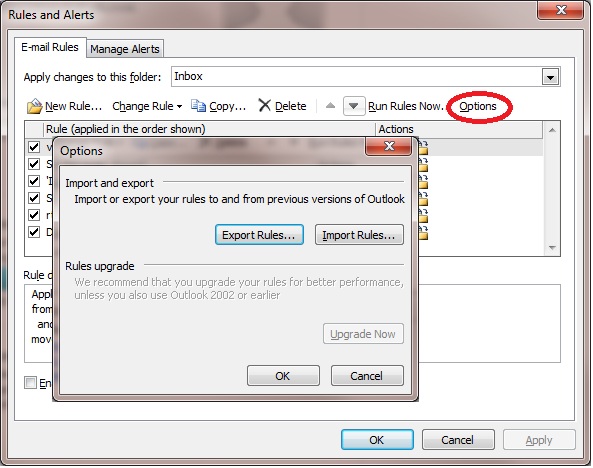
    The standard recommendations usually start with a suggestion that the user searches for (and removes) their rules from the mailbox, also checking for broken Out-Of-Office messages (which are often overlooked although they’re also a kind of rule). To add insult to injury hardly anyone ever seems to mention that Outlook has the facility to export those rules beforehand. I’d be pretty cheesed off it all of my carefully-crafted rules were callously wiped out without that simple prior precaution:So what’s the next step? Once you’ve got that backup of those rules (!) conventional advice is to  launch Outlook with the /CLEANRULES switch to make sure that you really are rid of them.  But that’s not terribly helpful if that user’s only email client is on Linux.
  • MFCMAPI
    Many sites recommend delving into the mailbox using a tool such as MFCMAPI. Our strict rules about user mailbox privacy seemed pretty certain to preclude me from going down that route except as a last resort.
  • Export-Mailbox
     This Powershell cmdlet is the server-side equivalent to an Outlook export but it has a far lower tolerance to MAPI errors. It was unlikely to work here and, even after approval to try it for one user had been obtained, it bombed out with MAPI errors, as expected.

The most viable remaining option for me – to avoid any accusation of privacy-violation – seemed to be to reattempt the move invoking the -IgnoreRuleLimitErrors switch but, again, that was running the risk of jeopardising user content. I’m sure it’s all a lot easier in an organisation with managed desktops rather than our ISP-style service! Disappointingly it seemed that, in cases like these, there was always going to be some kind of imposed data loss but with a likelihood of not knowing exactly what was being sacrificed.

Instead I returned to the logs looking for inspiration from a couple of these mailboxes that I had managed to migrate. Below is an abridged version of what a failed-with-MAPI-error migration log looks like. The vital clue is right at the end:

18/05/2012 14:10:34 [MBX09] ‘<name>‘ created move request.
18/05/2012 14:10:37 [CAS03] The Microsoft Exchange Mailbox Replication service ‘CAS03.ad.oak.ox.ac.uk’ (14.1.355.1 caps:07) is examining the request.
18/05/2012 14:10:37 [CAS03] Connected to target mailbox ‘Primary’, database ‘db005’, Mailbox server ‘MBX01.ad.oak.ox.ac.uk’ Version 14.1 (Build 218.0).
18/05/2012 14:10:37 [CAS03] Connected to source mailbox ‘Primary’, database ‘EXMBX04\SG03\EXMBX04SG03’, Mailbox server ‘EXMBX04.ad.oak.ox.ac.uk’ Version 8.3 (Build 192.0).
18/05/2012 14:10:37 [CAS03] Request processing started.
18/05/2012 14:10:37 [CAS03] Mailbox signature will not be preserved for mailbox ‘Primary’. Outlook clients will need to restart to access the moved mailbox.
18/05/2012 14:10:37 [CAS03] Source Mailbox information before the move:
Regular Items: 25508, 2.545 GB (2,732,488,589 bytes)
Regular Deleted Items: 670, 55.41 MB (58,104,875 bytes)
FAI Items: 27, 0 B (0 bytes)
FAI Deleted Items: 0, 0 B (0 bytes)
<SNIP>
18/05/2012 14:19:09 [CAS03] Final sync has started.
18/05/2012 14:19:19 [CAS03] Changes reported in source ‘Primary’: 0 changed folders, 0 deleted folders, 1 changed messages.
18/05/2012 14:19:19 [CAS03] Incremental Sync ‘Primary’ completed: 1 changed items.
18/05/2012 14:19:22 [CAS03] Fatal error MapiExceptionInvalidParameter has occurred.
Error details: MapiExceptionInvalidParameter: Unable to modify table. (hr=0x80070057, ec=-2147024809)
Diagnostic context:
  <SNIP>
——–
Folder: ‘/Top of Information Store/Deleted Messages’, entryId [len=46, data=<long string of hex>], parentId [len=46, data= <long string of hex> ]
18/05/2012 14:19:22 [CAS03] Relinquishing job. 

There’s the problem! A folder called ‘Deleted Messages’ which is found right at the top of the Information Store for eight of the remaining users’ mailboxes. This is beyond a coincidence and strongly suggests to me that this folder has been added by a particular email client. I have my suspicions about which one…

Problem solved!

Sure enough, if the user removes this ‘Deleted Messages’ folder from their mailbox they can then be migrated successfully.  It seems that it’s not the messages within it that are the problem – it all seems to be tied in to that particular folder, empty or otherwise. A review of the failed migration logs for the other remaining users found a similar issue for two of them: a folder called ‘Trash’. The similarity of likely purpose suggests that a similar client-based trend could be at work here. Again, I’m hoping that the users will remove these folders and the migration will succeed.

This still leaves us with two unfortunate users who have a different problem with their mailbox migration: the move hangs at the ‘completing’ stage. This is the one point where a user is actually blocked from their mailbox and in Ex2010 it’s rarely noticeable (it should be momentary). But with these two users the ‘completing’ stage keeps on going. Eventually it times out and permits the user back into the mailbox that it’s been blocking. I’ve had to tweak the MSExchangeMailboxReplication.exe.config file again (on a default installation you’ll find it here: C:\Program Files\Microsoft\Exchange Server\V14\Bin) to bring the MaxRetries property down from its default of 60. Without that change these two poor users would effectively be blocked from their email for the best part of a day every time I reattempted their upgrade.

 Last Resort

If all else fails it’s likely that you’ll need to bite the bullet and dive into the world of database repair tools. Backups, Outlook exports and taking a copy of the EDB file are all sensible precautions before going any further.

The old favourite, ISINTEG, makes what will probably be its last ever appearance here. I’m unlikely to need it again in the future: it’s been superseded by two Powershell cmdlets (New-MailboxRepairRequest  and New-PublicFolderDatabaseRepairRequest) for Exchange 2010. I won’t mourn the loss of ISINTEG much though. The new cmdlets don’t require the database to be dismounted and can be limited in scope to just the one mailbox under examination which represents a huge leap forward. It’ll also be nice not to have to leave Powershell and head over to the command prompt just to get it to work. For old times’ sake, here’s the syntax:

Isinteg –s /<servername> –fix –test alltests

The final step could well be the nuclear option of ESEUTIL. Aside from one relatively harmless switch (/D for defragmentation)  all of the likely uses for this tool will lose something from the store. Rather than go there though in this instance I’m able to escalate the issue. So I’m awaiting Microsoft’s recommended solution rather than ploughing on alone. I’ll update this post when they’ve provided some further ideas.

 UPDATE 28th May 2012: The Last Three Users

The last three Exchange 2007 mailboxes included the two mailboxes which had the hang-on-commit delay and a third where the corruption was the ‘Deleted Items’ folder itself. After several false starts and dead-ends (including an attempt to remove Deleted Items using MFCMAPI and use of Outlook’s /resetfolders switch) I eventually had to concede that time was against me.  It would have been preferable to both understand and solve the issue but to continue diagnosing would potentially leave these users’ mailboxes without backup, due to an imposed end of May deadline for ceasing the Exchange 2007 backup service.

The workaround was to export the mailbox content, rules (and every conceivable account setting) then disable the mailbox and create a brand-new one on an Exchange 2010 server. The settings were then reinstated (so the user could get back to sending and receiving) while the mailbox’s backup was gradually restored, backfilling the mailbox. The orphaned Exchange 2007 mailbox was then connected to a generic created-for-the-purpose user just in case any of the mailbox content hadn’t made it across.


Posted in Uncategorized | 8 Comments

Batch migrations

To keep our migrations under control I’ve been relying very heavily on the use of batched migration runs.  The process I’ve followed uses the ‘suspendwhenreadytocomplete’ value which performs the normal migration, copying the entire set of users’ mailboxes, but – crucially – stops the process just before the final stage where the changes are committed to the directory.

The really great thing about doing things this way is that, almost as an incidental benefit, the vast majority of corrupt mailbox content will be revealed through this exercise: those mailboxes fail to reach that ‘autosuspended’ stage. Yet getting to that point doesn’t  impact end users at all: they remain active and oblivious on their old server all the way through the job.

I used this feature to benchmark the migration process for one department and get a feel for for how long it might take to do this on a larger scale. When the final stage was ready we could just resume the task, via an overnight scheduled task. The momentary interruption when the mailbox is locked, for that final ‘commit’ phase, shouldn’t affect anyone. Our tests showed that even users actively accessing their mailboxes during the move weren’t adversely affected. Well, except for Mac users… More on that later.

Initially we had planned to use this auto-suspend capability to migrate the entire user base of 50,000 mailboxes in one go, but a lack of documentation from anyone else having tried it on that scale caused some raised eyebrows. The compromise required a rethink on mailbox distribution and some careful tweaking of circular logging. I used circular logging to keep log files manageable during the phase where mailboxes get copied. This was followed by a full backup, then circular logging was switched off before finally committing the changes. Although this added extra steps it did ensure that our backups were able to cope with the extra content without contending with vast numbers of logfiles that would’ve otherwise been generated by the mailbox moves.

There were several distinct phases to our migration which, due to our scale, were to be repeated across twenty separate migration runs. Each one went through these steps:

  1. Export from the GAL a CSV file containing the aliases of the mailboxes to be upgraded. I included primary SMTP address and department data so that a version of this same file could be used for a mail merge in the next step.
  2. Notify users of the upgrade – one week prior to the planned date.
  3. Create the move requests and launch them, using the ‘SuspendWhenReadyToComplete’ option.
  4. Turn off circular logging on the destination databases and back them up.
  5. Schedule an overnight ‘resume’ of the autosuspended mailboxes to complete the migration.

I came up with a bit of PowerShell (later optimised a little further by a colleague by the addition of logging and setting file attributes) to allow the bulk of the mailbox copying to take place without colleagues needing to remember the exact syntax of the command. It relies on you having a prepared CSV file with at least the following values in it:

Alias,TargetDB
UserAlias1,Database1
UserAlias2,Database2

The script assumes you’ll have saved the file as ‘c:\MIGRATION.CSV’.

All you need to do then is run the following as a PS1 file, remembering to include a name for the batch at the end:

param
(
$batchName = $(throw “Please specify a batch name.”),
$migrationCsv = ‘c:\migration.csv’
)

## Capture the batch name in a file (for the other scripts):
$batchNameFile = ‘c:\batchname.txt’
# If it already exists make it writable
if (Test-Path $batchNameFile)
{
Set-ItemProperty $batchNameFile -name isreadonly -value $false
}
# Overwrite the file (if it exists) and means the batch name is all it contains:
$batchName > $batchNameFile
# Make it read-only
Set-ItemProperty $batchNameFile -name isreadonly -value $true

#Load snap-in to support use of Exchange Commands:
Add-PSSnapin Microsoft.Exchange.Management.Powershell.E2010 -erroraction silentlyContinue
import-csv $migrationCsv |foreach {get-mailbox $_.alias |new-moverequest -suspendwhenreadytocomplete -batchname $batchName -targetdatabase $_.targetdb}

The job of completing these part-finished moves was left for an overnight scheduled task. To ensure that it only completed the moves for that night’s batch of users it would use the batch name that was created earlier:

#Load snap-in to support use of Exchange Commands:
Add-PSSnapin Microsoft.Exchange.Management.Powershell.E2010 -erroraction silentlyContinue
# Get the batch name
$batchNameFile = ‘c:\batchname.txt’
$batchName = Get-Content $batchNameFile
$TIMESTAMP_SUFFIX = “{0:dd-MMM-yyyy-HHmm}” -f (Get-Date)
$logFile = “C:\PS_LOGS\commit_$batchName_$TIMESTAMP_SUFFIX.txt”

“This script started executing at {0:G}.” -f (Get-Date) >> $logFile
“About to start processing the commits for batch: ‘$batchname’.” >> $logFile
## Resume and commit
Get-MoveRequest -resultsize unlimited -MoveStatus ‘AutoSuspended’ -BatchName $batchName | Resume-MoveRequest
#Resume any other suspended moves associated with this batch name:
Get-MoveRequest -resultsize unlimited -MoveStatus ‘Suspended’ -BatchName $batchName | Resume-MoveRequest

‘(Check the other logs and e-mails for precise timings & statistics).’ >> $logFile
“This script exited at {0:G}.” -f (Get-Date) >> $logFile

That took care of the heavy lifting but obviously I wanted to know what had happened when I arrived the next day, so yet another bit of scheduled PowerShell ran the following command and emailed me the output:

Get-MoveRequest -BatchName $batchName -MoveStatus Completed | Get-MoveRequestStatistics |ft alias, TotalItemSize, TotalMailboxItemCount, PercentComplete, BytesTransferred, ItemsTransferred -auto

In fact I ran several variations on that, with different status values, so I’d also be told about failed migrations and anything that was still suspended.

Now this is all well and good but we’ve now done nine nights of mass-migrations, as well as several early adopter and test ones, so after a while it’s possible that you’d lose track of all of those batch names you’d used. The problem is exacerbated because the graphical interface doesn’t even show them.

Luckily there’s another bit of PowerShell which can reveal what batch names are still lurking on your system:

Get-MoveRequest –ResultSize Unlimited | Sort-Object –Property batchname | Select batchname | Get-Unique –AsString

We’re about to cross the milestone of the halfway stage – we’ll have migrated approximately 25,000 mailboxes at some point in the early hours of tomorrow morning – so from that moment over half of the university will be running on Exchange 2010.

Posted in Uncategorized | 4 Comments

Raspberry Pi

This is off my usual subject matter but I’m so excited by this amazing little computer that I had to write something about it.

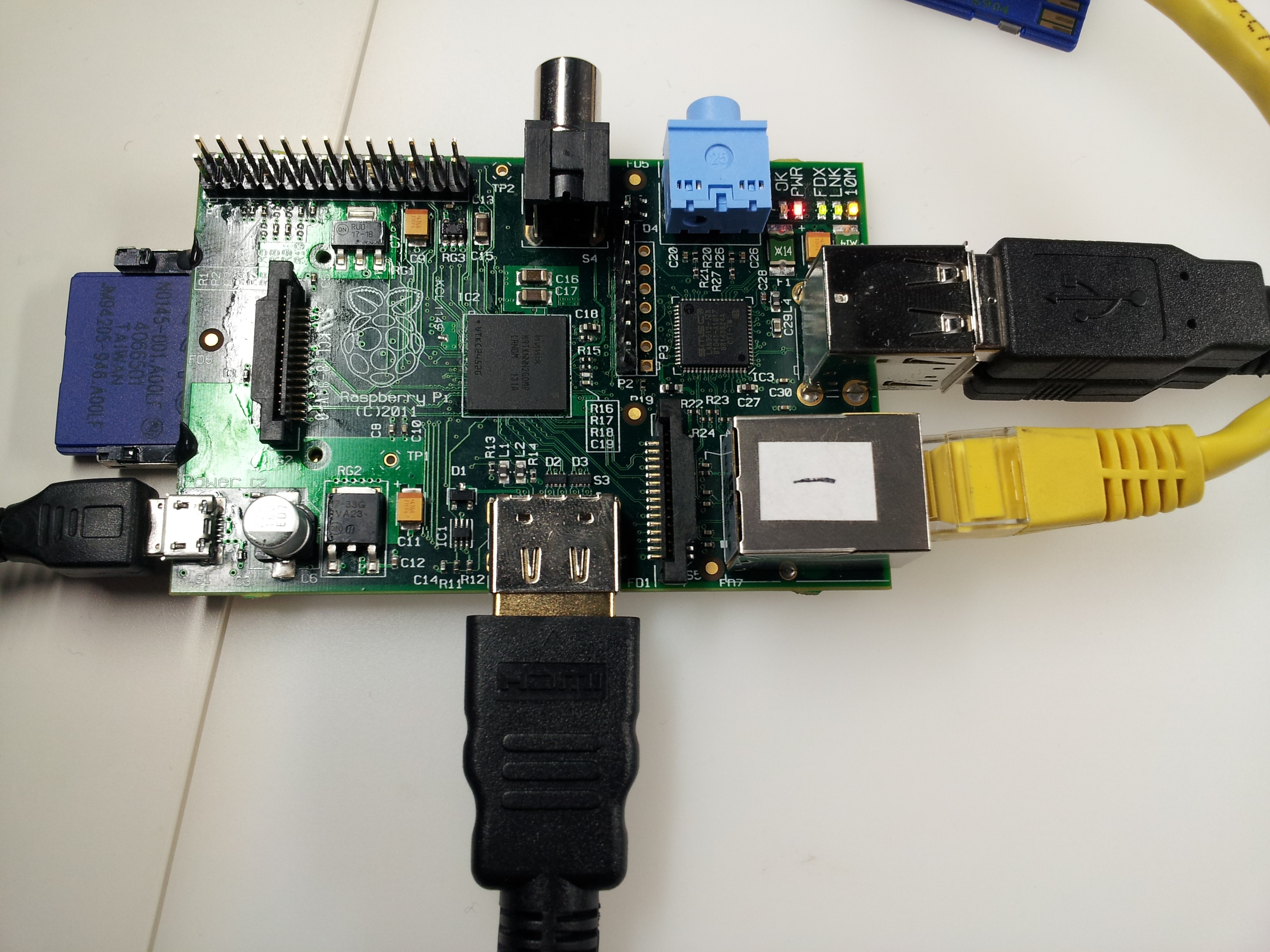
One of the project’s developers, Alan Mycroft, very kindly came over from Cambridge with a real live Raspberry Pi to tell us all about it and what it’s capable of doing. Quite frankly it’s an astonishing development and I can’t wait to start tinkering with one myself.

For a start the whole thing fits on a credit-card-sized footprint. The tiny central processor is dwarfed by the components around it, belying  its impressive capabilities. It’s a Broadcom ‘System on a Chip’ processor that neatly sandwiches processor, video GPU and 256MB of RAM in one tiny central bundle. It’s actually a Broadcom BCM2835, comprising an ARM1176JZFS with floating point capability, running at 700MHz. It was apparently originally intended for the set-top box market.

This makes it very approximately equivalent to a 300MHz Pentium 2 – not very exciting by modern standards – but the graphics capability part of that sandwich is bang up to date. It’s a separate Videocore 4 GPU, capable of Bluray quality playback, using H.264 at 40MBits/s.
In other words, Broadcom’s target market of set-top-box manufacturers, with their demand for 1080p  high definition video, have led to this chip having the ability to cope with that without breaking into a sweat.

We saw it running a film at this quality – seamlessly – and also saw it rendering Rightmark’s Samurai warrior OpenGL ES benchmark, on the fly, at breathtaking quality and very impressive speed. A brand new desktop PC wouldn’t disgrace itself putting in a performance like that.

Video is outputted via HDMI – which can of course also transmit sound – but since this is targeted at the education market, where HD-ready kit isn’t quite so readily available, there is still an old-school option of composite video and audio out. There’s a 2p coin there too to help get a feel for just how small this thing really is.

The board runs off a 5v input – it uses a mini USB adapter – which means that many mobile phone chargers will power it but there are plenty of other options to get such a modest voltage. I gather it will still run even on lower voltages – such as the 4.5v output from three AA batteries. The 1w demand of the CPU is typical of many electronic devices on standby…

I’m thinking I would like to experiment with powering one from a solar panel or putting the Raspberry’s board inside the case of a wind-up clockwork radio. The boring option is of course to use a USB output from a monitor.

The truly wonderful thing about this amazing computer is that it’s so cheap that you could realistically deploy them in places where you’d not normally want to risk an expensive device. And because it boots from an SD card if you ‘brick’ the unit you can simply swap the SD card and re-insert the power cable to restore it. Incidentally the SD card being used to demo the unit was a fairly modest mid-range class 4 card  – which gave ample performance for a demo of it running Linux – but it’s clear that using a class 10 card would improve paging performance and the screen redrawing (which is currently bitmapped rather than handed over to the GPU). This also suggests that there’s potential for a significant hike in performance on a device that’s already impressive in bang per buck.


Update: the video from the OUCS session on the Pi can be found here

Posted in Uncategorized | 7 Comments

Migration reporting

One of the jobs that’s fallen to me is to report on the successes (or otherwise) of our mailbox migrations. The output needs to get to people who may not have access to any of the Exchange management tools. Now my PowerShell isn’t great but with a bit of effort I trawled through my notes and beat some of my old script notes into shape as the scrap of Powershell you see below.

What it does is load up the Exchange snap-in first (so that Exchange commands will be understood), creates a text file listing the successfully migrated mailboxes and then emails it out to the recipient of your choice. In our case I added further recipients on separate lines so that it could also log a ticket in our support system. This allowed our helpdesk to get a record of the migrations without needing access to a server.

Add-PSSnapin Microsoft.Exchange.Management.Powershell.E2010 -erroraction silentlyContinue
$file = “C:\migsuccess.txt”
$mailboxdata = (Get-MoveRequest | Get-MoveRequestStatistics | where {$_.status -match “Completed”} |ft alias, TotalItemSize, TotalMailboxItemCount, PercentComplete, BytesTransferred, ItemsTransferred -auto)
$mailboxdata | out-file “$file”
Start-Sleep -s 5
$smtpServer = “<Hub Transport Server>
$att = new-object Net.Mail.Attachment($file)
$msg = new-object Net.Mail.MailMessage
$smtp = new-object Net.Mail.SmtpClient($smtpServer)
$msg.From = “<from@address.com>
$msg.To.Add(“<your email@address.com>“)
$msg.Subject = “Migration Report: Successes”
$msg.Body = “Dear Migration Watcher,”+”`r `n”+”Attached to this email is a daily report which lists all of the mailboxes which SUCCEEDED in their migration to Exchange 2010.”+”`n”+”These have been committed to the Exchange 2010 servers in full, without logging an error. The mailboxes’ content should therefore be unaltered, simply having been transferred in full to an Exchange 2010 server.”+”`r `n”+”Kind regards”+”`n”+”`r `n”+”OUCS Nexus Team’s friendly automessenger”
$msg.Attachments.Add($att)
$smtp.Send($msg)
$att.Dispose()

The actual command I used generated four reports rather than just listing the successful ones (substitute ‘Failed’, ‘Completed with error’ or ‘autosuspended’  for ‘completed’ on the third line). One of the downsides of reusing old bits of PowerShell, rather than starting from scratch each time, is that this bit has to supply codes (‘`r‘ and ‘`n‘) to generate the paragraph/new lines within the email. Nowadays I would probably make the body text of the e-mail a Powershell ‘here’ string so that the format matches what’s in the script. That makes it more readable /maintainable while also offering scope for the use of parameters (such as $($mbox.DisplayName) for personalising the ‘Dear User’ line). This was first written back in the days when I was still using Notepad as my editor…

Posted in Uncategorized | 2 Comments

Exchange 2010 SP2

Way back in mid-December I wrote about how Service Pack 2 had been released. As a major update, appearing just before the Christmas holidays, it was an option that seemed a little too risky to try and squeeze in alongside our phase of mass-migrations. Then, last week, it was announced that the first roll-up for this service pack has now been released containing a scarily long list of fixes and bugpatches. I guess waiting for a little while was no bad thing…

There was also a note from the Exchange Team on Friday that even this update has introduced a change which might have affected us.  SP2 RU1 package changes the user context cookie used in CAS-to-CAS proxying. What they describe as ‘An unfortunate side-effect’ is incompatibility between SP2 RU1 servers and other any other versions. It seems that earlier versions of Exchange do not understand the newer cookie used by the SP2 RU1 server. The effect? Proxying from SP2 RU1 to an earlier version of Exchange will fail with the error:

Invalid user context cookie found in proxy response

The size of our environment (and our two-hour maintenance window) make it difficult to undertake major updates except on a rolling basis over several weeks. The solution of ‘simply’ upgrading all servers to SP2 RU1 to avoid this problem might be a more involved task in a large environment than the article suggests.

Update Rollup 1 for Exchange Server 2010 SP2

Posted in Uncategorized | Comments Off on Exchange 2010 SP2

Reverted migration breaks Outlook’s rules

To test the throughput we could expect from mailbox moves, ten members of OUCS volunteered to became migration guinea pigs. A ‘suspend when ready to complete’ move had been run and, a week later, that move was completed.

This delay allowed me to capture valuable statistics for how fast data might be transferred but also the effect of delay on  committing the final changes for the mailbox move, since that’s the part which users will be aware that something is happening. Once I had the data the mailboxes were then moved back to Exchange 2007.

Within a short time it became apparent that there was a problem: Outlook rules were no longer processing messages automatically. The rules would still work but only if they were run manually – a real inconvenience when your inbox also receives alerts from SCOM and a support ticketing system…

The diagnostic process quickly ruled out the client as the source of this problem – all Outlook users from the batch of volunteers had the same issue – and a further bit of troubleshooting showed that the usual fixes for rule issues (such as Outlook’s ‘clean rules’ startup switches, or exporting/deleting/restoring them) didn’t help. In fact there only seem to be two fixes that seems to resolve this: move the mailbox back to Exchange 2010 or create a brand new mailbox for an afflicted user and restore their content into it.

Now I should emphasise that this is not an issue we expect to affect our users – there are very few conceivable situations in which we’d expect to revert a migration in this way – our intention is to migrate everyone from Exchange 2007 onto Exchange 2010. That direction of migration works without a hitch.

But to try and identify what’s going on with rules under this situation  (a mailbox that has been moved from Ex2007 to Ex2010 is then moved back to Ex2007 again) I drew a blank. A search online found lots of people had reported the issue, some had even logged support tickets with Microsoft, but none suggested a solution.

I tried a different tack and contacted the Exchange team direct. I was extremely gratified to receive a reply from a member of that team over the Christmas break:

We are aware of this as a problem and have some bugs opened where it is being investigated as far as what the best way to deal with this problem is. Sorry to be deliberately cryptic, but at this stage, I simply have no more information to share. But we are looking into it!

I’ll update this post as further information about this issue becomes available.

UPDATE:

Automatic processing of your Outlook rules can be reinstated:

  • Log into Outlook Web Access
  • Disable Junk email filtering
  • Re-enable junk email filtering
  • That’s it!

The thread detailing this fix, and how we found it, is here:

http://social.technet.microsoft.com/Forums/en/exchangesvradmin/thread/3cf2360f-0a4c-4c7e-87c9-6726e3dc34fd

FURTHER UPDATE:
Microsoft have issued the following response on this:

We are currently planning to release a permanent fix for this in the next rollup for Exchange 2007 (SP3 RU7). If you need the fix in the mean time, please call Exchange support and get an interim update.

Posted in Uncategorized | Comments Off on Reverted migration breaks Outlook’s rules

The mystery of the Mailbox Replication Service

One of our key aims during this upgrade has been to minimise the period of coexistence between Exchange 2007 and Exchange 2010. This is because our testing phase had revealed a number of potential areas in which we could expect user dissatisfaction, at least up until we were able to migrate their mailboxes to the new servers. These potential issues included:

  • OWA Double-authentication
    In this scenario (non IE users) are asked to logon to Exchange 2010 OWA, are redirected to Exchange 2007 to find their mailbox, at which point they’re then asked to authenticate again. This is due to ISA presenting a cookie that only IE is happy to accept.
  • Mac Mail reconfiguration
    It seems that Mac Mail only uses Autodiscover during its initial set-up, so wouldn’t be redirected to the ‘legacy’ namespace during coexistence. Mac Mail would need to be reconfigured with a new URL at the start of coexistence and then back to the original one again once the mailbox had been migrated. This configuration data is held in a PLIST file and although it’s possible to be edited, it’s stored in a binary format that also contains user-specific values (so we couldn’t easily provide a downloadable version to do the reconfiguration for our users)
  • Other EWS clients
    Our UNIX population would potentially suffer the same need to reconfigure (twice) as Mac Mail users
  • Outlook 2003
    We initially expected problems here too (due to the product not being aware of Autodiscover).

Clearly the sensible approach is to minimise the amount of time spent in coexistence and avoid these issues completely. Our Project Board recently confirmed that this was the tack we should be aiming to follow. But other decisions we’d made along the way, such as sticking to the same namespace, while great for avoiding users having to reconfigure, are not so good if you want a ‘big bang’ migration. A lengthy period of coexistence seemed inevitable.

Figures showed that we could consistently achieve throughput figures in the region of 20GB/hr when migrating between the two systems. But with 25TB to move that would still leave us with those coexistence worries for far too long. Something had to give: we either needed a rethink to avoid (or at least mitigate) the coexistence problems or we’d have to find a way to make the migration happen faster.

A bit of digging revealed that we might be able to improve things on the latter. Data transfer was being throttled back by the Mailbox Replication Service (MRS). This runs on the Client Access Servers and effectively takes the effort of moving data off the mailbox servers. That’s good news for two reasons: you get faster mailbox servers and move requests no longer lock out the console during the task, as it used to.

However transferring the moving task to the CASs means that user connections could be affected by back-end mailbox move tasks taking up too much of the system’s resources. To ensure that the CASs are still able to serve user connections during mailbox moves the default MRS settings have therefore been set to pretty conservative values.

This makes sense in a production environment: client responsiveness is usually more important than a mailbox move. But since our servers aren’t going to be handling user requests just yet we don’t need quite so much caution. I therefore did some editing…

The file which controls the Mailbox Replication Service (MRS) is called MSExchangeMailboxReplication.exe.config and (on a default installation) you’ll find it here:

C:\Program Files\Microsoft\Exchange Server\V14\Bin

Right at the end of this file is the section that we’re interested in:

MaxMoveHistoryLength = “2”
MaxActiveMovesPerSourceMDB = “5”
MaxActiveMovesPerTargetMDB = “5”
MaxActiveMovesPerSourceServer = “50”
MaxActiveMovesPerTargetServer = “5”
MaxTotalMovesPerMRS = “100”

The values which had potential to affect users on the current servers were left alone (that’s MaxActiveMovesPerSourceMDB and MaxActiveMovesPerSourceServer). These values can range from zero to 100 and 1,000 respectively.

The MaxActiveMovesPerTargetMDB value was the setting I increased, first to 25, to gauge the effect. This setting is also on a zero to one hundred scale. I then tweaked MaxActiveMovesPerTargetServer to 25. This value goes up to 1,000 so represented a pretty cautious increase, just to see what kind of load it generated. Finally the MaxTotalMovesPerMRS value can be upped too. Depending on where you read it, this value tops out at either 1000 or 1024. Since the config file itself lists its ceiling as 1024, that’s the number I’ve assumed to be right. On that basis though, Microsoft’s technet seems to be quoting the erroneous value.

The ‘Microsoft Exchange Mailbox Replication’ service must be restarted for changes to take effect and of course the edits will need to be done on all of your CASs.

To allow migrations to be tested without impacting upon service I’ve been using the ‘suspendwhenreadytocomplete’ switch on the Powershell command. Essentially this copies over the bulk of the users’ mailboxes and then suspends the job just before it commits the change to Active Directory. If an autosuspended move is cancelle,d instead of being completed, the destination server’s data gets removed on the same cycle as for deleted mailboxes. These move requests won’t get removed automatically – even the successful ones – so if you’re planning on doing subsequent moves you’ll have to get into the habit of housekeeping…

Users are none the wiser about this background copying of their mailbox: their live data has remained exactly where it was. The other great feature of this ‘move and hold’ option is that you get a chance to find which mailboxes have corrupt content – those mailboxes will report as a failed move – again without affecting anyone’s service. If you’re an Outlook user, it’s pretty similar to the process by which Outlook creates an offlline copy of your mailbox (the OST file) at your desktop.

Once all of your data has been copied across, and all the mailboxes are showing as ‘automatically suspended’, completing the move only involves committing the changes to the directory and copying over the deltas (the changed content since that initial copy operation). In theory this could be months later – although your retention period might start deleting the suspended moves after a while. But even if that happened it doesn’t stop the final move from working: the normally-brief delta-copying phase will simply become another full mailbox copy.

This final stage is the only point at which users might notice a service impact (as the final commit briefly locks the user’s mailbox). Outlook users will be told ‘An administrator has made a change which requires you to close and restart Outlook’.  OWA users will be told that their mailbox is being moved; other clients may find their program ‘gets confused’. This will therefore be the one part of the job where we need to keep our users and IT support staff well informed.

In theory this ‘move and hold’ option would allow us to migrate all 50,000 mailboxes in a much shorter coexistence window, but only if we can get the data across at a reasonable speed and if having this number of suspended moves didn’t break something. Nothing on the internet suggested that anyone had tried a ‘move and hold’ operation on the scale I was proposing…

Posted in Uncategorized | 7 Comments

Client Browsers

One of the most common criticisms of our current Exchange 2007 implementation is that Outlook Web Access gives a second-class service to anyone who dares to use a browser other than Internet Explorer. But it’s sometimes hard to know if we have a silent majority, happy to use IE, and that we were only hearing from the ‘squeaky wheels’ who used something else.

Our uncommon set-up, more akin to an ISP than to a typical business installation, puts us in a position where we’re aiming to support the widest possible spectrum of platforms. Mandating a standard isn’t an option and we’ve done our best to offset Exchange 2007’s OWA light limitations with a third-party product called Messageware. As a stopgap, it did the job but was an expensive way to offer not-quite-enough in the way of features.

This means that our upgrade to Exchange 2010 is, unusually, therefore driven primarily by giving our users a better experience. But what were our users using? How many would get the ‘premium’ feel of Outlook Web App and who would be left out in the cold of the ‘light’ version?

What we found

Internet Explorer (in all its versions) comprised over 35% of our users, Firefox had 27% and Safari (on a Mac) had an 18% share. If you feel that the ‘…on a Mac’ suffix is unnecessary, bear in mind that we apparently have several thousand people (0.7% of the total) using non-Mac versions of Safari…  My personal favourite browser – Opera – squeezes in with a similar percentage.

Client browsers by type

But the all-important question was what proportion of our users would actually benefit from this upgrade. So here’s that pie chart again, with the browsers that can display ‘full OWA’ grouped together:

The answer is, reassuringly, pretty much everyone. We should be able to tell our users that 99%  of them will get the full range of OWA features.

For the remainder our data suggests that they often have access to a second browser which offers the full experience.

One final note on the subject of browsers: Exchange 2010 Service Pack 2 is now released, heralding the return of a feature that’s been much missed. For basic devices or where speeds are low and data is expensive, the reintroduction of an ultra-basic version of OWA represents a welcome gain.

We’re still debating SP2’s merits (an early deployment represents added risk during an already busy migration) but we do intend to deploy it, adding ‘Outlook Mobile Access’ as another useful way to access email.

Posted in Uncategorized | Comments Off on Client Browsers

Fixing those post-migration nickname blues

We’ve done a fair few migrations now, with several colleges and units within the university deciding to retire their in-house email system and join Nexus. And as user accounts were migrated in from some of these other systems we had the occasional issue reported with Outlook’s ‘autocomplete’ function.

Outlook’s autocomplete data is stored in a ‘nickname file’ (with an NK2 file extension) but, for complicated reasons, it stores X400 addresses rather than the more obvious SMTP address. When we migrate an Oxford user their email address doesn’t change but – especially where the user has come from another implementation of Exchange – the X400 address will inevitably be different after they’ve moved.

Now for new messages this is fine – the email address still works after all – but anyone relying on Outlook to auto-populate the ‘send’ field from their nickname file will likely get non-delivery reports, all due to that pesky X400 data being used instead.

In the past the traditional fix for this has been to fix things at the user end – the fortunate ones might have used an NK2 editor to extract/edit the offending email addresses. Other users might have let Outlook (or OWA) suggest the name and then use the delete key to remove the one broken address. But in some cases users may have had their NK2 file removed entirely.

Is there a better fix?

The starting point is to get that user’s X400 data from the original system, prior to migration. It can be extracted afterwards from the NK2 file or via Powershell:

Get-Mailbox <username> | fl LegacyExchangeDN

This should show something like this:

LegacyExchangeDN : /o=nexus/ou=Exchange Administrative Group (FYDIBOHF23SPDLT)/
cn=Recipients/cn=<username>

Post migration, it’s possible to add that old X400 data back to the account’s properties by adding a custom address onto the object. Alternatively, if you’re not keen on mixing up your X400 data, you can add the old X400 address to a brand new contact object. A moment tweaking that new contact to forward email to the current user account and you’ve achieved the same objective.

Posted in Uncategorized | 2 Comments