DKIM and DMARC: first results

To improve delivery of our outgoing email DKIM and DMARC were enabled for the it.ox.ac.uk domain on Thursday 16th November, as a proof-of-concept that these technologies are beneficial and don’t create new message delivery issues. Generally it’s SPF records that are the ones that cause issues, since a list of authorised servers is always going to flag up any unofficial ones that might be present…

Naturally for the first few days I’m keeping a close eye on message reporting and identifying anything which can be fine-tuned or improved. Here’s how the first three days with active DKIM and DMARC have gone so far. The University’s weekend email traffic is always significantly down on weekday usage, so there’s only one full working day with useful data to analyse so far:
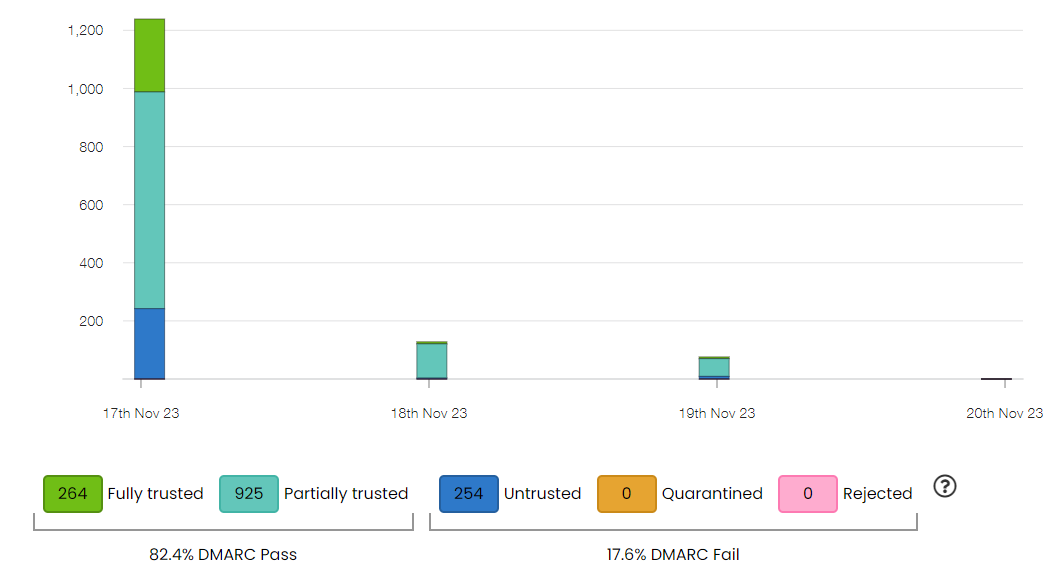
  • Fully trusted
    SPF and DKIM are both successful; DMARC checks pass.
  • Partially trusted
    Either the SPF or the DKIM check succeeds; DMARC checks pass. These messages will still be delivered for all three DMARC policy settings. This is also the group to concentrate on to strengthen SPF or DKIM.

    The next three categories all comprise DMARC failures, because SPF and DKIM checks have both failed. The exact outcome will depend upon your selected DMARC policy. In all three cases these will help identify if the failures relate to a system under your domain’s remit which requires reconfiguration, or if it is due to email being spoofed. Or both…

  • Untrusted
  • Quarantined – These emails are sent to the spam folder.
  • Rejected – These emails are not delivered to the user.


Initial observations

There were 254 messages flagged as ‘untrusted’, which is 17.6% of the total sent.

158 of those were from the LISTSERV mailing list platform.
100% of messages failed DMARC from the LISTSERV platform, likely because the current DMARC policy is ‘none’. Jiscmail’s handler automatically detects a DMARC policy of ‘reject’ or ‘quarantine’ and ensures successful delivery.

28 of those were untrusted but were still successfully delivered due to ARC being able to assert that DKIM was valid up to the last intermediate provider in the email delivery chain.

The proposed plan is therefore, as a next step, to move to a DMARC policy of ‘quarantine’ but with a percentage value of zero (pct=0). This has an effective outcome identical to the ‘none’ policy, but LISTSERV will cease spoofing our domain.
Posted in Uncategorized | Comments Off on DKIM and DMARC: first results

We don’t do software licence subscriptions

Sorry about that.

Posted in Uncategorized | Comments Off on We don’t do software licence subscriptions

Teams Rooms licence changes

We are currently in a ‘grace period’ where Microsoft allows Teams Rooms devices without a valid device-specific licence to still continue to work. This represents an extension of 90 days from the original deadline, which was going to be 1st July 2023.

We can see that there are a number of unofficial Teams Rooms devices in use within the University, mostly operating via a normal user’s login. Doing that is a potential breach of University regulations, as well as a potential breach of licencing terms. I therefore urge you to legitimise these devices via the official service request process as soon as possible, and ideally well before the end of September 2023: this is when the current grace period ends and represents the point at which these devices will cease to work.

The Nexus Team will not be operating any special expedited process to register devices which have been operating outside the rules which are caught out by this long-advertised and significantly-postponed change in licencing rules.


Posted in Uncategorized | Comments Off on Teams Rooms licence changes

Basic Authentication: ONE WEEK NOTICE

Approximately 7 days from today, Microsoft are going to permanently turn off basic authentication in the Nexus365 tenancy.
You should only be affected if you have already received a notification from IT Services, which was sent to all identifiable people who were using Basic Authentication in early December 2022.

In September 2019 Microsoft first announced that Basic Authentication was too insecure to be allowed as an ongoing method of authentication. After numerous announcements and updates over the following three years, we are now at the stage where Microsoft are now turning off basic authentication for all their customers worldwide, for the following protocols: MAPI, RPC, Offline Address Book, Exchange Web Services, POP, IMAP, Exchange ActiveSync and Remote PowerShell. The University requested a delay, which was granted, but which has now reached its end.  Today Microsoft selected our tenancy, and in approximately 7 days, they will disable basic authentication for all Exchange Online protocols except SMTP.

How this may affect you
Any clients or applications still using basic authentication with the affected protocols will be unable to connect to Exchange Online.
Note: They are not changing any settings for SMTP AUTH or turning off SMTP AUTH.
Any client (user app, script, integration, etc.) using basic auth for an affected protocol will be unable to connect to Exchange Online. The client will receive an HTTP 401 error: bad username or password. Any app using modern auth for these protocols will be unaffected.

To read more on what can be done to switch apps from basic to modern auth please view our main documentation page and our latest blog.

What can I do if I need more time?
There are no options to re-enable basic auth for these protocols: they will have been permanently disabled. We have already requested an extension, which is now expiring.

Posted in Uncategorized | Comments Off on Basic Authentication: ONE WEEK NOTICE

Improved Message Recall

If you have ever sent an email only to realise – after sending – that there’s a reason why you shouldn’t have sent it, Microsoft have some good-ish news for you. Message Recall is being updated.

Historically the ‘recall message’ option has only really drawn attention to the problem message, as recipients are prompted to decide if they will permit the message to be recalled unread. Natural curiosity means most click ‘no’ and then search their way through the message for the juicy gossip you’ve sent by mistake.

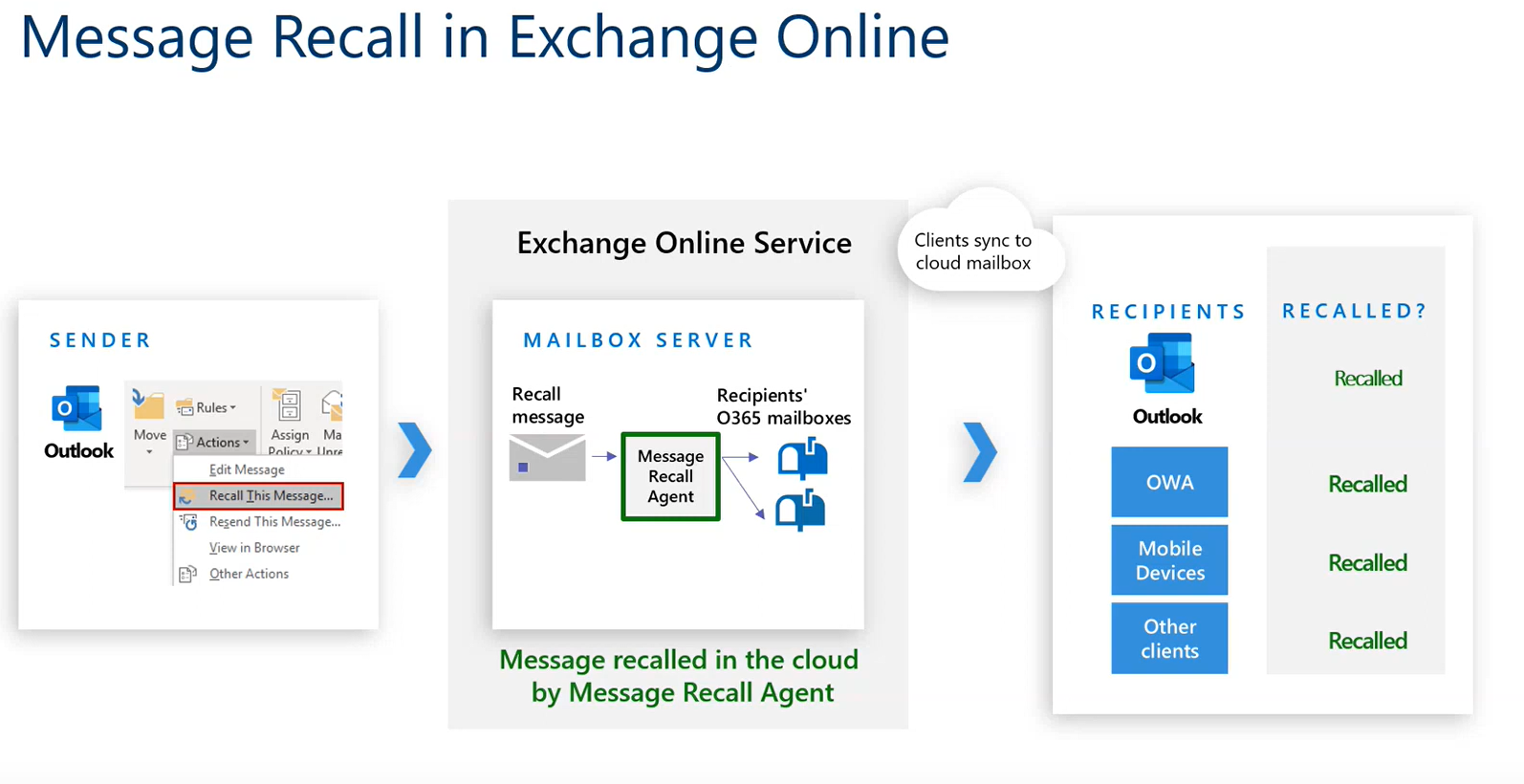
From November Microsoft are modifying how recall operates. Instead of the historical client-based approach, which is dependent on Outlook being used as the email client, the new behaviour will be for the recall to be processed directly in the cloud, at users’ mailboxes. When an email client synchronises with the cloud, the message can be removed.

This is still not quite the panacea that you might be hoping for, if you’ve ever needed to recall a message however. If the message was read by the recipient already, it can still be recalled but they’ll still have seen the recalled content. Clients can also be configured to reject recall requests.

The unique set-up we have in Oxford also changes things – in most organisations there’s just one email system, but Oxford has some departments running their own service, forwarding content elsewhere, or running a separate Microsoft tenancy. In those situations a message recall has more potential to fail.

Perhaps the most useful feature of this change is that you’ll be able to see an aggregated report of the status/progress of your attempt to recall a message: for whom it succeeded, and for whom it failed.

Message Recall process

Message Recall process


Roadmap article about message recall: https://www.microsoft.com/en-us/microsoft-365/roadmap?rtc=1&filters=In%20development&searchterms=59438

Demo of the message recall process, from MEC: https://youtu.be/2rj44zp-Oe8?t=2284

Posted in Uncategorized | Comments Off on Improved Message Recall

Office365: Pre-emptively disabling Basic Authentication

For the steps to follow I can recommend this guide from Practice Protect and this one from Microsoft.
There is some confusion about the way that these commands are implemented, with inconsistent behaviour noted, so it’s sensible to follow all of the advice even when it seems redundant.

Example: The documentation says to run these commands:

Get-AuthenticationPolicy

(to find the name of the existing authentication policy).

Replace <AuthenticationPolicyName> with the value from the previous step, and then run the following command:

Set-AuthenticationPolicy -Identity "<AuthenticationPolicyName>" -AllowBasicAuthReportingWebServices:$false -AllowBasicAuthOutlookService:$false

The previous command affects new mailboxes that you’ll create, but not existing mailboxes. To apply the policy to existing mailboxes, use the <AuthenticationPolicyName> value…

Testing reveals that on an IMAP connection to a mailbox this setting sometimes blocks existing accounts and sometimes it doesn’t.  Other Universities’ IT Staff have reported a similar outcome: testing with Thunderbird occasionally permitting mailbox access after multiple connection attempts. In other words these settings variably affect existing accounts, contrary to the guidance.

The sensible solution seems to be to disregard any odd outcomes you may observe during testing and simply follow the published guidance as if no anomalous behaviour was noted: set a DefaultAuthenticationPolicy at the organisation level and set an AuthenticationPolicy on every user.


Thanks to SysAdmins at UEA and University of Dundee for their observations on the Jiscmail mailing list which contributed to this post.

Posted in Uncategorized | Comments Off on Office365: Pre-emptively disabling Basic Authentication

What’s new in Teams?

Microsoft have announced quite a few upcoming enhancements to Teams – here’s a brief overview of some of the new features you can expect to see.

Excel Live

All meeting participants can view and edit a workbook in real time, during the meeting itself. Excel Live also supports Sheet Views, allowing you to sort or filter without disrupting others.

Available for public preview: August
More information

Collaborative Annotations

This allows you to draw, type, or react on top of content being shared in a meeting – if ‘annotation mode’ is enabled. This is powered by the whiteboard functionality.

Available for public preview: August
More information

Enhanced Teams Rooms Devices

Camera optimisations are aimed at remote meeting participants and use AI capabilities within the device’s camera(s), allowing multiple video streams and allowing in-room attendees to show up in individual feeds – allowing you to see and interact with everyone in the room more effectively.

Enhancements to displays allow options for personalised calling, more meaningful eye-contact, and the option to use a room’s display as a second monitor.

Webinar Enhancements

Webinar changes now have options to show more personal info about the speaker (company name, job title, etc.), theming to match Oxford’s branding, the ability to set capacity limits, and easier custom questions (including an option to obtain consent for event-specific terms and conditions).

Available in public preview: next month
More information

Shared Channels

‘Teams Connect’ allows multiple organisations to share and collaborate on files without the need to switch between tenancies. Enhancements include more channels, support for shared-channel apps, improved reporting, and enhanced messaging experience for external users.

Available generally from this month.
More information

Chat enhancements

Chat now supports the option for you to record a short video message within a chat, rather than just typing plain text. For note-taking or memos there is also now a ‘chat with self’ facility and additional ‘reaction’ options (from August). Integration with LinkedIn and Dynamics are now also options.

Available generally from September.

Teams Phone

Microsoft have now announced a Digital Contact Centre Platform which adds features like ‘swarming’ to the existing contact centre and compliance-recording.

Operator Connect allows PSTN services to be enabled within Teams, if you have a participating operator – BT are on the list. Later this year this option will allow your mobile phone’s number to be set as your Teams number.

By the end of this month you should also be able to use native Bluetooth devices with Teams, including – where buttons and/or software to do so exist – answer, hold, mute or end calls. You may also be able to raise a hand during a meeting, or join a meeting directly from the device. The first certified device is the Surface Headphones 2.

More information

Updates in Teams

Allows you to create, submit, and review items without leaving or switching within Teams. This could be used for things like check-ins, shift handovers, incident reports, holiday approvals, or maintenance requests. This is already generally available.

Posted in Uncategorized | Comments Off on What’s new in Teams?

KeePass and Multifactor Authentication

One of the frustrations of modern security is the imposition of more onerous user-verification requirements. The benefits of the University introducing Multifactor Authentication (‘MFA’) are well-proven, but it does add a further step that can be inconvenient. In an effort to make life a little bit easier, and following a debate about this area on our IT Discussion mail-list, I share the following advice.

Using a password manager is an essential step in keeping secure. KeePass is an excellent example of the genre and my personal favourite. The latest version has also added a feature that promises to make life that little bit easier: it can act as your MFA authentication app.

I’m assuming that you already have a KeePass entry for your SSO logon, with an auto-type entry set. If not, here’s the auto-type syntax that I use:
{USERNAME}{TAB}{TAB}{TAB}{TAB}{ENTER}{DELAY 1000}{PASSWORD}{ENTER}

The steps to allow KeePass to also handle your MFA are as follows:

1.Visit https://mysignins.microsoft.com/security-info and, yes, log yourself in.

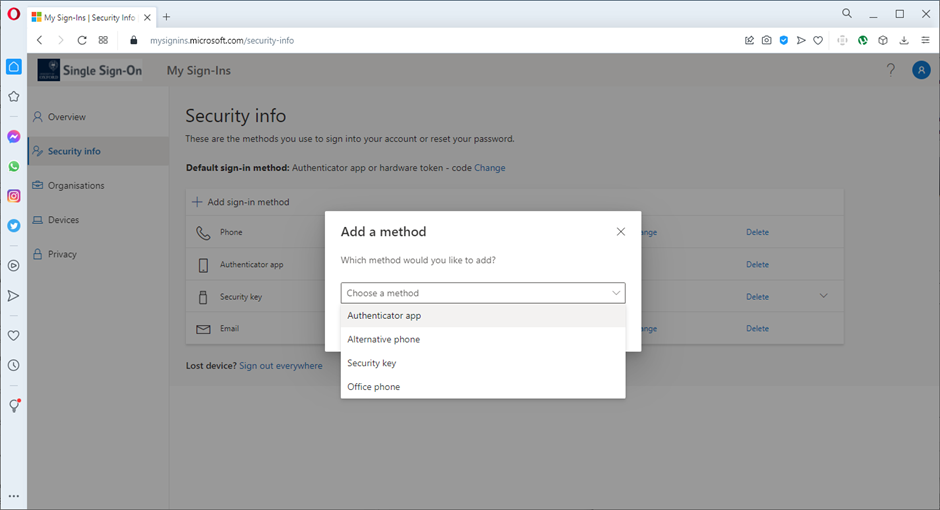
2. Click ‘add sign-in method’:


3. Choose ‘Authenticator App’ from the list:


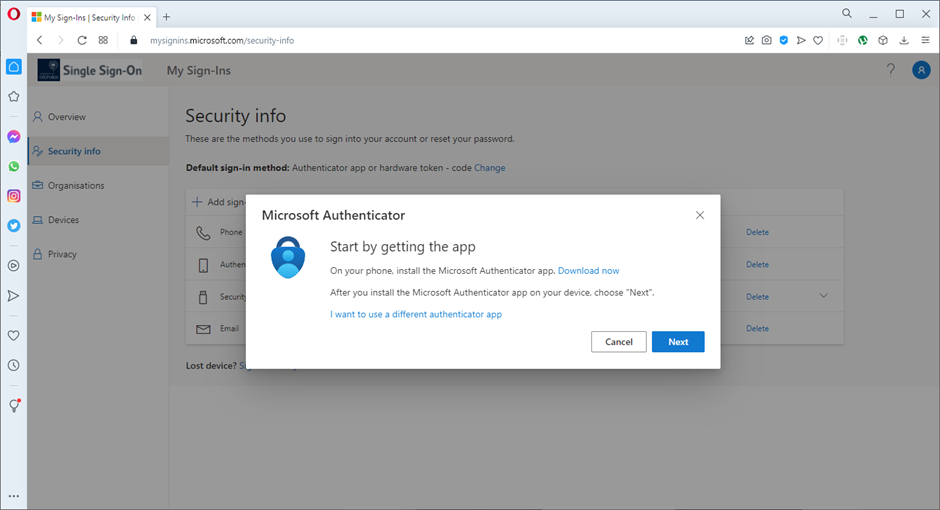
4. Microsoft will recommend their own Authenticator application, but click instead on ‘I want to use a different authenticator app’:


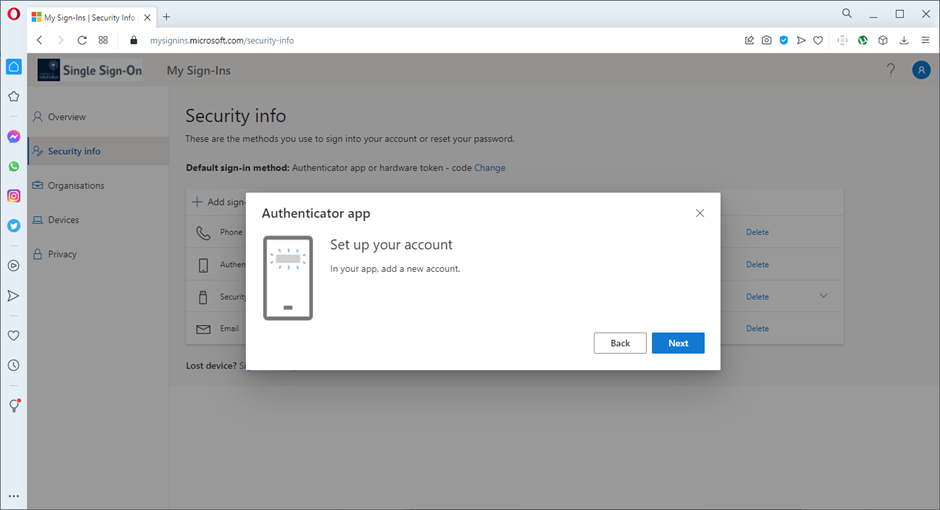
5. You’ll need to have KeePass installed and running shortly, but at this stage you can just click ‘Next’:


6. You’re presented with a QR code, as most apps are mobile-based and can use a phone camera. Ignore the QR code and click ‘can’t scan image’:


7. The page will create a security key code, with a ‘copy to clipboard’ button next to it. Click on that:


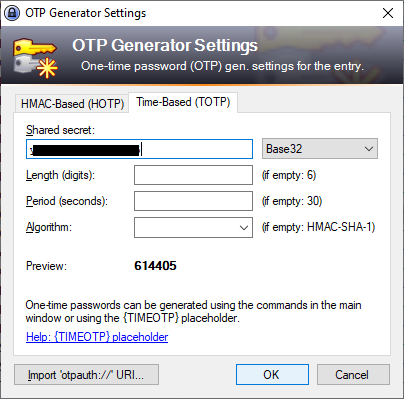
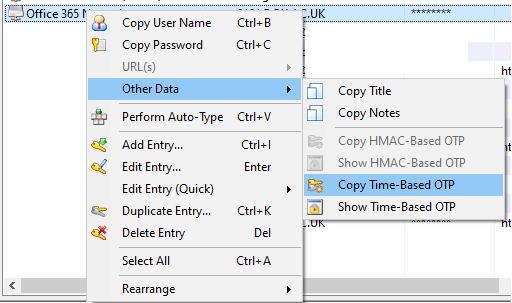
8. Switch to KeyPass, right-click your entry for your University SSO account, select ‘Edit Entry (Quick)’, then ‘OTP Generator settings’. You’ll get a dialogue box. Paste the security code into the ‘shared secret’ field. No other values need to be changed, so then click ‘OK’:


9. When prompted for your MFA authentication code, ask KeyPass to copy that to the clipboard for you:


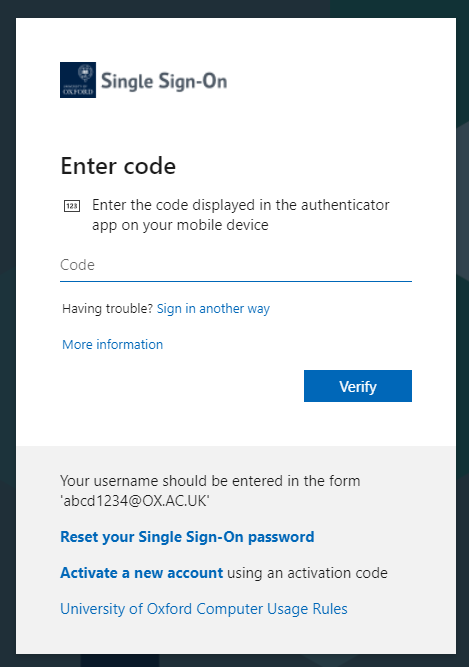
10.  In the ‘Enter Code’ window, just right-click and ‘Paste’:


I’m hoping that future revisions of KeePass will make this even easier*, but this is a great step forward and makes a useful app that little bit better still.

EDIT:

The syntax for KeePass to autocomplete your username, password, and MFA code is:

{USERNAME}{TAB}{TAB}{ENTER}{DELAY 2000}{PASSWORD}{ENTER}{DELAY 2000}{TIMEOTP}{ENTER}


FURTHER EDIT, FOLLOWING A REVISION TO THE LOGON DIALOGUE BOX:

The previous autotype string was no longer working, but this reinstates it:
{USERNAME}{TAB}{TAB}{ENTER}{DELAY 2000}{PASSWORD}{TAB}{TAB}{TAB}{ENTER}{DELAY 2000}{TIMEOTP}{ENTER}

Posted in Uncategorized | Comments Off on KeePass and Multifactor Authentication

Teams SharePoint sites

Underneath a Microsoft Team there is a SharePoint site which stores the Team’s data. You can think of Teams as a veneer on a SharePoint site, or ‘edited highlights’ of it. But the key thing is that Teams thinks it’s in charge. It created the SharePoint site, and it wants to manage what happens there. Editing the site behind a Team is the electronic equivalent of breaking into someone’s house and moving things around while they’re asleep. And hoping that they don’t notice what you’ve done when they wake up. If they do see what’s happened you can be sure they’re not going to be happy about it.

We  understand that it can be very tempting to consider bypassing the Team and going straight to SharePoint to make changes. All the data is there. It’s just sooo accessible. There are even lots of people out there telling you precisely how to do make changes there, and encouraging you to try (probably while secretly giggling: they know what can happen).

Our advice is simple: resist the temptation. Be strong.

Since we have had another support ticket today from someone who broke their Team, let’s go over some of the reasons behind our well-trodden warning once more.

Because Teams is a layer on top of SharePoint, changes at the back-end mean that Teams doesn’t necessarily see what it’s expecting. It’s a big ask for error-correcting code within Teams to understand every possible back-end change, correct for it, and display your content as if nothing had happened. It’s nice that you have so much confidence in the product! You might be fortunate and make changes that Teams doesn’t notice. But that’s a big risk to take with your data. If Teams does notice – and there’s every chance it will – you should be prepared that it will have broken the relationship between Teams and SharePoint entirely. Bear in mind too that Teams is constantly being improved, patched, and updated. A change that Teams copes with today may be one that breaks your site tomorrow: keep in mind that Teams thinks that it owns and manages the site storing its data.

Let’s take one simple example – today’s real-world one – someone had renamed the site and the home page of a Teams SharePoint site. Teams is looking for the original unaltered address –  Teams created the site, thinks it’s in charge of it, and hasn’t been informed of any changes. Suddenly it finds a coup has taken place! The directions it’s following lead nowhere. Your site is now broken.

Teams does what it can to interpret and correct for this but it’s doomed to fail. Even reverting your changes is not guaranteed to fix things, since it can be difficult to precisely undo every change completely. So the solution is to rescue what you can from SharePoint, delete the broken Team, and start again with a new Team that isn’t estranged from its home site.


SharePoint behind Teams: leave it alone; it should only be managed by the Teams app.
SharePoint on premises: going out of support imminently; please move your content.
SharePoint online: this is the one you can make changes to. 🙂

Posted in Uncategorized | Comments Off on Teams SharePoint sites

Office 365 Personal Bookings Pages: coming soon

Microsoft intend for Personal Bookings to be another way to allow people to interact with your calendar. So if you’ve used Microsoft Bookings in the past you may well feel you’re already up to speed with the idea – but they are very definitely not the same.

This feature is intended to eliminate the back-and-forth of trying to find a timeslot to meet with someone. The idea is that you choose to make times available, and then can publish that availability yourself. You will be in full control of what, if anything, is made available to book.


Once this feature is rolled out you will be able to configure it either at https://outlook.office.com/findtime/dashboard/ or in Outlook Web App’s settings (search for ‘personal’).

Organisations which have access to early previews and beta releases will already be seeing this functionality, with it being made available from mid April 2022. The rest of us will have to wait until June 2022, according to Microsoft’s roadmap.

Meeting types

By default you’ll be offering a 30 minute online Teams meeting, although this can of course be changed. The options you can configure include duration, minimum and maximum amounts of warning you’ll get in advance, location (if not an online Teams meeting), and of course your selected availability. You’ll also be able to share direct URL links to a particular meeting type that you’ve created.


Posted in Uncategorized | Comments Off on Office 365 Personal Bookings Pages: coming soon