Customising Outlook Web App

One of our next jobs is to make OWA look a bit more Oxford-y.

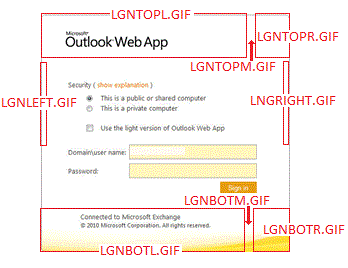
To start off with, we need to tinker with the logon page. It’s actually made up of several components, carefully placed to work together and make what looks like one image, regardless of your monitor’s size. The obvious starting point is the GIF files make up that logon page.

At the top of the image are GIFs for the top-left, top-middle and top-right (lgntopl.gif, lgntopm.gif and lgntopr.gif respectively). The top-middle and bottom-middle GIFs are easily overlooked: they seemingly just represent a tiny sliver between the main two images. But they are important to ensure the page displays correctly on wider monitors.

A similar set of three images is used for the bottom (lgnbotl.gif, lgnbotm.gif and lgnbotr.gif). Then there’s also the self-explanatory lgnleft.gif and lgnright.gif for each side.

Changing the pictures is not something that’ll worry any support provider. But the text in the centre isn’t customisable. Well not unless you’re happy to edit DLLs and you don’t want official vendor support when something else breaks…

All of the supported edits are to the GIF, PNG, ICO and CSS files  found under the Exchange server installation folder:

\Exchange Server\V14\ClientAccess\Owa\<version>\themes\resources

The ‘version’ part will vary dependent on service pack revision. Exchange 2010 SP1, for example, is 14.1.218.13. Bear in mind that the same GIF files are also used at logout, so there is no need to do this work twice.
If you did want to hack the DLLs they’re three directories higher under \bin\<language>.

Having sorted out the logon page, the next thing is to create your standard theme (since the standard 27 ones clearly won’t be enough). The first step is to take a copy of one of the existing themes. I started with ‘base’ but if one of the others is closer to what you’re after you’ll save a lot of edits by using that as your template.
If you really want to go to town you can – if you really must – change the sound your users hear when the receive a new message, using either WAV or MP3 formats. To play with sounds, notify.wav is the sound which plays to indicate newly-arrived messages for example.

Starting with the pictures on the theme’s top, there’s a headerbgmain PNG file which comprises the left-hand part of the header background picture and headerbgright.png for the, er, right. If one of your users uses a right-to-left language there’s also headerbgmainrtl.png to display the header background correctly for them.  You may also want to have a play with csssprites.png as this file contains all of the little logos and icons used in OWA. In particular the first one – the ‘Microsoft Outlook Web App’ one – as the text is very likely to get in the way of your new header image. This whole file gets cached client-side for better performance (the server only has to make specific pixel requests) so changes here must be undertaken with great care.

Of more practical importance than icons and noises is probably themeinfo.xml. This file contains the theme’s display name and the sort order so a moment spent tinkering here should ensure that your users do actually know which is your theme, as well as making it easier to find. So this:

<theme displayname=”$$_BASE_$$” sortorder=”0” />

becomes this:

<theme displayname=”Oxford Nexus” sortorder=”0” />

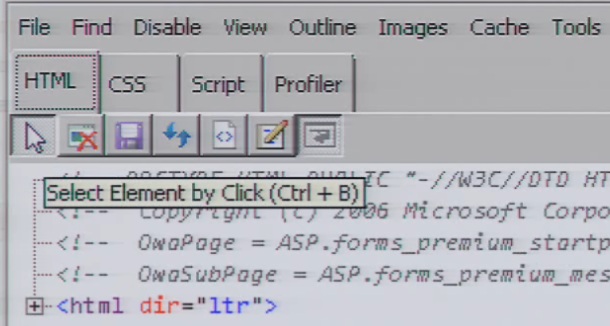
Now sooner or later we’ll need to move away from tinkering around the edges: there’s a hugely complex CSS file waiting to be edited. But rather than jump straight into it with notepad and scaring yourself silly, there’s an easier way.  Open a session to OWA in Internet Explorer and then select ‘Developer Tools’ from the ‘Tools’ menu. You’ll see the bottom part of the screen change to show the CSS data that’s been used to generate the page you’re viewing.

Click the arrow button (‘select element by click’) and you can then click onto an element on the page to have the relevant piece of code highlighted. When you find the right part, you’ll see the left-hand side shows the detail and the right-hand side showing you the file containing that value. Those notepad edits become more of a search-and-replace exercise via this route although some knowledge of what codes represent what colour will still be worth looking up. I found this as a useful starting point for that.

The final step is to edit themepreview.png. I’ve tried to squeeze the university’s logo into this 32×32 pixel square, along with the name ‘Nexus’, so that it’s not only the first one in the list but is also obviously ours.

Posted in Uncategorized | 8 Comments

Autodiscover oddities

Here’s what is supposed to happen when Outlook wants to connect, during coexistence of Exchange 2007 and 2010:

  1. On a domain-joined workstation Outlook (2007 or later) sends a query to Active Directory for the Autodiscover information. The directory returns a list of Service Connection Point (‘SCP’) objects. If you have lots of CASs then you’ll have lots of SCPs but Outlook will just select the first one in the list. The SCP should have all of the information needed to configure the Outlook client.
    Now we don’t have any domain-joined clients so an AD query can’t happen: our clients must get the information another way. Autodiscovery for these clients relies upon finding a fully qualified domain name based on the user-supplied SMTP address. In our case it’s therefore a variation on the theme of https://autodiscover.<unit>.ox.ac.uk.
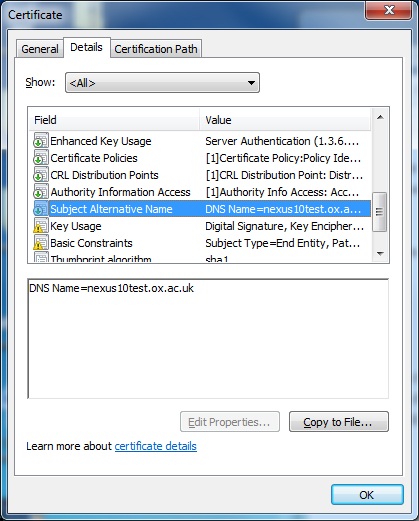
    Incidentally, the same internet-facing CAS must host the normal OWA URL as well as the Autodiscover one so a Unified Communications or Subject Alternate Name certificate is needed for a secure connection. Microsoft’s KB 929395 has a limited list of officially supported suppliers… 
    Behind the scenes autodiscover also takes care of Out-Of-Facility (‘OOF’) messages, availability, offline address book downloads and a few more besides.
    Where were we? Oh yes, how it’s supposed to work.
  2. We only have one site as far as AD is concerned (yes, in reality it’s not,  but our 10GB inter-site link means we don’t need to tell the servers)  but if we did SCP would also deliver appropriate site information back to the client. For ‘in site’ users there would be autodiscoversitescope data (an attribute set via the set-clientaccessserver cmdlet) which identifies the site for which it’s authoritative. For ‘out of site’ clients they’ll just get a list of the oldest SCP objects. That’s us, so our users ought to see the oldest Exchange 2007 CAS first.
  3. Outlook will use the first SCP in its list to contact Autodiscover. Even someone logging into their Exchange 2010 mailbox or a brand-new user will begin with the Exchange 2007 SCP as it is usually the first record in the list.
  4. At this stage all of our users are still on Exchange 2007 so it’ll be a 2007 CAS that receives the Autodiscover request. Later on, once we’re migrating users, there’ll be a time when the the user’s mailbox is on Exchange 2010. At that point the 2007 CAS must redirect the request to an Exchange 2010 CAS.
  5. The client will receive an HTTPS response from the autodiscover service containing an XML file. This file includes the connection settings but also the URLs for all of the configured Exchange services.
  6. Outlook can use this information to configure (new users) or connect (existing users) to our Exchange servers.

Now to get a better indication of what’s going on there are useful tools, such as TestExchangeConnectivity.com, and for test purposes only it’s very useful. But as it requires you to provide your password of course it should NEVER be used for production account testing. In our case, the multi-domain element of our service, with different email domains for different colleges and units, makes for an added challenge. Microsoft’s White Paper on this subject suggests options including allowing Outlook to give up on a secure session and drop back to HTTP or, as we’ve done, rely on redirection. With this method users do get prompted to ask if they’re happy for our server to configure their connection but that’s a small price to pay to ensure a secure session. To minimise certificate errors one option is to configure both the internalURL and externalURL to point to the CAS’ external name on its’ certificate (this will need split DNS to make it work).

So, that’s the theory.

In practice what we seemed to see today is clients apparently being directed to – and searching for – configuration data via our ‘legacy’ certificate freshly installed on our not-yet-in-production Exchange 2010 CASs. Of course the conventional approach is to use the ‘legacy’ certificate for the Exchange 2007 CASs during the coexistence phase, with the normal certificate on the Exchange 2010 CASs. Our approach at this stage differed from this because we had been hoping that, prior to transferring our clients to the Exchange 2010 CASs, we’d be able to use that certificate for client testing. This testing requirement was largely borne out of our experience that, for example, different implementations of Android behave in very different ways when CAS redirection takes place.

Now the behaviour that we actually saw was a few desktop Outlook clients picking up the legacy certificate data from the Exchange 2010 CASs, without being prompted to look there. This wouldn’t have been so much of an issue if we’d had external DNS entries, certificates also installed on the ISA servers and CAS/ISA rules in place. But we’d deliberately avoided that: only the clients we were specifically testing at that time were supposed to see that address, via manual configuration. So the address that Outlook was finding was an unresolvable one – in the short term this necessitated a quick bit of fixing work and in the longer term it’s prompted a re-think on our approach to testing.

Further diagnostics are under way.

Posted in Uncategorized | 2 Comments

Exchange 2010: it lives!

We now have all of our new servers running Exchange 2010. The number of CASs is now up to fourteen – to allay our fears about IMAP users with 100,000 items in their inboxes – and we’ve also now installed six hub transport servers and the ten mailbox servers.

The CAS installation gave us a minor headache but that’s largely because of the way that we operate. We are far more like an ISP’s email service than a conventional business implementation of Exchange. This means that our mobile users aren’t limited in the standard corporate way – in theory we can expect anything that offers email as a legitimate client device. Because we can’t be seen to restrict personal devices we don’t apply an Activesync policy. But Microsoft didn’t apparently envisage an organisation with no policy at all; the new CASs had the ‘helpful’ behaviour of creating a new (blank) policy on our behalf.

We were at least expecting this behaviour and were standing by to delete this new policy the second that it appeared. But alas with 50,000 users there’ll always be someone who has a device that connects during the  nanosecond that the new policy is out there. And so it came to pass: a handful of people were asked to agree to new security settings. It seems that to avoid this behaviour during future CAS work we may have to take the more drastic step of  briefly disabling all ActiveSync connections,  so that we can avoid policy messages confusing a subset of our users.

Next steps? All of the newly-deployed servers are currently running at the base of Service Pack 1. We’ll have to apply a current roll-up, we’ve got a huge number of databases to create and the backup client will need to be installed too. On the roll-up side of things we’ve concluded that roll-up 5 is the best bet – roll-up 6 has only been released for just under a fortnight and the full Service Pack 2 is still apparently on schedule for a release this year.

Posted in Uncategorized | Comments Off on Exchange 2010: it lives!

It begins!

At the tail-end of last week we completed the basic operating system builds of our new servers, including all of those awkward and pernickety things like the activation process, making sure they’re fully patched and anti-virus enabled. I also presented what felt like thousands of arrays for our soon-to-be-created mailbox databases. OK, so it was only 220 database arrays, ten log arrays and ten restore ones but I’m very glad that scripting came to my aid for creating volumes, formatting disks and creating all of those mount points.

Network cables with colour-coded functions

In hardware terms I’ve tried to make a big leap forward in our networking set-up as our racks are so visible: it doesn’t look good for a high-profile service like Nexus to be a bad example in a shared data centre! To try and keep each server’s cabling organised, logical and neat we’ve moved away from our previous system of colour-coding each network cable by function. That approach, while logical, didn’t look as neat as I felt might be possible. So this time I’ve used PatchSee cables with only a different coloured boot clip to identify each function. These cables also have a useful benefit of including a fibre-optic thread running down their length: both ends can be identified by light, without the need to unplug anything.

No, not that one, it's this one!

So our next step is to begin the stress-testing. Today we’ve been running JetStress against the new disk arrays to ensure that their performance matches our expectations. Since this procedure needs to fill the disks almost to capacity we had planned to allow as long as two days. Early indications however suggest that by this time tomorrow it will all be done. This process is an essential step as it will provide the baseline benchmark against which real performance can be compared once Exchange 2010 is installed.

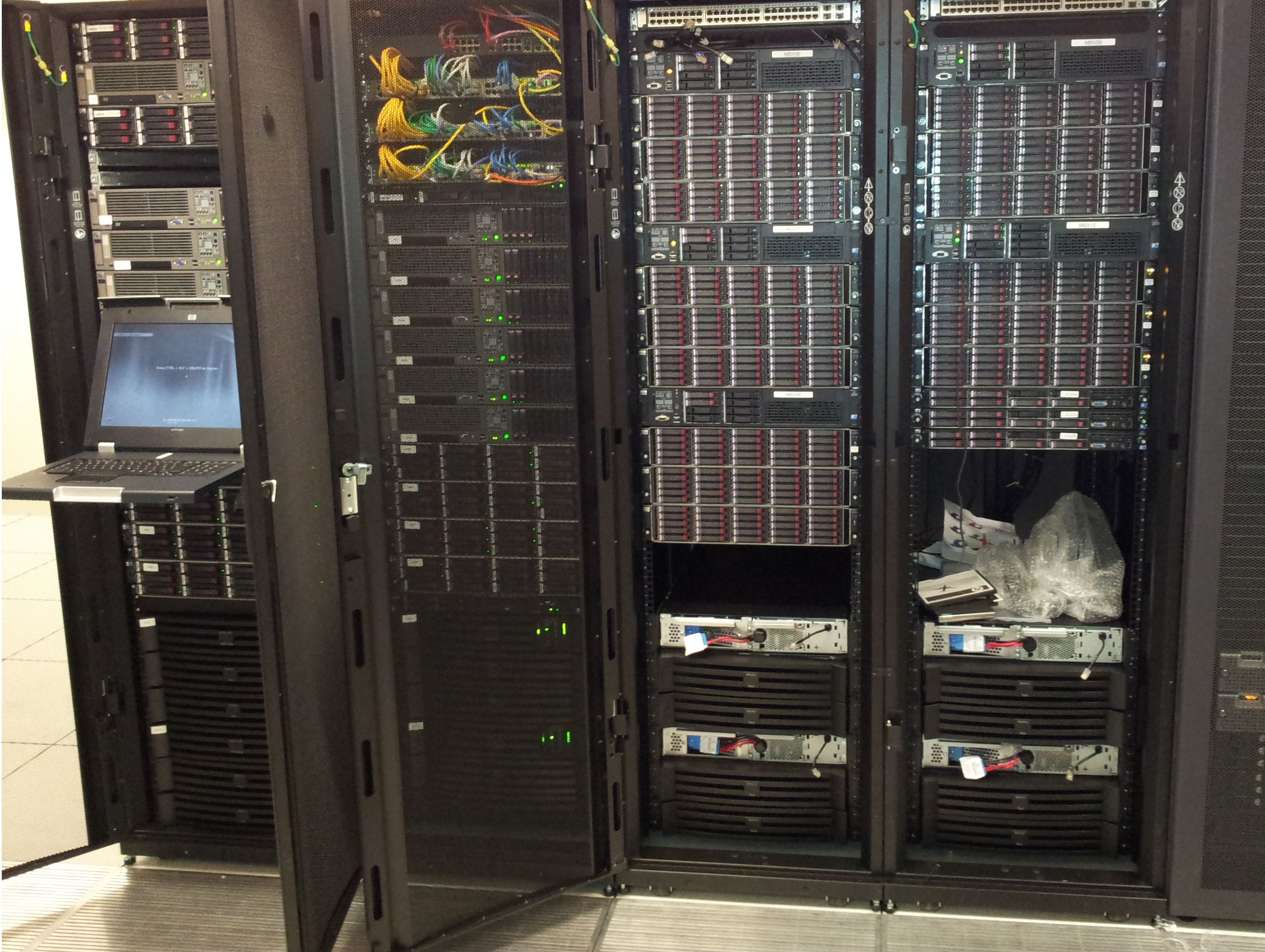
I have one final picture I wanted to post here. It’s actually a couple of weeks old – since it was taken we’ve done all of the cabling and sourced the (mysteriously absent) C19-C20 cables we needed to connect our secondary mains feed into our UPSs to then on to the managed PDU strips. Sadly we won’t need the UPS  kit for very long – our intention is to relocate these servers, post upgrade, into the new university Shared Data Centre  which has two power feeds and centralised UPS provision.

The current live Exchange 2007 service runs on the left-hand pair of racks and the right-hand pair is the new infrastructure for Exchange 2010. You can see each of this site’s five mailbox servers (HP ProLiant DL380 G7s with a pair of six-core processors and 48GB of RAM) with their three disk arrays directly under each server. On the right-hand rack, under the bottom mailbox server’s disks, are this site’s three physical client-access servers (HP ProLiant DL360 G7s with similar processor/memory configuration). The six physical CASs, three per site, will be supplemented by a further six virtual CASs which we intend will host the IMAP service. Hub Transport functions will also be virtualised with six VMs fulfulling that role. The whole installation process kicks off with new CASs – and the first one is now under way…

Begbroke site racks

Posted in Uncategorized | Comments Off on It begins!

Mobile users on Nexus

As part of our upgrade plans we needed to have a better grasp of the numbers of mobile Nexus  users and, more importantly, what they’re using to connect up to our service.

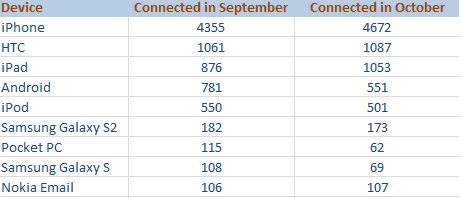
I have therefore started documenting monthly statistics of devices that have used Nexus in the last thirty days.  After two datasets have been collected there are the beginnings of some (mildly) interesting figures. Note that to avoid listing dozens of obscure products the table here only shows those devices used by at least 100 Nexus users.

Mobile devices (those used by at least 100 users only)

The top mobile device connecting to Nexus is of course the iPhone. Apple’s iPad also represents a heavy proportion of our users although iPod usage has dipped, perhaps indicating the start of a trend.

Android trends are a little harder to see because of the way that different manufacturers choose to identify their products. We have over 200 devices that don’t figure in this data because only the IMEI is supplied to our servers, in lieu of proper identification.

Devices that only use the generic identifier of ‘Android’ represent a group almost as numerous as the iPad although the manufacturer isn’t exactly obvious from such a broad identifer. To try and make sense of numerous model versions I have collected together all of HTC’s assorted product offerings into a single group. By doing this HTC more obviously represents the next largest manufacturer, of Nexus mobile clients, after Apple.

I should perhaps have also collected together Samsung’s products in the same way – it would be 366 and 315 devices for September and October respectively – but I chose to leave them separate due to personal bias: I own a Galaxy S2. I’ve only shown the two Galaxy models here as the other Samsung models were used by fewer than 100 Nexus users.

The number of still-active PocketPC users was also a surprise – I didn’t think many would still be using one in anger. And the figures for Nokia are perhaps an indication of just how far that manufacturer has fallen from grace.

One final note – Windows Phone users weren’t yet numerous enough to feature prominently here but, admittedly from a very low starting point of 47 in September, the numbers of Windows Phone users is up by 25% in a month. I’ll continue to collect these figures and, if they’re sufficiently interesting, they’ll appear here too in due course.

Posted in Uncategorized | 1 Comment

Schema update

It is a prerequisite for Exchange 2010 that we upgrade the Active Directory schema. Quite simply, without a schema update we can’t install the product. But other maintenance work we’ve done in recent months, such as that taken to resolve hidden PDFs sent from a Mac, necessitated a schema update too.

In an ideal world this would have meant we were saved a task – being fully up-to-date on Exchange 2007  should save us from further updating tasks. But no, it has actually painted us into a corner. The original release of Exchange 2010 used a schema version that is now below the level we’re operating on. So the original ‘release to manufacturing’ version of Exchange 2010 can no longer be installed here because of the service packs we’ve applied. Here’s how it has worked out:

Schema versions

2007 SP3 14625 11222 11221
2010 RTM 14622 12640 12639
2010 SP1 14726 13214 13040

It’s only the ‘rangeupper’ value that we’re interested in right now. This is the first of the three number strings shown for each version above – our current ‘range upper’ value is 14625  – and as you can see it’s higher than the un-updated version on Exchange 2010.
So we’ll actually be deploying straight to the most current version of Exchange 2010. Currently it’s Service Pack 1  Update Rollup 5 but it’s probable that Service Pack 2 will be released before we get too far.

Meanwhile, back to the task at hand. Fortunately it’s pretty easy to update the schema:

  1. From a command prompt, check the current rangeupper value is what you’d expect. You can check with adsiedit but I just used dsquery as it’s faster:
    dsquery * CN=ms-Exch-Schema-Version-Pt,cn=schema,cn=configuration,dc=domainname,dc=ox,dc=ac,dc=uk -scope base -attr rangeUpper
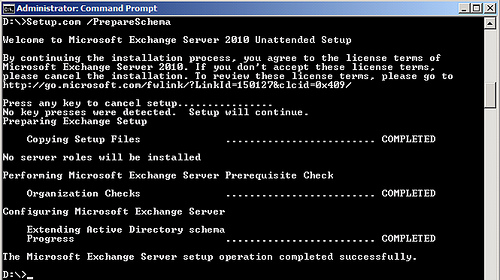
  2. From the Exchange 2010 SP1 media, run setup.com with the ‘prepareschema’ (or ‘ps’) switch. The command has a stop-me-if-you-want-to-cancel mode:  just wait and it’ll proceed by itself:

  3. Run dsquery again – the rangeupper value should now be 14726.
  4. Er, that’s it.

This is one of those jobs that should be uneventful – but one with mammoth repercussions if it broke Active Directory…
By getting it out of the way early it’s one less issue that could cause a loss of service when the big rollout starts.

    Posted in Uncategorized | Comments Off on Schema update

    Exchange 2010 Detailed Design

    The High-Level design has now been completed and is about to be approved – in principle – and we’ll then enter the Detailed Design phase. This is expected to be completed by mid September at which point it can then be signed off and the work will all begin in earnest.

    The first parts of our new infrastructure – the bits we know we’ll need, whatever the design – including power distribution boards, rack blanking plates etc. have now been delivered. Our UPS systems for the additional Begbroke infrastructure have also now arrived and are just waiting for the racks in which they’ll reside.

    We still have lots more hardware to arrange, some of which is still not firmly specified, but if it all continues to arrive as planned we should be able to begin installing software at some point in October.

    Posted in Uncategorized | Comments Off on Exchange 2010 Detailed Design

    Nexus upgrade to Exchange 2010

    Our High Level Design has now been revised in order to incorporate additional fault tolerance features.

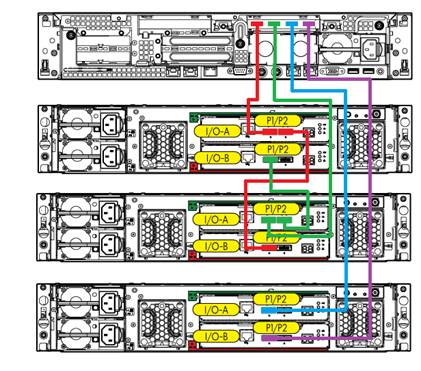
    Cascaded enclosures

    Cascaded enclosures

    We had some concerns with our original design that even a minor failure within a disk shelf  would lead to service failing over to that store’s passive copy. While that in itself isn’t an issue – there still shouldn’t be any user effect – it seemed sensible to revise the plan to ensure that a localised hardware failure would have the smallest possible impact on the system.

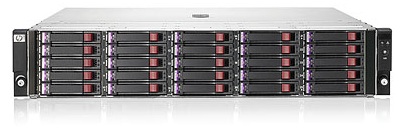
    D2700 Disk Enclosure

    D2700 Disk Enclosure

    So now we intend to attach three (instead of two) D2700 disk enclosures to each mailbox server. The sizing exercise had shown us that we need fewer servers than anticipated so this actually represents a cost reduction too: more fault tolerance and at a lower cost!

    Each enclosure contains 25 2½” 10k rpm 300GB SAS disks, giving us a total of 75 disks available to each mailbox server. These will be divided into 22 database LUNs, each utilising one disk from each of the three enclosures, to create a RAID5 array that can tolerate failure of either a single disk or a whole enclosure. This accounts for 66 of the 75  disks.

    Transaction logs will be allocated two disks per enclosure, a total of  six disks across the three disk shelves, provisioned as a RAID1+0 array. The remaining three disks will be used to create a two-disk recovery LUN (on which the inevitable ‘I’ve deleted half of my email’ restore tasks can take place) and a hot-spare that can operate across all three enclosures.

    Posted in Uncategorized | Comments Off on Nexus upgrade to Exchange 2010