Mail merging


This isn’t something I’ve had to do for quite a while so, mostly for my own reference, here are some of the more common pitfalls after you’ve done the mail-merging legwork.

MAPI32.DLL

If you have the Exchange admin tools installed this DLL gets replaced. It’s usually found in c:\WINDOWS\SYSTEM32. But if you place a copy of the correct MAPI32.DLL file version into the same folder as Outlook (usually C:\Program Files\Microsoft Office\Office<version number>) Outlook will find that one first.

This eliminates the nasty MAPI error messages and still allows your admin tools to work.

Security Settings 

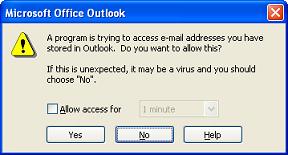
At the final hurdle, just as your mail merge is ready to go, you get the ‘Do you want to allow this?’ message. This is then followed by a succession of ‘allow/deny’ dialogue boxes – one per message  – which can get a bit wearing if you’re emailing hundreds of people…

  The fix (if you don’t want to resort to third-party software, such as ‘ClickYes’) is to install the Office 2007 group policy template from Microsoft.  Having downloaded that, launch the group policy editor MMC snap-in. Under ‘User Configuration’ select ‘Administrative Templates’. Right-click, select ‘Add/Remove templates’ and browse to the Outlook ADM file (ADM\en-us\OUTLK12.ADM).

You now have additional settings for Outlook 2007. Under ‘Security’ change ‘Programmatic Access Security’ to ‘enabled’ with ‘Never warn me about suspicious activity’ selected. Don’t forget to reset this afterwards!


Posted in Uncategorized | Comments Off on Mail merging

“Stop, thief! My data is on that…”

We were recently contacted by one of the university’s departments to discuss their concerns about client-side data security. Their worry was that confidential material from their users’ mailboxes would be cached in Outlook’s offline store. This represented a possible data vulnerability in the event that a computer were to be stolen. The department had proposed, as a solution, that Outlook’s caching should be disabled. Users would work online, minimal confidential data would be stored on the hard disk and all would be well…

Now it is true that the locally cached copy of a user’s email  represents a possible target for the malicious. But tackling a perceived data vulnerability issue via Outlook’s offline store is to overlook countless other areas of equal or greater concern. From my team’s perspective a large number of Outlook clients failing to use caching represents higher server load. These users would have poorer Outlook performance and lose offline access to their email when away from a network.

Disabling Outlook’s caching is not a great idea for performance, server or client. It also doesn’t really address the data vulnerability issue anyway. Even if we were able to force the whole university to use Outlook on their desktops1 there is still a vast array of users’ own devices to which data might be transferred.

If you have content that needs to be secured, my experience is that the end-user represents the weakest part of any security environment: servers are very likely to be fully patched, in a secure datacentre, audited, monitored and protected by strong security policies with ‘least privilege’ access. End users, on the other hand, tend to resent and resist security, only complying where it is impossible to avoid or where non-compliance has sanctions attached.

There are countless security options available but by far the most powerful is to require a strong password: naturally the university does this already. But in a form of arms race the end user can respond to this with software which caches this password for them.  The best solutions to the problem are, in my view, ones that are unavoidable by users. Avoiding any additional user inconvenience at the same time is a bonus. However finding that kind of solution needs a more detailed understanding of the problem.

In the case of our department’s query, a bit of probing eventually revealed that the concern related solely to the possible theft of a departmental computer.  The aim was to provide a security enhancement that should ensure that a casual thief would be unable to recover content from a stolen machine’s hard drive.

Preventing Outlook from duplicating mailbox content locally does, sort of, achieve that aim but overlooks the very real possibility that users may still be putting classified material onto their local computers. Saved attachments, PST files, and MSG files represent just a few of the email-related possibilities. But confidential data doesn’t just move around via email. Plugging one possible route doesn’t affect others.

The ideal situation would therefore seem to be something that doesn’t require user interaction or effort yet secures whatever data our users might care to store on their computer’s hard disk. Fortunately technology comes to the rescue – most of the university’s current crop of desktops have a TPM chip which offers a very simple way to secure hard disks. A brief foray into the BIOS might be needed to activate TPM functions but then Windows can do the remaining heavy lifting. The Enterprise / Ultimate versions of Vista, Windows 7 and Windows 8 all include Bitlocker. This is a hard drive encryption technology that doesn’t generally require any user interaction – they may not even be aware of it.

Bitlocker’s decryption key is held within the computer’s TPM module so, as long as the TPM chip sees unmodified boot files, the operating system will power up normally. From that point onwards of course we do still have to depend on the user having sensible security settings. It is therefore while a computer is turned off that Bitlocker offers a reasonable defence against data loss. It would be foolish to deny that routes still exist to attempt data theft, but those routes need someone who is both highly technical and extremely determined. TPM’s vulnerability relies on a cold-boot attack, extracting the decryption key from the memory of a recently-shut down machine. This is hardly something a casual thief is likely to undertake. Password phishing  probably represents less effort for greater gain…

In the case of computers without a TPM chip, Bitlocker will require the user to supply a USB key or provide a PIN in order to power on. Although this represents a hassle for the regular user, and lacks the transparency of TPM’s approach, it can be even more secure: it makes cold-boot attacks from a really determined hacker that little bit harder.

In my view Bitlocker represents one of those features that, if it’s available to you, you should use it. It’s not perfect by any means but, with a TPM-enabled computer, is completely transparent to the end user. It offers full disk encryption that will make most, if not all, data theft uneconomic.

1 Good luck with that idea.

Posted in Uncategorized | Comments Off on “Stop, thief! My data is on that…”

Kies, Samsung firmware and bricks


I recently opened up Samsung’s Kies software, to synchronise some of the content that doesn’t get updated over the air, and was given a popup notification of a new firmware version. Having done similar upgrades through Kies before I didn’t think twice: new equals shiny equals better, right?

To cut a long story short, this time the update didn’t work. My phone was stuck in limbo and Kies couldn’t get the process to finish. My only hope seemed to be ’emergency firmware recovery’ via a recovery code that Kies presented to me. But even this option didn’t resurrect my slumbering Galaxy S2.

Rather than assume my half-upgraded phone was now a brick I considered my options.  Even if Kies can’t do the upgrade it can at least download the correct firmware for you.  I found that Kies downloads its firmware updates into the TEMP folder. The file’s name is in the format ‘tmp<4 hexadecimal characters>.tmp.

You have to be quick to find it though. Kies decompresses the file into a folder called ‘tmp <4 hexadecimal characters> .tmp.zipfolder’  and almost immediately afterwards begins the firmware upgrading process. Once it gets to 100% these files are removed sharpish – grab a copy while you can! Putting ‘%TEMP%’ into the ‘run’ dialogue box makes this easier to find.

Since Kies couldn’t do the job I finally resorted to the rooter’s favourite: Odin. This little program, armed with the firmware I’d grabbed from Kies’ temp folder, was thankfully able to bring my phone back to life.

As a further bonus, and unlike those who go down the rooting process proper, Kies will still happily talk to my phone for synchronisation and backups. One final point to note – the recovery didn’t work until I had tried using a different USB cable (I switched from my no-name eBay purchase to an official Samsung one) and also plugged straight into a USB port, rather than via a powered hub.

Hopefully this may help someone else who finds themselves stuck in a similar position.


Posted in Uncategorized | 5 Comments

BlackBerry Enterprise server versions

Mostly for my own reference here’s how the BlackBerry bundle numbers you see in ‘Add/Remove programs’ correspond to the various maintenance releases and hotfixes:

Updated 13th April 2014

Version Bundle
5.0 223
5.0 MR1 236
5.0 MR2 244
5.0 MR3 255
5.0 MR4 267
5.0.1 (Service Pack 1) 70
5.0.1 MR1 82
5.0.1 MR2 117
5.0.1 MR3 139
5.0.2 (Service Pack 2) 36
5.0.2 MR1 51
5.0.2 MR2 96
5.0.2 MR3 119
5.0.2 MR4 133
5.0.2 MR5 146
5.0.3 (Service Pack 3) 33
5.0.3 33
5.0.3 MR1 41
5.0.3 MR2 53
5.0.3 MR3 93
5.0.3 MR4 107
5.0.3 MR5 143
5.0.3 MR6 163
5.0.3 MR7 227
5.0.3 MR8 256
5.0.4 (Service Pack 4) 38
5.0.4 MR1 52
5.0.4 MR2 70
5.0.4 MR3 86
5.0.4 MR4 100
5.0.4 MR5 116
5.0.4 MR6 128
5.0.4 MR7 160

Service Pack 4 Maintenance Release 7 is dated 9th April 2014. The minimum requirement to install this remains the same: the server must be running at least v 5.0.4 (bundle 38).

Posted in Uncategorized | Comments Off on BlackBerry Enterprise server versions

iOS6 devices hijack ownership of an Exchange meeting

It has been brought to our attention that Apple devices which have been upgraded to iOS6 may encounter an issue when responding to meeting requests in Exchange. The behaviour has been described as ‘meeting hijacking’ and seems to relate to situations where a user opens a meeting request in Outlook but takes action on it from iOS6.

The effect is that, under certain circumstances, taking action on a meeting request (such as accepting a meeting) has the unfortunate side-effect of simultaneously taking ownership of that meeting. Under those circumstances the meeting updates, cancellations and confirmations would be directed to the new owner rather than the original organiser of that meeting.

Both Apple and Microsoft are reported to be investigating this problem and, at the time of writing, the advice is to contact Apple for an update.

Microsoft have documented this issue here: http://support.microsoft.com/kb/2768774.
The Apple discussion forums discuss it here: https://discussions.apple.com/thread/4368289?tstart=30

This issue appears to be confined to those devices which run iOS6 AND have been configured to connect to Exchange using ActiveSync. If you use a different protocol (such as IMAP4 or POP3), you have a non-Apple device, or you’ve not upgraded your iDevice to iOS6 you should be unaffected.

UPDATES:

The Exchange Team Blog reports on the issue here: http://blogs.technet.com/b/exchange/archive/2012/10/23/ios6-devices-erroneously-take-ownership-of-meetings.aspx

Michael Rose’s blog also documents this behaviour as an even longer-running issue. His article describes a user who reproduced the problem:

At some point, the iOS device syncs the calendar via ActiveSync and suddenly becomes confused about who the owner of the meeting should be (the organizer, in Exchange-speak). The iPhone decides that its owner should become the organizer, since it has no idea who the real owner is, and syncs this property change back to the Exchange server. Exchange 2007 now has a disconnected copy of the meeting with a different owner. Exchange is agnostic about this.
Now the iPhone owner declines the meeting for whatever reason. Exchange automatically generates a cancellation or decline notice and sends it out to everyone since the disconnected copy of the meeting has a different owner. This results in mass confusion and sometimes will delete the meeting from the other calendars.
We verified this problem against iOS 4, 5 and 6 with Exchange 2007 and 2010. In Exchange 2010, Microsoft introduced a “calendar repair agent” that is supposed to detect this problem and resolve it. This calendar repair agent is a daily timer job. Microsoft did release patches on Exchange 2007 SP2 and up to correct some of the issues that are similar to this, but this particular problem was never resolved.

It seems that blame can be applied to both parties in this. Michael’s user’s analysis suggests that:

 Apple’s manipulation of the organizer field is against the ActiveSync specification. However, ActiveSync will not stop iOS from doing this regardless of the fact that it is “against the specification.” ActiveSync will happily accept the change and write the properties from the mobile device even if the ActiveSync spec says that Exchange explicitly should not do this.

Based on this it reads to me that blame should be apportioned in both directions:

  •  Apple: wrote code that attempts to do something it shouldn’t.
  • Microsoft: wrote code that accepts a change that it shouldn’t.

Now we just need one of them to take ownership and fix the issue.


Posted in Uncategorized | Comments Off on iOS6 devices hijack ownership of an Exchange meeting

Exchange 2010 SP2 Rollup 4 doesn’t like a wildcard in your ‘Accepted Domains’

We have identified a curious issue with Exchange 2010 when SP2 Rollup 4 is applied. Here’s what happened, in a nutshell, on our servers:

 Users who have ‘Full Access’ permissions over a secondary mailbox lose the ability to open that secondary mailbox via OWA.

The problem was clearly directly attributable to the rollup and we confirmed this: prior to SP2 RU4 it works; after the update is applied it no longer works. Removing rollup 4 restored the functionality and stopped the error (‘System.ArgumentNullException’) from being returned.

Initially we were confused both by this behaviour and also that it didn’t apparently seem to be a widespread issue. Had we found a problem that was unique to our installation? After our diagnostics had drawn a blank we naturally escalated our report of the problem. A bit of email to-ing and fro-ing eventually led to confirmation that Microsoft can reproduce the error we’re experiencing – but only under a certain very specific condition. This seems to be the explanation for why the issue isn’t widespread – our installation differs in one crucial respect from the majority of others out there. This problem is caused by a revision, introduced in SP2 RU4, which changes the server’s behaviour when trying to access secondary mailboxes from within OWA.  Here is what we’ve been told:

“When there is an additional mailbox that is being accessed through OWA, we perform a search for the same and return it back based on the permissions on the mailbox. The way this search is being performed has changed starting E14 SP2 RU4.

In Exchange 14 SP2 RU3 and previous versions, we just did an un-scoped search. So in a large organization and in a hybrid setup (cloud + On Premise), the search results could be ambiguous. There was a change in this logic introduced starting Exchange 14 SP2 RU4. We now do a scoped search, using the scope of the Primary SMTP Domain of the additional mailbox. We go ahead and search for an Organization ID for this domain in the OrgID Cache that is built. This Cache is built based upon the list of domains in the “Accepted Domain List”. When this domain entry is not in the “Accepted Domain List”, the cache would return a null organization id, resulting in the System.ArgumentNullException. We need to also note here that the cache is built upon the actual domain name, and not a wild card. So a domain entry in the Accepted Domain List, similar to “*.something.com” does not mean that we will have all the domains under something.com in the cache. We will need to add all the domains explicitly in the Accepted Domain List. The cache will be formed based on this list, so that we need not iterate the accepted domain list frequently.”

The university, by virtue of its many departments, divisions and colleges has a great many domain names – 208 at the current count* – and this list changes regularly. To avoid the maintenance overhead of altering the Accepted Domain List we have long since used a wildcard entry for the ox.ac.uk domain. It seems that we therefore fall foul of this new scoped search functionality as a consequence of our wildcard. At the moment the ‘fix’ seems to be to remove the wildcard entry and instead add an entry for every accepted domain.

*Some way off the limit.

Posted in Uncategorized | Comments Off on Exchange 2010 SP2 Rollup 4 doesn’t like a wildcard in your ‘Accepted Domains’

Unintelligent Intelligent Provisioning

This month brings us some new hardware which will shortly become our new Threat Management Gateway array. The new servers are all HP’s  Proliant DL380p (Gen8).

The process for setting up new HP servers has recently been updated. They’ve recently integrated their set-up process internally to the server: instead of booting from a SmartStart CD there now is a built-in ‘Intelligent Provisioning’ boot option instead. In fact a Gen8 server refuses to boot from a Smartstart CD any more.

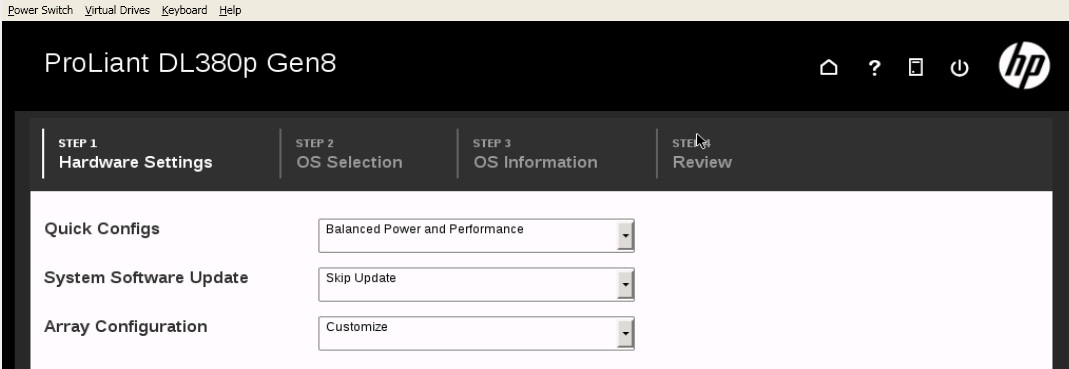
This new Intelligent Provisioning  feature is accessed by pressing F10 at the crucial moment at startup.  For six of our new servers this option was both quick and superbly simple – IP’s options start with a quick config to specify performance options, the ability to update system software as part of the deployment and of course to configure the disks using the Array Configuration Utility (ACU). When accessed via iLO it also allows an ISO file to be presented as virtual media for the installation, so this was my preferred route to do a deployment.

All was well for the first batch of new servers – the array was set to be customised at this first stage, so the ACU launches, lets you configure the disks and then resumes the installation. However this process wasn’t quite so seamless for the last two servers. These two were due to become our new SQL mirror and, initially, all seemed comfortingly familiar.

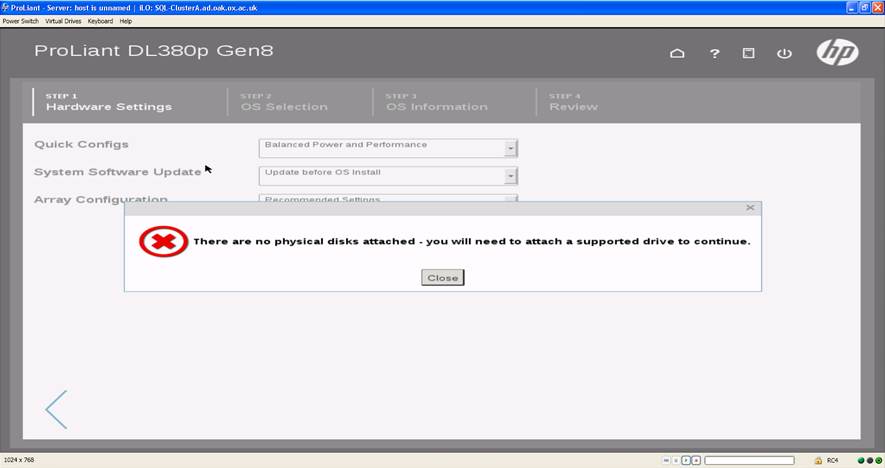
However beneath these three familiar options the ‘continue’ button had disappeared. And almost immediately an error message appeared on screen:

“There are no physical disks attached – you will need to attach a supported drive to continue”

Now I knew that these disks were there. I’d seen them. And this same error was appearing on two different servers which were installed in two different datacentres. Neither had anything more connected to them at this stage than a power feed and a single network cable for the iLO connection – not even so much as a keyboard and screen. But paranoia had started to set in. It didn’t take long for my diagnostic approach to reach the point where I was thinking about removing the cover from the server to check internal cables and re-seat hot-swappable drives.

But prior to that a quick review of this error on the net seemed to be in order. Search engines weren’t very forthcoming, usually all seemingly directed at one or more variants of the same PDF (it suggests that the issue relates to an SD card or an unsupported drive being connected). Neither of these applied in our case.

The fix is surprisingly straightforward however. Rather than request an array configuration as part of the intelligent provisioning process, instead launch the ACU separately. Configure the disks as you wish in advance, and then return to Intelligent Provisioning afterwards. This step seems to bypass whatever disk-hiding glitch was present in the system and setup then resumes as advertised.

Posted in Uncategorized | 2 Comments

Mobiles revisited

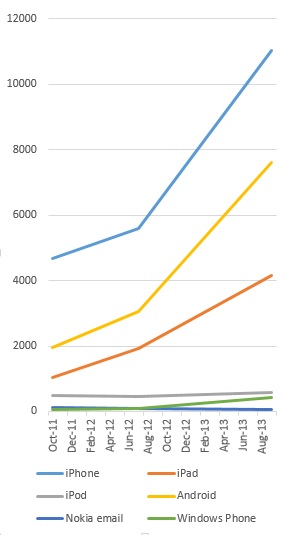
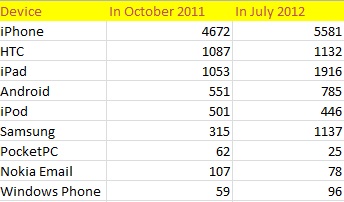
It’s been some time since I last wrote about Nexus’ mobile users so here’s some nice fresh statistics to see what has changed:

  •  11,461 ActiveSync devices
  • 78% have connected in the last three calendar months.
  • 61%  have made a connection today.
  • 3,031 users have more than one ActiveSync device


Effectively we have just under a quarter of our users making regular connections via ActiveSync devices. Although Apple have the, er, Lion‘s share and are showing a healthy increase, the gong for greatest percentage increase goes elsewhere: the number of Samsung devices has more than tripled. About half of them are the Galaxy S2 and 43 people are using the Galaxy S3.

 It’s also worth noting that the Windows Phone is now starting to appear in respectable numbers and is also showing healthy growth.

And finally, a few other numbers that caught my eye:

  • Motorola (33 devices)
  • LG  (10 devices)
  • Research In Motion’s Playbook (10 devices)
  • Palm (22 devices)
Posted in Uncategorized | Comments Off on Mobiles revisited

Using the New-MailboxRepairRequest cmdlet

This cmdlet was mentioned in a previous blog post but I’ve noticed that the information on it that’s out there can be a bit sketchy. So, for my own reference as much as for anyone else’s, here’s my notes on it:

New-MailboxRepairRequest can be run against a whole database (like its predecessor, ISINTEG) or against just one mailbox within it. If a repair is run against a single mailbox, only that mailbox will have service interrupted: all other users within that database are unaffected.

There are four areas that can be checked:
  •  Search folder corruption
    This option looks for all folders named in ptagSearchBacklinks, ptagSearchFIDs, and ptagRecursiveSearchFIDs. It verifies that each folder exists. If the folder no longer exists then it removes that folder from that list.
  • Aggregate counts on folders
    Tallies up all the messages in a folder and keeps a running total of counts and sizes. Once the iteration is complete it will verify the computed counts against the persisted counts on the Folders table record. If there is a discrepancy it will update the persisted counts with those it has calculated.
  • Provisioned folders
    Checks for provisioned folders with unprovisioned parent folders or vice versa
  • Folder view
    Iterates all views for a folder then reconstructs a temporary copy of them. If there is a discrepancy between the two it will delete the view so it can be rebuilt from scratch the next time it is requested.
This cmdlet also includes a detectonly switch, if required, to simply report on problems without making changes. This switch doesn’t seem to affect user service (when tested). It should be safe to use even when a user hasn’t been notified of a service interruption. However that point may be moot: to repair any detected damage with this cmdlet you will affect the user.
g

Examples

A check on a user’s mailbox’s folder views, but without undertaking a repair, would be similar to:

New-MailboxRepairRequest -Mailbox <MailboxID> -CorruptionType FolderView -DetectOnly

The ‘MailboxID’ value can be a GUID, DN, UPN, LegacyExchangeDN, SMTP address, alias or in the format ‘domain\user’.
A more thorough check of a user’s mailbox, reviewing all four checkable areas at once, and completing a repair, would interrupt the user’s service. The command would look like this:
New-MailboxRepairRequest -Mailbox <MailboxID> -CorruptionType SearchFolder,AggregateCounts,ProvisionedFolder,FolderView
A check on a database, for search folder corruption only, (and repairing any errors found) would be similar to this:
New-MailboxRepairRequest -Database <DatabaseName> -CorruptionType SearchFolder

Output

There is no direct output from this tool into the Powershell console. To see what’s been found you must open the application event log of the Exchange Server which hosts the mailbox (you may need to check which is the active database) . Start by looking for MSExchangeIS Mailbox Store events with the event ID 10047 and 10048. To make things a little more challenging note that if you’ve run the New-MailboxRepairRequest cmdlet more than once the event log will only show the mailbox by GUID.  To assist in finding the right one you may therefore want to run Get-Mailbox <name> |FL name,ExchangeGuid.

Event ID

Description

10044

The mailbox repair request failed for provisioned folders. This event ID is created in conjunction with event ID 10049.

10045

The database repair request failed for provisioned folders. This event ID is created in conjunction with event ID 10049.

10046

The provisioned folders repair request completed successfully.

10047

A mailbox-level repair request started.

10048

The mailbox or database repair request completed successfully.

10049

The mailbox or database repair request failed because Exchange encountered a problem with the database or another task is running against the database. (Fix for this is ESEUTIL then contact Microsoft Product Support Services)

10050

The database repair request couldn’t run against the database because the database doesn’t support the corruption types specified in the command. This issue can occur when you run the command from a server that’s running a later version of Exchange than the database you’re scanning.

10051

The database repair request was cancelled because the database was dismounted.

10059

A database-level repair request started.

10062

Corruption was detected. View the repair log details to see what the corruption type was and if it was repaired.

To make these events easier to find, you may want to create a custom view in the Event Viewer:

  1. On the Action menu, click Create Custom View.
  2. In Create Custom View, click By source, and then in the Event sources list select MSExchangeIS Mailbox Store.
  3. In the box labelled <All Event IDs>, add the event IDs for the repair request events that you want to see. For all of this cmdlet’s events enter 10044,10045,01146,10047,10048,10049,10050,10051,10059,10062.
  4. Click OK.
  5. In Save Filter to Custom View, type a name for this view.
  6. Click OK.
N.B.

To ensure that performance isn’t negatively impacted by this tool it is limited to working on one store at a time per server, or to examining 100 mailboxes.
This tool has a partner utility for public folder databases (New-PublicFolderDatabaseRepairRequest) which will accept only ReplState as the corruption type to query. All other syntax is the same.

Posted in Uncategorized | 3 Comments

Mission accomplished!

To save you reading all those previous posts, here’s a recap for you:

Late in the evening of Sunday 4th March 2012, the testing phase was over. I had had feedback from our early adopters and, with all systems set to ‘go’, the first batch of production users were about to be migrated from Exchange 2007 into the heady delights of Exchange 2010. Over the course of that night these accounts tested the efficacy of my scripts and logging – which actually performed better than expected. Script processing was far faster than I could have dared to imagine.

The migrations continued each night, moving approximately 2500 mailboxes each night, for five nights each week.
By Monday 19th March, after three weeks’ worth of migrations, I had passed the halfway mark. The three-quarter mark was passed by the 23rd March and by the time I reached the end of the month over 99% of Nexus mailboxes had been successfully migrated.

April began with negotiation: within the remaining 306 Exchange 2007 mailboxes were 150 mailboxes belonging to one particular division which had been postponed due to sharing concerns. It took until the 16th April to resolve their issues before those mailboxes could finally be migrated. This took me up to the grand total of 99.8% completed. But at this stage I was entering the hard slog of problem mailboxes – the ones which had already failed to migrate at least once. The reasons for this were quite varied, starting from the ones which had (as it turned out) relatively straightforward corrupt messages, through to a pair of mailboxes where every migration attempt locked the user out of their mailbox for 24 hours. Resolving these last 150-odd mailboxes involved a significant amount of communications both with users and their IT support staff to work through the many lists of corrupt mailbox items. I owe a debt of gratitude to my colleagues – and to the users themselves –  for their assistance with this part of the work.

At the same time I had to begin recovering space from the Exchange 2007 servers by defragmenting databases. Migrating users from Exchange 2007 had created vast swathes of whitespace within that system’s stores so our backup software still saw the databases as enormous. In order to ensure that both versions of Exchange could still be backed up successfully in the limited time available each night a defrag was the obvious solution. After my initial (and very time-consuming) manual approach to this I developed a script to dismount the empty databases, defragment them with ESEUTIL and then remount them. The sole remaining manual step was to kick off a full backup so that our schedule of full and incremental overnight backups didn’t get confused.

My inability to successfully move the final three users required vendor assistance but, after a number of dead ends, and time pressure looming, a mailbox backup and restore emerged as the only successful way to migrate them across. The last of these users was migrated in this way this afternoon.

I therefore pronounce that, as of 2:48pm this afternoon, Exchange 2007 is officially no longer servicing any production Nexus mailboxes.

Let the decommissioning commence!

Posted in Uncategorized | 2 Comments