Does your Resources tool display the wrong file types?

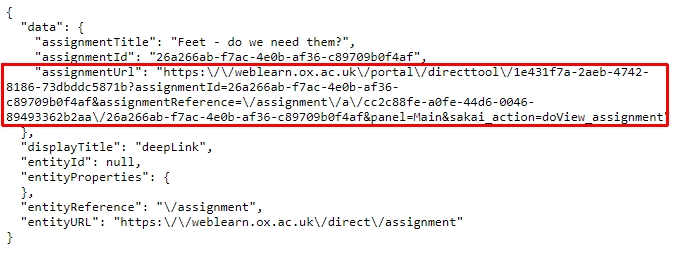
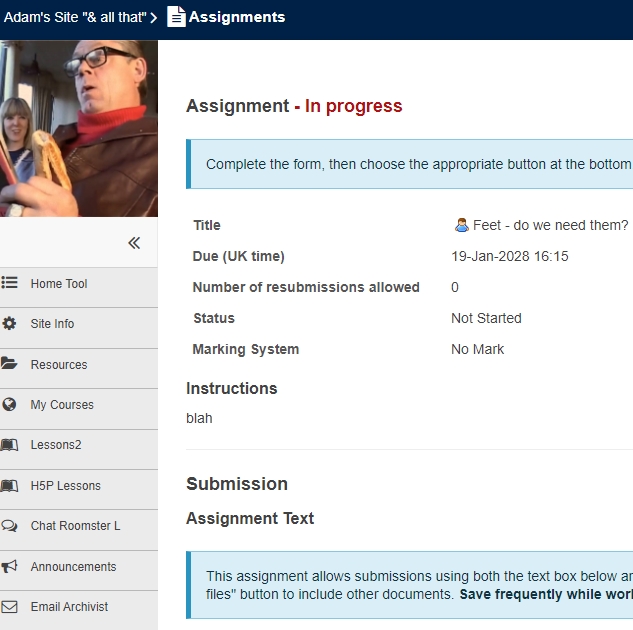
Sometimes one sees the wrong icon next to a file in the Resources tool, this may also have the side effect of forcing the download of a file rather than opening it in the browser. This can be quite annoying.

I asked WebLearn developer Matthew Buckett about this and here is what he had to say about PDFs that were incorrectly attributed.

To fix the issue go into the Resources tool and for every file with the problem click on “Edit Details (Properties)” then scroll to the bottom of the page to find the File Type field and click “Change File Type”. Then from the first drop-down list select “application” and from the second select “pdf”. Then click save. The file should then download/open in all browser fine.

Background/Reasons: When a file is uploaded to WebLearn we get some additional bits of information as well as the actual file. One of those pieces of information is the MIME type, which is a value saying what the format of the contents of the file are. When file was uploaded into WebLearn, the user’s computer told WebLearn that the contents of the files were ‘text/unknown’, WebLearn saves this value and then when anyone download/opens the file the value is sent back to the browser to help it understand it. This mechanism allows files to open correctly when they don’t have a known extension.

To address the above problem, the user needs to fix the MIME type for all PDF files on his computer which should stop this problem from occurring in the future. One might be able to do this using the Finder or an application like http://www.rubicode.com/Software/RCDefaultApp/

Some browsers don’t trust the value in the MIME type and will also look at the file extension to determine how to handle it so the problem may not be evident with all browsers. Once the file is downloaded and saved to disk the MIME type information is lost and so the operating system uses the file extension to determine how to open the file.

Another way to workaround the problem is to put the files to upload in a zipfile then upload the zipfile and expand the zipfile in WebLearn. This way there isn’t any MIME type information about the PDF files when the ZIP is expanded so WebLearn should use the .pdf extension to set the MIME type and so get it correct.

Posted in Sakai, WebLearn | Tagged , | Leave a comment

Byte-sized Site Info tool 14 May 2013

The following questions emerged at the lunchtime session on the Site Info tool on 14 May 2013:

Q: How do you delete a site?
A: Good question – this option is not part of the Site Info ‘dashboard’. To delete a site, you need to remove it from the hierarchy and delete it. Both operations can be done at the same time from the Hierarchy Manager (small menu on the lower left side > Arrange site). Go to the desired site; click on ‘Arrange site’ on the lower left menu; click on ‘Remove site’; select the box ‘Also delete the site’; click on ‘Confirm remove site’. If you do not see the Hieararchy Manager (small menu on lower left side), you will need to speak to your Local WebLearn Coordinator to give you the required permissions.

Q: Do site participants receive an email when a site is deleted?
A: No – so it is not necessary to first remove them as site participants before you delete the site.

Q: Do site participants receive an email when creating internal sub-groups?
A: No – so you can create, edit or remove internal sub-groups without any notifications being sent.

Q: External users (without an Oxford single singon account) – how do they get access to a WebLearn site and how do they get their login details?
A: WebLearn allows you as the site owner to add either Oxford University particpants, or anyone else, simply by using their email address. If the new participant is an external user (e.g. a research collaborator at another university, a visiting expert etc.), they will automatically receive a one-time system-generated email message giving them a link to activiate their account and create their password. They then log in to WebLearn by clicking on the ‘Other Users’ login link. You can try this out by adding yourself to a WebLearn site with your external email address (e.g. gmail, yahoo etc.), give yourself the ‘access’ role, and then log on as an external user to see how the site operates from the access point of view. (This gives a more authentic experience than using the ‘Switch to access user’ toggle option.)

Q: When might you want to make someone ‘Inactive’ in your site?
A: You might be testing something new in the site – instead of unpublising it, you could make the participants temporarily ‘Inactive’ which means that it is as if they have been removed from the site. Later you can make them ‘Active’ again. Another scenario is if you have added a bulk ‘Participant Group’ – you cannot remove individuals in the bulk group, but you can make someone Inactive if you know that they have left the group or course.

Posted in WebLearn Bytes | Leave a comment

Your personal WebLearn space

Jill Fresen has sent me this:

Every member of Oxford University has their own personal ‘cloud’ in WebLearn, called ‘My Workspace’. You can enter your contact details, upload your photo into your profile, and make connections with other WebLearn users. You also have a personal file storage area (max 100 Mb) which you can use to back up files, access them from any other computer, or build a personal web page.

Come along to the Learn at Work day session entitled “WebLearn: An online space for learning and collaboration” at IT Services, 13 Banbury Road on 23 May 2013 from 3:00 to 4:00 pm.

More information and bookings at: http://courses.it.ox.ac.uk/detail/TLW12

Posted in WebLearn | Tagged | Leave a comment

Lunchtime talk about OXCAP / SES: “Make: Graduate Training Hub” – 13 May

IT Services, with the 4 academic divisions, have developed a tool where graduate students and post-doctoral researcher can search for short courses and then request a place.

This talk will give a walk-through of the tool, explain how data is gathered and stored, the various data feeds that are created by the tool, and the ways in which students can request places on courses.

It is suitable for training providers and people of a technical bent.

This takes place in IT Services (Banbury Rd) on Monday 13th May between 12.30 and 1.20

Booking is required: https://courses.it.ox.ac.uk/detail/TM13G

Posted in OxCAP, Sakai, WebLearn | Tagged , | Leave a comment

WebLearn and Turnitin: Jan 2013 – Apr 2013

WebLearn was moved to v2.8-ox5 at the start of April, the highlights are

  • The OXCAP work within WebLearn has now finished, there a few loose ends to tidy up in Oxford Open Data which influence what data is sent to WebLearn. We expect to have these final changes completed by May.
  • Surveys conducted in foreign languages now work properly
  • A URL redirection service has been introduced.

A bug-fix release 2.8-ox5.1 was successfully deployed on 30 April. The findings of the WebLearn Student Digital Experience (WSDE) Project have been published. Highlights include:

  • Upload material in advance of a lecture so students can read up
  • Students or lecturers should make audio recordings of lectures and put them in the Podcasts tool. Lecturers could encourage students to do this.
  • Add Forums to sites for discussions (either including or excluding staff)
  • Give students a folder in resources where they can upload course-related material
  • Departments should hold induction sessions for students and should pass all student feedback to the WebLearn team
  • Base all new sites on one of the (fairly new) site templates
  • Focus the Welcome page on students instead of staff and create more student-centric help and guidance (underway)
  • Promote My Workspace – many students do not know about it
  • Improve UI and usability

Projects

The OXCAP project formally finished at the end of March – the software has passed user acceptance testing and is now live.

Work on the Student Enrolment System (SES) III project has now started. This project is led by the academic divisions and is funded by SSPB. It will further improve the SES tool within WebLearn in the areas of user interface, searching, reporting and  course administration.

The SIPA project which works with academic and administrative staff members across the university to investigate assessment and feedback practices and to invite user input is drawing to a close. Since the pilot of Assignments2 tool began, iParadigms have rewritten the Turnitin web services interface which means we have to rewrite the Sakai – Turnitin integration code, which is a fairly big task. We have decided not to migrate to Assignments 2 since the tool is not yet mature, or in general use in the Sakai community. Instead we will apply its few benefits to the current Assignments tool. SIPA included a pilot of the PeerMark and GradeMark tools – there has not been much interest and we will continue to work with academics or administrators on request.

Other

Roger Pearson who was appointed as the learning technologist for the SIPA project has now left IT Services and moved to The University of the Creative Arts. Members of the WebLearn team gave a total of 3 presentations at the Euro Sakai conference and have submitted an abstract for ALT-C in September.


Posted in Student Experience, Turnitin, WebLearn, WLSE | Tagged | Leave a comment

Locating Graduate Training

The Graduate Training information site in WebLearn has recently been expanded to advertise training opportunities for graduate students provided by all the academic divisions and departments as well as central services such as the Bodleian Libraries, IT Services (ITLP), Careers Service, Language Centre and Safety Office. Please see:

https://weblearn.ox.ac.uk/graduatetraining

Here students are able to browse or search for training opportunities and to request places, to their develop academic, professional and personal skills and to help plan their careers.

The site is linked from all WebLearn sites, and will soon be linked from the University’s Student Gateway, and a catalogue of graduate training opportunities will be displayed publicly for prospective students and others (without the facility to book).

If you would like to request a briefing on the service, for example for a meeting about graduate training, or would just like further information, please contact the WebLearn team.

The Graduate Training information service is an on-going collaborative initiative between the four academic divisions, Continuing Education and the central University training providers; the project to start up the initiative was supported by grants from JISC.

This initiative is overseen by a Steering Group, chaired by Patrick Baird (Physics), with representatives of all the graduate training providers, IT Services and Student Administration.

The aim is to sustain the service to students by keeping the information on training provision up to date, and to enhance it where possible.

Posted in OxCAP, WebLearn | Tagged , | Leave a comment

Making the Most of Search

Photo credit: http://www.flickr.com/photos/doug88888/4535174486

As you may or may not know, WebLearn’s search tool has been completely rewritten. This rewrite has introduced a number of powerful new features that have been hitherto hidden from the user.

As part of the funding given to OUCS / IT Services by the Blavatnik School of Government in order to develop a world-class iPad ‘Learning App’ for their Master in Public Policy course, the WebLearn team reimplemented all the complicated plumbing within the search tool. (For those that are interested, we now use Apache Solr as a front-end to Apache Lucene .)

On the surface, the Search tool behaves exactly as normal, however, it is now possible to supply advanced queries which will allow a more relevant list of results to be returned. Here is a handy guide to these new features. A lot of this guide is taken from the Apache Lucene help pages.

Terms

A query is broken up into terms and operators. There are two types of terms: Single Terms and Phrases.

A Single Term is a single word such as “hip” or “priest”.

A Phrase is a group of words surrounded by double quotes such as “hip priest”

Multiple terms can be combined together with Boolean operators to form a more complex query (see below).

The search tool will also perform stemming.

Wikipedia tells us that “in linguistic morphology and information retrieval, stemming is the process for reducing inflected (or sometimes derived) words to their stem, base or root form—generally a written word form”.

Wikipedia cites the following examples: “a stemming algorithm reduces the words ‘fishing’, ‘fished’, ‘fish’, and ‘fisher’ to the root word, ‘fish’. On the other hand, ‘argue’, ‘argued’, ‘argues’, ‘arguing’, and ‘argus’ reduce to the stem ‘argu’ (illustrating the case where the stem is not itself a word or root) but ‘argument’ and ‘arguments’ reduce to the stem ‘argument’.

So that’s clear then!

Fields

A faceted search query of the following form can be made

<field>:<argument> [<optional-search-term(s)>]

The following  fields are available

  • tool- specify the tool to search, if no tool field is supplied than all tools are searched. The following are valid tools, none of the other tools have their contents indexed so will not show up in search results:
    • forums
    • wiki
    • email (aka ‘Email Archive’ tool)
    • content (aka ‘Resources’)
    • announcement
    • chat
    • site (aka ‘Home’ tool)
  • title – search just the title, this could be the title of an email message or a document
  • contents – search just the contents i.e. not title or description etc.
  • siteid – search just the stated site. The site ID is found in the URL of a Resource, it is accessible via the Edit Details page:

Site ID is part of the URL of a resource

As an example, if you want to find the document entitled “The Right Way” which contains the text “don’t go this way”, you can enter:

title:"The Right Way" AND contents:go

Note: The field is only valid for the term that it directly precedes, so the query

title:The Right Way

Will only find “The” in the title field. It will find “Right” and “Way” in other areas.

The query

tool:forums "Mark E Smith"

will search the forums tool only for mentions of everybody’s favourite northern curmudgeon. The query

tool:content "Mark E Smith"

will just search Resources. The query

tool:content OR tool:forums "Mark E Smith"

will search both tools. See later for an explanation of Boolean operators.

Term Modifiers

WebLearn search supports modifying query terms to provide a wide range of searching options.

Wildcard Searches

You can make single and multiple character wildcard searches within single terms (not within phrase queries).

To perform a single character wildcard search use the “?” symbol.

To perform a multiple character wildcard search use the “*” symbol.

The single character wildcard search looks for terms that match that with the single character replaced. For example, to search for “text” or “test” you can use the search:

te?t

Multiple character wildcard searches looks for 0 or more characters. For example, to search for test, tests or tester, you can use the search:

test*

You can also use the wildcard searches in the middle of a term.

te*t

Note: You cannot use a * or ? symbol as the first character of a search.

Regular Expression Searches

WebLearn search supports regular expression searches matching a pattern between forward slashes “/”.  For example to find documents containing “moat” or “boat”:

/[mb]oat/

Fuzzy Searches

WebLearn search supports fuzzy searches based on Damerau-Levenshtein Distance. To do a fuzzy search use the tilde (twiddle), “~”, symbol at the end of a Single word Term. For example to search for a term similar in spelling to “roam” use the fuzzy search:

roam~

This search will find terms like foam and roams.

An additional (optional) parameter can specify the maximum number of edits allowed. The value is between 0 and 2, For example:

roam~1

The default that is used if the parameter is not given is 2 edit distances.

Proximity Searches

WebLearn search supports finding words are a within a specific distance away. To do a proximity search use the tilde, “~”, symbol at the end of a Phrase. For example to search for a “WebLearn” and “indispensable” within 10 words of each other in a document use the search:

"WebLearn indispensable"~10

Range Searches

Range Queries allow one to match documents whose field(s) values are between the lower and upper bound specified by the Range Query. Range Queries can be inclusive or exclusive of the upper and lower bounds. Sorting is done lexicographically.

title:{Aida TO Carmen}

This will find all documents whose titles are between Aida and Carmen, but not including Aida and Carmen. Inclusive range queries are denoted by square brackets. Exclusive range queries are denoted by curly brackets so if you wanted to include Aida and Carmen then use square brackets:

title:[Aida TO Carmen]

Boosting a Term

WebLearn search provides the relevance level of matching documents based on the terms found. To boost a term use the caret, “^”, symbol with a boost factor (a number) at the end of the term you are searching. The higher the boost factor, the more relevant the term will be.

Boosting allows you to control the relevance of a document by boosting its term. For example, if you are searching for

WebLearn indispensable

and you want the term “WebLearn” to be more relevant boost it using the ^ symbol along with the boost factor next to the term. You would type:

WebLearn^4 indispensable

This will make documents with the term WebLearn appear more relevant. You can also boost Phrase Terms as in the example:

"WebLearn indispensable"^4 "Usage data"

By default, the boost factor is 1. Although the boost factor must be positive, it can be less than 1 (e.g. 0.2)

Boolean Operators

Boolean operators allow terms to be combined through logic operators. WebLearn search supports AND, “+”, OR, NOT and “-” as Boolean operators (Note: Boolean operators must be ALL CAPS).

OR

The OR operator is the default conjunction operator. This means that if there is no Boolean operator between two terms, the OR operator is used. The OR operator links two terms and finds a matching document if either of the terms exist in a document. This is equivalent to a union using sets. The symbol || can be used in place of the word OR.

To search for documents that contain either “WebLearn indispensable” or just “indispensable” use the query:

"WebLearn indispensable" indispensable

or

"WebLearn indispensable" OR indispensable

AND

The AND operator matches documents where both terms exist anywhere in the text of a single document. This is equivalent to an intersection using sets. The symbol && can be used in place of the word AND.

To search for documents that contain “WebLearn indispensable” and “Usage data” use the query:

"WebLearn indispensable" AND "Usage data"

+

The “+” or required operator requires that the term after the “+” symbol exist somewhere in a the field of a single document.

To search for documents that must contain “WebLearn ” and may contain “indispensable” use the query:

+WebLearn indispensable

NOT

The NOT operator excludes documents that contain the term after NOT. This is equivalent to a difference using sets. The symbol ! can be used in place of the word NOT.

To search for documents that contain “WebLearn indispensable” but not “Usage data” use the query:

"WebLearn indispensable" NOT "Usage data"

Note: The NOT operator cannot be used with just one term. For example, the following search will return no results:

NOT "Usage data"

-

The “-” or prohibit operator excludes documents that contain the term after the “-” symbol.

To search for documents that contain WebLearn indispensable” but not “Usage data” use the query:

"WebLearn indispensable" -"Usage data"

Grouping

WebLearn search supports using parentheses to group clauses to form sub queries. This can be very useful if you want to control the boolean logic for a query.

To search for either “WebLearn” or “Sakai” and “indispensable” use the query:

(WebLearn OR Sakai) AND indispensable

Field Grouping

WebLearn search supports using parentheses to group multiple clauses to a single field.

To search for a title that contains both the word “return” and the phrase “pink panther” use the query:

title:(+return +"pink panther")

Escaping Special Characters

WebLearn search supports escaping special characters that are part of the query syntax. The current list special characters are

+ - && || ! ( ) { } [ ] ^ " ~ * ? : \ /

To escape these character use the \ before the character. For example to search for (1+1):2 use the query:

\(1\+1\)\:2

Posted in Sakai, WebLearn | Tagged , | Leave a comment

Secure Access to Additional Verification Sites

photo credit: http://www.flickr.com/photos/wildliferesourcesdivision/6379124673

If you intend to visit an Additional Verification (AV) site, it is essential that you follow procedure:

  1. Close your browser and make sure every single browser window has been closed. This may seem odd but it is very good practise to start afresh when accessing AV sites. Restart your browser.
  2. Switch to Private Browsing or InPrivate Browsing or open an Incognito window or tab or equivalent. If your browser does not support this then use one of Chrome, Safari, Internet Explorer, Opera or Firefox:
    • Internet Explorer: Tools > InPrivate Browsing
    • Firefox: File > New Private Window
    • Google Chrome: ‘Settings’ (denoted by three horizontal parallel lines atthe top right of the browser) > New Incognito Window (or ctrl+shift+n)
    • Opera: Tabs and Windows > New Private Tab or Window
    • Safari: Safari > Private Browsing
  3. Make sure that whilst you are visiting an AV site you do not open another tab in the same browser unless it is another WebLearn AV site. If you need to look at another web site use a different browser.
  4. Visit WebLearn: https://weblearn.ox.ac.uk/
  5. Click on “Oxford Account” at the top right of the screen. You will be directed to the “Webauth login screen” enter your username and supply the relevant password, then click login. If you do not have an Oxford SSO account then you cannot access AV sites.
  6. You will see an intermediate page telling you that you are about to proceed to WebLearn; this page is referred to as the “Green Tick Page”. Click on the link in the grey box in the middle of the page. You should now be logged into WebLearn.
  7. Now, click on “My Active Sites” (top right) and under “Other” (first column) click on the relevant site (or whatever it is called).
  8. Click on the grey box in the middle of the page “Continue to Shibboleth Identity Provider”
  9. At this point a special code should be sent to your mobile phone by SMS – it is valid for 15 minutes
  10. Enter the access code into and click “Verify Code”. If you have problems or have waited too long, click “Request New Code”
  11. You should now be taken back to the WebLearn site, and should be able to browse, read and edit the site content.
  12. As soon as you are finished, logout of WebLearn and Webauth. Then close down your browser. Make sure every browser window has been closed.

This web page should explain other aspects of Additional Verification: http://www.oucs.ox.ac.uk/services/iam/sms.xml

Posted in Sakai, WebLearn | Tagged , , | Leave a comment

WebLearn unavailable on 30 April 2013 7-9am

It is planned to upgrade WebLearn to version 2.8-ox5.1 on Tuesday 30 April 2013 7-9am. There will be no service during this period.

Posted in Downtime, WebLearn | Tagged | Leave a comment

WebLearn and Turnitin Courses for Trinity 2013

WebLearn

Course books for the formal courses (3-hour sessions) can be downloaded for self study.

WebLearn: Fundamentals Thurs 2 May 9.15-12.15

or

Mon 3 June 9.15-12.15
WebLearn: Surveys Thurs 9 May 2:00-5:00
Multimedia: Tools for creating interactive online resources Mon 3 June 12:30-13:30
WebLearn: Design and content – (formerly called ‘Making your site work’) Thurs 13 June 2:00-5:00

New! Byte-sized lunch time sessions focus on one particular tool, with time for questions and discussion

WebLearn Bytes: Surveys Tues 7 May 12:30-13:30
WebLearn Bytes: Site Management Tues 14 May 12:30-13:30
WebLearn Bytes: Resources Tues 21 May 12:30-13:30
WebLearn Bytes: Assignments Tues 28 May 12:30-13:30
WebLearn Bytes: Tests and Quizzes Tues 11 June 12:30-13:30
WebLearn User Group Mon 24 June 2:00 – 4:00

Express an interest! The following courses will be arranged if there is sufficient demand. Express your interest in a particular course:

WebLearn: Using Mobile Oxford This one-hour course demonstrates the award-winning Mobile Oxford platform (m.Ox) and a selection of WebLearn tools that can be accessed via a mobile device. Participants will have the opportunity to use their mobile devices to try out various WebLearn tools via the mobile platform.
WebLearn: Tools to support teaching and learning This course focuses on WebLearn tools for tutors and lecturers to use in communicating with students, arranging tutorial sessions, conducting course evaluation surveys, providing reading lists, organising learning materials, and tracking site usage.
WebLearn: Assessment and feedback There are several ways to assess student work in WebLearn. This course looks at the e-assessment options available to lecturers and tutors: how to configure the tools, use them to mark student’s work and deliver feedback.

Plagiarism Awareness

Places are limited and bookings are required. Bookings open 30 days in advance for the following courses, but you can express an interest in a course and receive a reminder to book when booking opens.

Plagiarism: WebLearn and Turnitin Tues 30 April 12:30-13:30
Plagiarism: Turnitin Fundamentals – The course book can be downloaded for self study. Thurs 30 May 2:00-5:00
Plagiarism: Interpreting Originality Reports using Turnitin Tues 4 June 12:30-13:30
Plagiarism: How to avoid it (for students). The student course can also be run on request for departments or colleges. There is a charge for the venue, if a lecture room at IT Services is required. Wed 12 June 9:15-12:15
Turnitin User Group: Come and air your views or discuss your questions Mon 1 July 2:00 – 4:00
Posted in e-learning, Sakai, WebLearn | Tagged , , | Leave a comment