WebLearn unavailable on Tuesday 3 December 2013 from 7-9am

It is planned to upgrade WebLearn to version 2.8-ox8.1 on Tuesday 3 December 2013 7-9am. There will be no service during this period.

This release includes bug fixes for:

  • broken right mouse button functionality in the WYSIWYG editor
  • problems associated with subscribing to calendars that have events with attachments
  • Oxford Podcasts fails to work with Internet Explorer
  • poor Researcher Development Framework tagging of Graduate Training courses
  • failure to update internal subgroups comprising more than one ‘role group’
  • inability to assign public access to files or folders if all Oxford users have already been granted access

We apologize for any inconvenience that this essential work may cause.

Posted in Downtime, WebLearn | Tagged | Leave a comment

WebLearn for teaching & learning – Q&A

The following questions emerged during the course WebLearn: Tools for teaching and learning held on 21 November 2013:

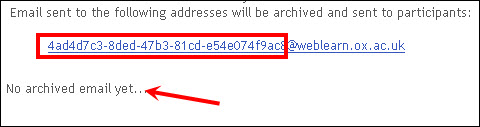
Q: When you duplicate a site, the student-generated data is stripped out. What happens to the Email Archive?

A: The Email Archive is also wiped clean. Click on the Optionslink to provide a new unique prefix for the new mailing list in the duplicate site.

emailarchive

Q: In the Signup tool, you can elect to generate an Attendance list. How does this work?

A: When the sign up period opens, the Attendancelink will appear, listing all participants who have signed up. You can print this out if you wish to have a hard copy attendance sheet during the meeting. Alternatively, during or after the meeting, click on Attendance and record attendance of each individual by ticking the relevant tick box. Click ‘Save’. The attendance list will be saved and exported on the ‘Attendance’ tab in the Excel spreadsheet when you use the Export option.

Q: In the Signup tool, when creating a new meeting, what is the benefit of electing to add participants using their ‘Username’ ? You don’t get the useful dropdown list to be able to pick participants from the site membership list.

A: This option reallyonly applies when the site membership is extensive (e.g. hundreds of students), in which case a drop-down list would become unwieldy. You can then add participants to a meeting manually by entering their email address.

Posted in WebLearn courses | Leave a comment

WebLearn: Design and content course – questions answered and tips

The following questions were asked at the WebLearn: Design and content course at IT Services on 14 November 2013:

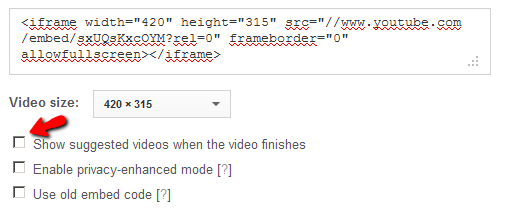
Q: I have embedded a YouTube video on my page.  When it finishes playing, the player displays a number of suggested videos.  How can I stop this, as some of them may not be relevant or appropriate?

A: By default, YouTube suggests a number of videos when your embedded video finishes playing.  You can uncheck this box to prevent this. The embed code will be modified accordingly.

embed-youtube

Q: I have created a long web page in WebLearn.  How can I create an index at the top, allowing people to navigate to a particular section on the page?

A:  To create an index, first you need to type a heading for each section (it is also good practice to apply a heading style to each heading, e.g. Heading2 etc.)

  • Select a section heading and click on the Anchor button (the ‘flag’ image) in the toolbar
  • Type in a short anchor name for this heading and click ‘Ok
  • Repeat the two steps above for all the other headings on the page
  • Create an ‘index’ section at the top of the page by typing in a list of the section headings.  The headings can be arranged in the way you prefer, e.g. a bulleted list or divided horizontally by a special symbol, such as “|”.
  • Select each heading in the index one at a time, and click on the Link button
  • In the pop-up window, under the Link Type drop-down list, select Link to anchor in the text. A drop-down list of all your previously-named anchors will appear; select the one corresponding to the heading in the index and then save. Do the same for all the other headings and their corresponding anchors.

Q: My index jumps to the required section, but it is not always displayed at the top of the page, as I expect. Can I control this?

A: No, one cannot control exactly how the page will display. The required section and heading will the visible, but exactly where it will appear on the page depends on how long the page is, and in particular, how much content is below the anchor.

Q:  I want all Oxford users to be able to upload their competition entries to Resources.  Can I remove the ‘read’ permission at the top level of Resources to prevent them seeing each other’s entries?

A:  This is not recommended.  If you remove the ‘read’ permission for students at the top level of Resources, they will not be able to see the Resources tool at all.  The possible solutions include:

  • As a maintainer, you can hide each competition file as soon as it is submitted into Resources
  • You can use either the ‘Drop box‘ or ‘Assignment‘ tool to manage submissions.  However, you would have to make the site ‘joinable’ so that competition entrants will become a member (e.g. a user with the ‘access’ role) of the site.

Useful links:

Posted in WebLearn, WebLearn courses | Tagged , , | Leave a comment

Joinable sites in WebLearn

Question

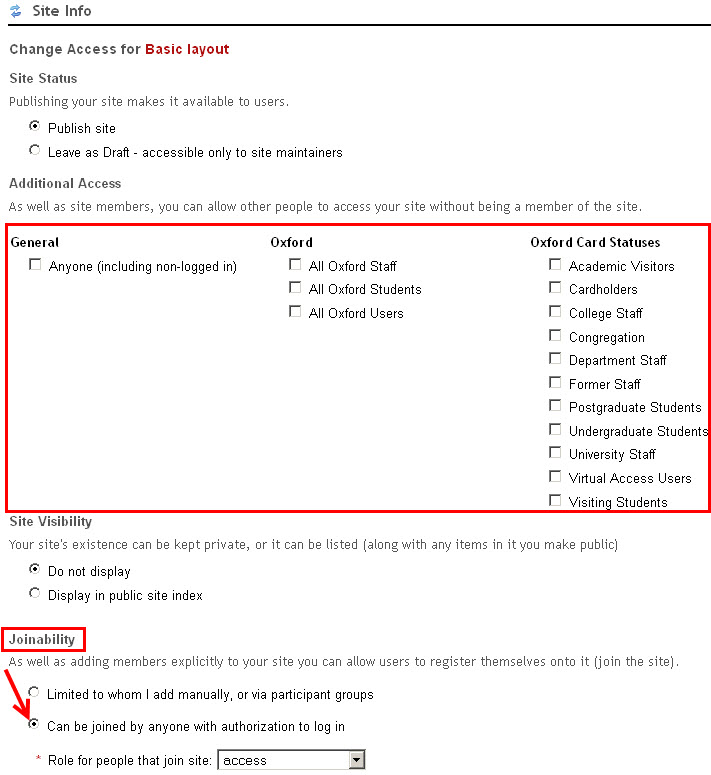
In Site Info > Manage Access, what is the relationship between

  • the Additional Access tick boxes that allow various sets of people to visit a site, and
  • the Joinability option ‘Can be joined by anyone with authorization to log in’?

This question was raised at the WebLearn Bytes session on Site Management and Resources in October 2013. Other WebLearn users may be interested in the answer.

joinable

Answer

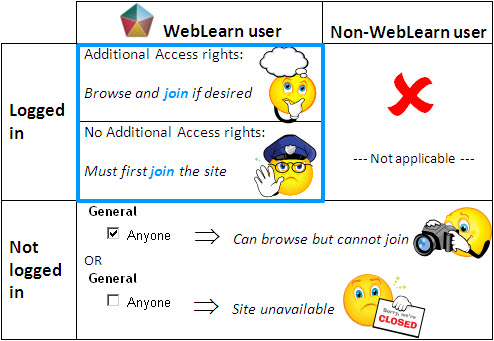
The effect produced when you select one or more of the Additional Access tick boxes and the Joinability option ‘Can be joined…’ depends on:

  • whether or not the person is a WebLearn user (i.e. an Oxford user or an external user who has a WebLearn account);
  • whether or not the WebLearn user is currently logged in.

** A person can only join a site if they are a WebLearn user and they are logged in.**
However, you can exercise differing degrees of control over how they browse or join the site, as we explain in the next two sections.

Allow a person to browse a site and then to decide whether to join it

The person is a logged-in WebLearn user and belongs to a group that has been granted access to the site through one or more of the Additional Access options.

You can allow people in one or more Additional Access categories to browse the site without necessarily joining it. WebLearn does not automatically ask the person if they would like to join the site. However, if they decide to do so, they can go to ‘Site Info’ and click on ‘Join this site’.

You will know who has joined the site (by looking at the list of site members), but you have no control over who has only visited it.

Example: You have set up a site for a particular undergraduate course. You also want to allow any Oxford user who is interested in the course to visit the site: e.g. to see the reading lists and read uploaded articles. In this case, you tick the ‘All Oxford Users’ category (under the heading ‘Oxford’).
all
If an Oxford user who visits that site wishes to receive email notifications of new content and enjoy other benefits of site membership, they can join the site as described above.

Require a person to join a site before they can browse it

The person is a logged-in WebLearn user, but does not belong to a group that has been granted access to the site through one or more of the Additional Access options.

You can allow people to access the content of a site even if they are not in one of the Additional Access categories that you have specified for that site. However, they must first join the site. If a logged-in WebLearn user tries to access the site, but doesn’t belong to one of your specified Additional Access categories, then WebLearn informs them that they aren’t currently a member and invites them to join the site.

This means that you can know exactly who has joined the site, even one-time visitors.

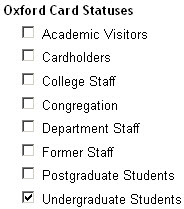
Example: You have set up a site for a particular undergraduate course. You also want to allow any other undergraduate who is interested in the course to visit the site: e.g. to see the reading lists and read uploaded articles. In this case, you tick the ‘Undergraduate Students’ category (under the heading ‘Oxford Card Statuses’):
ug_students
If, say, a postgraduate student wishes to browse that site for its materials, WebLearn obliges them to join it first.

Notes

1. If a person is a WebLearn user but is not currently logged in, or if they are a member of the general public (i.e. not a WebLearn user): :

  • If the site is publicly accessible (i.e. the ‘Anyone’ box has been ticked), they can browse the site, but cannot join it.
  • If the site is not publicly accessible, WebLearn will inform them that the site is unavailable.

2. If you don’t tick any of the Additional Access boxes, then the Joinability option ‘Can be joined by anyone with authorization to log in’ permits anyone with a WebLearn account to become a member of the site: i.e. external users with WebLearn accounts, as well as Oxford users.

3. If an authorised user joins a joinable site, they can also leave it at any time … this is obviously  not desirable for course sites in which student participation is required.

See also the FAQ in the WebLearn Guidance site: https://weblearn.ox.ac.uk/info. Under ‘Guides and Tutorials’, select ‘FAQs’, and search (Crtl-F) for the word ‘join’. You will find the FAQ ‘How do I get people to join a site?’.

Summary

joinable

Posted in WebLearn Bytes | Leave a comment

New browser behaviour: a non-technical perspective

This post is directed to WebLearn site maintainers

– Have students reported that they cannot see certain materials in WebLearn?
– Do some links in your WebLearn sites appear to be broken?
– Are videos or other content missing from your WebLearn pages?

If the answer to these questions is ‘yes’, this may be the result of changes to the way web browsers handle non-secure content. This blog post explains, in non-technical terms, what has changed and what you need to do to fix the ‘broken’ links permanently, or reinstate missing content.

Background

Web browsers classify content as either secure or non-secure.

  • With secure content, the URL begins with the protocol https://
  • With non-secure content, the URL begins with the protocol http://

A web page can contain solely secure content, solely non-secure content, or a mixture (‘mixed content’).

The major web browsers have recently changed the way in which they handle non-secure content. They now prevent you from displaying non-secure content within a secure page ( such as WebLearn) (e.g. via an embedded webpage, video, iframe, or a widget such as an old Twitter feed or Facebook). This can affect how links are displayed (or not) in WebLearn sites, so you need to take remedial action. The benefit is that your WebLearn sites will be more secure and less susceptible to malicious attacks that can potentially occur via a piece of non-secure content.

What you need to do

The WebLearn team has made it possible temporarily to display certain non-secure content in some tools (see ‘Additional information’ below), while a user is viewing the page.  However, for a permanent solution site maintainers need to edit any non-secure links in their sites.

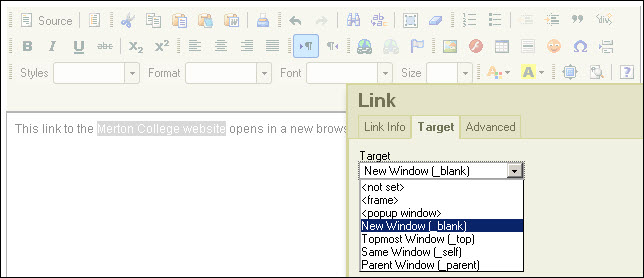
  • Make all hyperlinks that currently point to non-secure (http://) sites open in a new browser tab or window. Use the WYSIWYG editor to edit each link and change the Target to ‘New Window (_ blank)’:

new_window

  • If the site’s Home page points to a Site Info URL (i.e. the Home page has not been created using the built-in WYSIWYG editor), the target page must be a secure one (i.e. https://).If the URL begins with http:// and no https:// version exists (e.g. it’s the home page of a college or department), the link will no longer work. You will need to rethink the site’s Home page and perhaps create one using the built-in WYSIWYG editor.
  • If the site contains links to YouTube or Vimeo videos (or similar), update the links to use the new embed code that is provided by the host sites, as follows:
    • Go to the webpage of the original video, click ‘Share’ and then ‘Embed’ to copy the new code (note: it should provide the specifications for the video, something like this: ‘<iframe width=”560″ height=”315″ src=”//www.youtube.com/embed/bqM1bAO5Bzo” frameborder=”0″ allowfullscreen></iframe>’).
  • If the host site does not provide an https:// version of the ’embed’ code (e.g. www.dailymotion.com), then create a WebLearn page containing a link to the required video, to open in a new window.
  • If the site contains embedded widgets, do one of the following:
    • Switch to the https:// version, if one exists;
    • Open the link in a new window; or
    • Remove the widget altogether.

What you need to be aware of

If you (or other users of your site) encounter any of the following situations, it means that WebLearn is still finding mixed content. Check the links and, if necessary, edit them as described above.

  • A page that you had expected to open within the current WebLearn page opens in a new tab or window instead, or alternatively it doesn’t open at all.
    This is probably because the link is to non-secure content (http://). If you want a page to open within the current WebLearn page, then it must point to an https:// target.
  • Content is blocked: i.e. a page is not displayed, or a page is displayed, but some of its elements are missing (e.g. videos or widgets).
    When viewing the webpage, look out for either a small grey shield in the browser bar (Firefox or Chrome) or a yellow ‘warning’ box at the bottom (Internet Explorer 9 or 10). Click the icon or box and decide whether to view some or all of the blocked content.
    Note: You may still see the grey shield (yellow box) even if some of the content is visible. This is because WebLearn has ‘rewritten’ the web page after the browser displayed the shield (or box).

Additional information

The WebLearn tools in which non-secure content is temporarily displayed are: Resources, Web Content, Home, Forums and the Wiki.

Examples of non-secure content which is temporarily displayed are: YouTube and Vimeo videos.

The following blog posts provide full technical details of the changes described above:
(where these posts mention ‘rewritten on-the-fly’ or ‘dynamically rewritten’ it means that the content is temporarily displayed. Note that site owners still need to edit mixed content for a permanent solution.)

Posted in WebLearn | Leave a comment

WebLearn Bytes: Assignments – MT 2013

The following tips emerged from the lunch time session WebLearn Bytes: Assignments on 12 November 2013:

  1. If you are using Assignments with the Markbook tool, do all assignment creation, editing, marking and removal  in the Assignments tool. You must make any changes to settings, as well as any grade changes, in the Assignments tool. The Markbook tool simply collects the marks automatically ‘behind the scenes’.
  2. Although you can choose letter grades, points, pass/fail, tick mark, or unmarked assignments when creating an assignment, if you are using Markbook, then you need to set the marking system in Assignments to Points; this is the only marking system that enables calculations to take place in the Markbook.
  3. Marks you assign for an individual assignment do not display in the Markbook (even for the instructor) until you release the grades or return a grade to a student from the Assignments tool.

Useful links:
Assignments step-by-step guide
Assignments demo video clips

Posted in WebLearn, WebLearn Bytes | Leave a comment

Possible Missing Files?

Last week’s problems with file uploads and deletions have now been fixed, however, it would appear that a small number of files  may possibly have become corrupted as a result of the outage. Affected files will probably appear to be blank, however, this will only be evident once an attempt is made to open them – the original file size will still appear to be correct when viewed in Resources.

We are working with the IT Services Infrastructure and Hosting Team (aka sysdev) to try and identify and restore all affected content. Unfortunately, at this stage, we do not know the extent of the problem, however, it is not thought to be widespread.

If you discover any issues then please send an email to weblearn@it.ox.ac.uk stating the URL of the problematic site and the URL of the file that has become corrupted. It is very important to include both these references.

The problems were caused by malfunctioning AFS software – this is the system that manages the file store where WebLearn stores documents and files. There have been other problems in the past with AFS and moves are afoot by sysdev to upgrade the version of AFS that is being used; it is anticipated that this work will be completed by the end of the year.

We sincerely apologize for the inconvenience that this disruption must be causing.

Posted in Sakai, WebLearn | Tagged | Leave a comment

WebLearn unavailable on Tuesday 12 November 2013 from 7-9am

It is planned to upgrade WebLearn to version 2.8-ox8 on Tuesday 12 November 2013 7-9am. There will be no service during this period.

We apologize for any inconvenience that this essential work may cause.

Posted in Downtime, Sakai, WebLearn | Tagged | Leave a comment

Surveys tool – Byte-sized session

These questions were raised at the WebLearn Bytes: Surveys lunch time session on 29 October 2013:

Q: I know I can tick a box to allow respondents to change their answers (on the Survey settings page). How does this work in practice and can they come back later to change their answers?
A: Yes, as long as the survey requires login, and the closing date has not passed, the respondent can partially complete the survey, and click ‘Submit’. Then they can come back to complete it at a later stage (and change any answers they wish to change).

Q: There is an option to repeat the survey questions to evaluate all the tutors or lecturers in a WebLearn site (those in the site with the maintain or contribute role). How can I test this to make sure that it inserts their respective names, instead of ‘Instructor 1’, ‘Instructor 2’ etc.?
A: As the survey creator, when you preview the survey, it will present the set of questions for each instructor, but labelled ‘Instructor 1’, ‘Instructor 2’ etc. [Note: If a site contains administrative/IT support staff with the maintain/contribute role, their names will appear in the survey too. The way around this is to make such maintainers/contributors inactive via Site Info before you assign the survey to a site.]   
To test how it works in practice:

  • You must have assigned the survey to a WebLearn site – this will not work with an ad-hoc group.
  • There must be at least two users in the site with the access role (to preserve anonymity).
  • There must be at least one tutor/lecturer in the site with the maintain or contribute role.  
  • Add yourself in the site with the access role, using say, your gmail or hotmail account.
  • Log in with your gmail (or other) account.
  • Go to your Survey Dashboard (via the Surveys tool in your test site), click the survey title and make sure that the relevant instructor names have been inserted as expected.

Useful links:

Posted in WebLearn Bytes | Leave a comment