Change of date: WebLearn unavailable on 16 July 2013 7-9am

In response to user requests, we have decided to delay the proposed upgrade by 1 week. We now plan to upgrade WebLearn to version 2.8-ox6 on Tuesday 16 July 2013 7-9am.

There will be no service during this period. We thank you for your patience and apologise for any inconvenience that this essential work may cause.

Posted in Downtime, Sakai, WebLearn | Tagged | Leave a comment

Five great free screen capture tools

Thanks to Fawei Geng for this post.

Credit: http://www.flickr.com/photos/jronaldlee/4773761493

Screen capture software can be used to:

  • deliver online lectures that include annotations
  • create demo videos for any computer programs
  • record a video explaining a technical solution  to a problem frequently asked by your students
  • share tips and tricks for using any computer systems, e.g. a VLE

I have been using Jing to capture images and screencasts on my computer for some time now. It is very easy to use,  however, Jing only allows one to record up to 5 minutes of footage:  this can be considered as a limitation or advantage depending on how you view it.

Our attention span [1] is about 5-20 minutes and most people tend to skim-read the web so short videos are more likely to be watched from the beginning to the end.  Having said that, a lecturer may need more than 5 minutes when a complex idea is explained.

Here are 5 free screen capture tools recommended by friends on Twitter.  A big thank you to @hardy_alison, @mentalese and @patlockley.

Three tools that need to be installed on your computer:

Two online tools:

  • www.screenr.com/ allows you to record your screen by one click.  You can record onscreen video for up to 5 minutes.   To publish the video, you need to log into one of your online accounts: Facebook, Twitter, Google, Yahoo Linkedin or Windows Live ID.
  • www.screen-o-matic.com is very similar to screenr: one click recording. The video file can be published to the screen-o-matic site, Youtube, or saved to your computer.  The recording is limited to 15 minutes and has screen-o-matic water mark.

[1] http://en.wikipedia.org/wiki/Attention_span

Posted in e-learning, Web | Tagged , , , | 1 Comment

The death and rebirth of Apereo OAE (aka Sakai OAE or Sakai 3)

Michael Feldstein has written an excellent article about the Apereo Open Academic Environment (OAE) – you may know this better as Sakai OAE or Sakai 3. (When the Sakai Foundation and JA SIG merged, they formed a new organisation called Apereo. Oxford is a member of the Apereo Foundation.)

After a number of years in the wilderness, it would appear that OAE is finally getting close to delivering a promised new generation of learning platform. Read the article in full at: http://mfeldstein.com/the-death-and-rebirth-of-sakai-oae/.

OAE, the development of which is led by Cambridge University,  is very different from WebLearn as it is based on social networking principle: the sharing, co-editing, discovery and commenting upon content is central to the environment. It is very good for discovering other people with similar academic interests, forming groups of such individuals and discovering content that is relevant to the group. This kind of networking could extend to other institutions who also run OAE (such as Cambridge). The idea is that OAE will run alongside a systems such as WebLearn, it is not striving to provide the same functionality but is intending to complement it.

OAE definitely has synergy with a recent OXTALENT winner: the Said Business School’s GOTO platform which provides students and alumni with a collaborative environment that supports learning, discovery and problem solving.

See more about Apereo OAE at:

See more about GOTO at:

Please let us now if you find OAE an interesting prospect, it would be useful to be able to gauge what sort of interest there is at Oxford.

Posted in Apereo OAE (formerly Sakai OAE / 3), Sakai, WebLearn | Leave a comment

OXTALENT Awards: Use of WebLearn to support a Course or Programme of Study

Thanks to Liz Masterman for this article.

Thomas Jellis, School of Geography and the Environment: The Copenhagen Fieldclass

Dr Thomas Jellis is a lecturer in the School of Geography and the Environment and a tutor at Hertford and St John’s colleges. He uses WebLearn to support a fieldwork class in Copenhagen. Fieldwork has been construed as a key, if not the key, geographical practice. The field is supposedly the place where novices become geographers. It is field work which sets geography apart from other, arguably more mundane, intellectual pursuits.

The challenge was to build, from scratch, a ‘one-stop’ site for students who were participating in a field trip to Copenhagen. The site had to provide information before the trip, remain useful and up-to-date during the trip, and provide a repository of information afterwards. Moreover, it needed to have a coherent structure that could be easily updated for future field trips to Copenhagen.

Thomas said:

We recognised that we could use WebLearn to outline effectively the components of the course. We therefore designed a specific sub-site on WebLearn to accommodate this material. This was important in terms of enabling preparation prior to the trip, reflection on the themes and activities, and collaboration through group project wikis.

The innovative aspects of this project are simple but effective:

  • The site can scale to whatever device is used, so that students can navigate it in a meaningful way on laptops, tablets, and smartphones.
  • By creating a wiki for each group project, the site fosters cross-college communication and the development of research questions before the trip itself, and makes it easy to share material during and after the trip.

Thomas also uses WebLearn on mobile devices in ways which have surprised even the WebLearn team.  We always like to hear about novel uses of WebLearn!

IT Team,  Blavatnik School of Government: The WebLearn iPad App

The Blavatnik School of Government is a new institution, currently in its first year of teaching. Coinciding with the launch of the School, the School released a bespoke iPad app to support the delivery of course content to students and facilitate peer discussion. The developers used WebLearn to drive the back end of the app and also developed a custom theme for the Blavatnik’s WebLearn sites, in order to improve and unify the user experience when students access the service through a browser.

The development team noted that WebLearn provided tools which could be used to deliver many of the features that the School wanted in its virtual learning environment. They chose to use the resources, forums, assessments, tests and sign-up tools for the student portal, but invested in developing a bespoke ‘BSG’ interface for WebLearn and an innovative iPad app to improve the student experience.

Jeremy Howick and Lettitia Derrington, Department of Primary Care Health Sciences and Department for Continuing Education: Evolution of Master’s Essay Writing: establishing the research-teaching link through innovative assessment with WebLearn

Jeremy and Lettitia designed a process using WebLearn forums that allowed students to interact as peer reviewers (i.e. provide formative assessment) of each other’s essay assignments. Studies indicate that when students review their peers’ work they display a greater degree of interest and engage more deeply with the learning material. Jeremy explained:

Traditional forms of summative assessment, while useful, do not optimize preparation for research, encourage ‘cramming’, and do not always encourage students to engage with all the course material. Virtual learning environments and electronic resources have evolved dramatically over the last few years and require innovative integration into core curricula. I had to map the actual process of writing a paper for peer review onto the WebLearn platform. This involved both a literature search of the reasons and advantages of student peer-review, and investigating and testing ways to facilitate and enable students to provide feedback to their peers.

At each stage of the exercise, students had to submit their work and also act as peer reviewers for other students. They communicated with each other using specially labelled WebLearn forums. The forum posts served the purpose of formative preparation for the students in writing their final essays for summative evaluation. The forums were supervised by the module coordinator, and the essays were submitted two months after the end of the course.

After the grades were given, student feedback was analysed to determine whether the process was effective. All of the students participated actively and the feedback was universally positive. One student wrote, ‘Thank you. I have never had a teacher give so much help and input before …I wish I had had teachers like you in the past.’

Other module coordinators have expressed an interest in using the model, and it is hoped that it might also be adopted across the the University.


Posted in e-learning, Sakai, WebLearn | Tagged , , | Leave a comment

Reminder about Copyright policy: WebLearn

WebLearn site maintainers are reminded that it is illegal to distribute or upload into WebLearn, any scanned or downloaded copies of copyrighted material (including books, journals and other publications, images, music and video) without obtaining permission/a licence to do so from the copyright owner. Prohibitions include emailing a copy of the work or extract, or sending it as an attachment, or uploading a copy of the work or extract on an intranet or Virtual Learning Environment like WebLearn. This applies even behind password protected sites such as those in WebLearn.

The University holds a licence that permits the sharing of scanned extracts (from print originals) with students enrolled on specified courses. Universities UK (UUK) and the Copyright Licensing Agency (CLA) are in the final stages of agreeing a new licence from August 2013 which is likely to include digital-to-digital as well as print-to-digital copying.

The files held on WebLearn could be audited by the CLA at any time, or could be searched by publishers, and you would be personally liable for breach of copyright or piracy. More information about copyright and the CLA can be found here: https://weblearn.ox.ac.uk/portal/hierarchy/info/copyright.

Consult this flowchart which explains more about copyright of print and digital materials and when it is necessary to seek permission from the rights holder.

Queries concerning the CLA License may be addressed to:
Charles Shaw, University Licensing Coordinator for Scanning under the CLA License, Secretary, Academic Services and University Collections, University Offices – charles.shaw@admin.ox.ac.uk; tel:(2)80563

Posted in WebLearn | Leave a comment

The solution to problems reading PDFs on an iPad

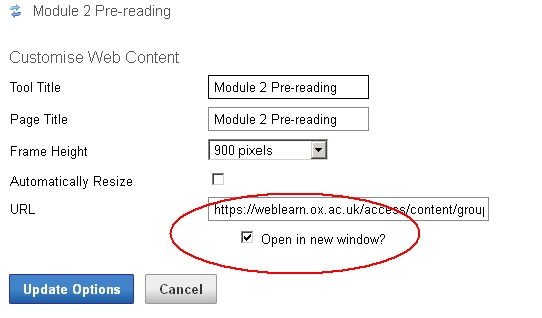
We have recently discovered that there is a problem reading  PDFs on an iPad if the PDF is made accessible via a Web Content link. The PDFs will open but there will not be any scroll bars meaning that most of the document will be off the bottom of the screen.

The way around this is to select the “Open in new window” feature which is found behind the ‘Options’ link of the Web Content tool.

We would strongly recommend that this is always selected when the Web Content link is to a PDF with more than one page.

Posted in e-learning, Sakai, WebLearn | Tagged , | Leave a comment

Google Scholar removes ‘Import into WebLearn’ functionality

We knew it was going to happen, but we didn’t know when! As hinted at in a previous blog post about Google Scholar, Google have finally removed the ‘Import into WebLearn’ link from their scholarly search results page. This facility was accessed via the Add / Edit Reading List facility within the Resources tool.

Unfortunately, there is nothing that can be done about this ……… except, of course, by using the ‘Search the Library Catalogue’ feature of the Reading List tool instead! This facility allows SOLO to be used to search the Bodleian catalogue and for references to books and journals (both electronic and paper-based) to be imported into a WebLearn reading list.

Please refer to our earlier Reading List Improvements post to see how to do this.


Posted in e-learning, Sakai, WebLearn | Tagged , , , , , | Leave a comment

Does your Resources tool display the wrong file types?

Sometimes one sees the wrong icon next to a file in the Resources tool, this may also have the side effect of forcing the download of a file rather than opening it in the browser. This can be quite annoying.

I asked WebLearn developer Matthew Buckett about this and here is what he had to say about PDFs that were incorrectly attributed.

To fix the issue go into the Resources tool and for every file with the problem click on “Edit Details (Properties)” then scroll to the bottom of the page to find the File Type field and click “Change File Type”. Then from the first drop-down list select “application” and from the second select “pdf”. Then click save. The file should then download/open in all browser fine.

Background/Reasons: When a file is uploaded to WebLearn we get some additional bits of information as well as the actual file. One of those pieces of information is the MIME type, which is a value saying what the format of the contents of the file are. When file was uploaded into WebLearn, the user’s computer told WebLearn that the contents of the files were ‘text/unknown’, WebLearn saves this value and then when anyone download/opens the file the value is sent back to the browser to help it understand it. This mechanism allows files to open correctly when they don’t have a known extension.

To address the above problem, the user needs to fix the MIME type for all PDF files on his computer which should stop this problem from occurring in the future. One might be able to do this using the Finder or an application like http://www.rubicode.com/Software/RCDefaultApp/

Some browsers don’t trust the value in the MIME type and will also look at the file extension to determine how to handle it so the problem may not be evident with all browsers. Once the file is downloaded and saved to disk the MIME type information is lost and so the operating system uses the file extension to determine how to open the file.

Another way to workaround the problem is to put the files to upload in a zipfile then upload the zipfile and expand the zipfile in WebLearn. This way there isn’t any MIME type information about the PDF files when the ZIP is expanded so WebLearn should use the .pdf extension to set the MIME type and so get it correct.

Posted in Sakai, WebLearn | Tagged , | Leave a comment

Byte-sized Site Info tool 14 May 2013

The following questions emerged at the lunchtime session on the Site Info tool on 14 May 2013:

Q: How do you delete a site?
A: Good question – this option is not part of the Site Info ‘dashboard’. To delete a site, you need to remove it from the hierarchy and delete it. Both operations can be done at the same time from the Hierarchy Manager (small menu on the lower left side > Arrange site). Go to the desired site; click on ‘Arrange site’ on the lower left menu; click on ‘Remove site’; select the box ‘Also delete the site’; click on ‘Confirm remove site’. If you do not see the Hieararchy Manager (small menu on lower left side), you will need to speak to your Local WebLearn Coordinator to give you the required permissions.

Q: Do site participants receive an email when a site is deleted?
A: No – so it is not necessary to first remove them as site participants before you delete the site.

Q: Do site participants receive an email when creating internal sub-groups?
A: No – so you can create, edit or remove internal sub-groups without any notifications being sent.

Q: External users (without an Oxford single singon account) – how do they get access to a WebLearn site and how do they get their login details?
A: WebLearn allows you as the site owner to add either Oxford University particpants, or anyone else, simply by using their email address. If the new participant is an external user (e.g. a research collaborator at another university, a visiting expert etc.), they will automatically receive a one-time system-generated email message giving them a link to activiate their account and create their password. They then log in to WebLearn by clicking on the ‘Other Users’ login link. You can try this out by adding yourself to a WebLearn site with your external email address (e.g. gmail, yahoo etc.), give yourself the ‘access’ role, and then log on as an external user to see how the site operates from the access point of view. (This gives a more authentic experience than using the ‘Switch to access user’ toggle option.)

Q: When might you want to make someone ‘Inactive’ in your site?
A: You might be testing something new in the site – instead of unpublising it, you could make the participants temporarily ‘Inactive’ which means that it is as if they have been removed from the site. Later you can make them ‘Active’ again. Another scenario is if you have added a bulk ‘Participant Group’ – you cannot remove individuals in the bulk group, but you can make someone Inactive if you know that they have left the group or course.

Posted in WebLearn Bytes | Leave a comment

Your personal WebLearn space

Jill Fresen has sent me this:

Every member of Oxford University has their own personal ‘cloud’ in WebLearn, called ‘My Workspace’. You can enter your contact details, upload your photo into your profile, and make connections with other WebLearn users. You also have a personal file storage area (max 100 Mb) which you can use to back up files, access them from any other computer, or build a personal web page.

Come along to the Learn at Work day session entitled “WebLearn: An online space for learning and collaboration” at IT Services, 13 Banbury Road on 23 May 2013 from 3:00 to 4:00 pm.

More information and bookings at: http://courses.it.ox.ac.uk/detail/TLW12

Posted in WebLearn | Tagged | Leave a comment