Seminar: using digital media to support research and teaching

Stuart Lee is giving a talk for the Digital Media User Grounp on Friday 13th (2pm Isis, OUCS) on his experience in using digital media to support his research and teaching. Details below and book here:

http://www.oucs.ox.ac.uk/itlp/courses/detail/DMUG

Using his personal experience in using digital media to create teaching material and to promote his research and teaching, Stuart Lee will give a personal account of the importance of this work and give a strategic view of how he thinks on-line presence will develop over the next few years. This talk will be of central importance to anyone who wants to use digital media and on-line presence to further their work, and to decision makers who need to understand the developing needs and wider issues that are shaping the debate about this academic activity.

Posted in e-learning, Web | Tagged | Leave a comment

Removal of “All logged in users” access to sites

We are considering removing the ability to grant “All logged in users” access to a site and want to get feedback from the community before going ahead – note that we will still allow “All Oxford users” to be granted access.

The reasoning is that WebLearn has a fairly large number of “external accounts” i.e., accounts for people who are not members of Oxford University. These people are included when access to a site is given to “All logged in users” but of course are not included when “All Oxford users” is used instead. In short, once an external user has an account they are able to visit all sites that allow access by “All logged in users”.

Anecdotal evidence suggests that these two groups are sometimes equated which means that people with little more than a passing connection to Oxford may be able to view material that should really only be internal.

The problem is magnified if “All logged in users” are given permission to upload material.

If you really do want external users to be able to view your material then you can either make your site totally public or add a specific list of users manually. The central team will still be able to manually assign “All logged in users” access to a site if a good reason is supplied

If we make the change we will automatically replace “All logged in users” access with “All Oxford users” (unless the site already has this set).

Please let us know if this will cause you problems (or if you do not understand what is being proposed) by sending a message to weblearn@oucs.ox.ac.uk


Posted in WebLearn | Tagged , | Leave a comment

Displaying RSS (& Twitter) feeds on HTML pages in WebLearn

WebLearn has a built-in tool, News, for displaying RSS feeds; it is even possible to display feeds from Oxford Podcasts – these will feature an in-page media player for audio and audio-visual podcast display.

Sometimes it is desirable to insert one or more newsfeeds within a regular HTML page. This is now easy to achieve in WebLearn.

You should create an HTML page in Resources in the usual way. You must then add special HTML code to render a feed.

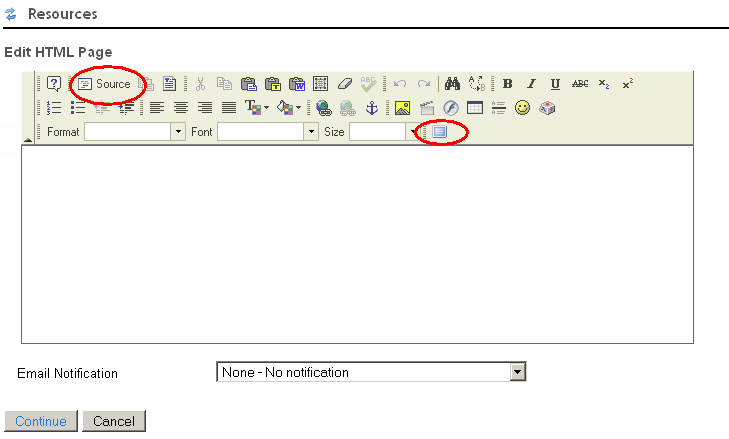
To insert this code, switch to the ‘Source’ view within the editor; you may also find it useful to show a full screen version of the editor.

The following code snippet will display the latest 5 blog posts from the WebLearn blog. To do this you must know the URL of the RSS feed, in the following example it is http://blogs.it.ox.ac.uk/adamweblearn/feed/, other examples are http://feeds.bbci.co.uk/news/rss.xml (BBC news feed) and http://search.twitter.com/search.atom?q=@_markstewart (Mark Stewart’s Twitter feed).

An explanation of the configuration parameters will be given below.

<!-- include jquery library -->
<script
  src="https://ajax.googleapis.com/ajax/libs/jquery/1.7.1/jquery.min.js"
  type="text/javascript">
</script>  

<!-- include zrssfeed functions stored in WebLearn -->
<script
  src="https://weblearn.ox.ac.uk/access/content/public/misc/js/jquery.zrssfeed.min.js"
  type="text/javascript">
</script>       	

<!-- output the rss feed within a 'DIV' with id wl-blog
     (you may use any name) -->
<script type="text/javascript">
$(document).ready(function () {

  $('#wl-blog').rssfeed('http://blogs.it.ox.ac.uk/adamweblearn/feed/', {
    limit: 5,
    titletag: 'h3',
    ssl: true,
    linktarget: _blank,
    media: true,
    snippet: false
  });
});
</script>

<!-- here is the DIV where the feed will appear -->
<div id="wl-blog">&nbsp;</div>

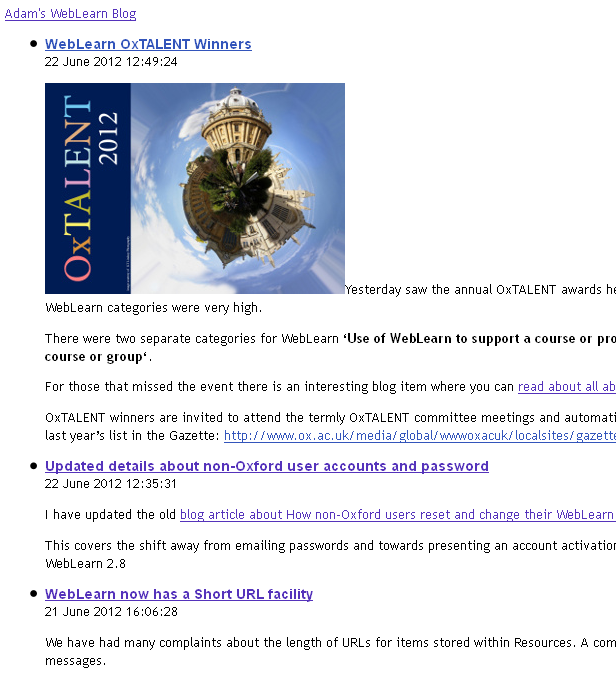
This will render as:

It should be pointed out that the above JavaScript used Google AJAX feeds and as such the newsfeeds are cached by Google. It would appear that there could be a couple of hours delay between updating the feed and the changes becoming visible.

The ‘rssfeed‘ function has a number of parameters. The following table is taken from http://www.zazar.net/developers/jquery/zrssfeed/.

Parameter Default Description
limit 10 The number of feeds to return.
header true If true, includes the header section containing the feed name and link.
titletag ‘h4’ Specifies the HTML tag for the feed title.
date true If true includes the feed date section.
content true If true includes the feed description.
snippet true If true the snippet short description is shown available when available.
media true If true displays media items when available.
showerror true If true and an error is returned from the Google Feeds API, the error message is shown.
errormsg Replaces the default friendly message when an error occurs.
key null Optionally use a Google API key.
ssl false Support for SSL. Set to True when using secure pages.
linktarget ‘_self’ Specifies the target for all feed links (‘_blank’, ‘_self’, ‘_top’, framename).

Note: In order to prevent ‘mixed content warnings’ one should always set the ssl parameter to true.

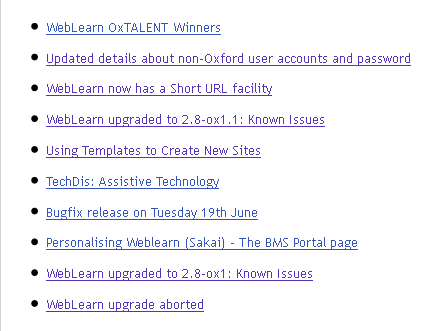
Another example showing the first 10 titles in an <li> list format:

<!-- output the rss feed within a 'DIV' with id wl-blog
     (you may use any name) -->
<script type="text/javascript">

$(document).ready(function () {

  $('#wl-blog').rssfeed('http://blogs.it.ox.ac.uk/adamweblearn/feed/', {
    limit: 10,
    titletag: 'p',
    date: false,
    ssl: true,
    content: false,
    header: false,
    linktarget: '_self',
    media: true,
    snippet: false
  });
});
</script>

This will look like

The world is now your oyster

Posted in Web, WebLearn | Tagged , | 1 Comment

WebLearn OxTALENT Winners

Yesterday saw the annual OxTALENT awards held in OUCS and as usual the standard of entries submitted to the WebLearn categories were very high.

There were two separate categories for WebLearn ‘Use of WebLearn to support a course or programme of study‘ and ‘Use of WebLearn beyond a single course or group‘.

For those that missed the event there is an interesting blog item where you can read about all about the OxTALENT 2012 WebLearn winners.

OxTALENT winners are invited to attend the termly OxTALENT committee meetings and automatically go forward to the Oxford University teaching awards. See last year’s list in the Gazette: http://www.ox.ac.uk/media/global/wwwoxacuk/localsites/gazette/documents/Teaching_Awards_2011.pdf

Posted in e-learning, Sakai, WebLearn | Tagged | Leave a comment

Updated details about non-Oxford user accounts and password

I have updated the old blog article about How non-Oxford users reset and change their WebLearn passwords.

This covers the shift away from emailing passwords and towards presenting an account activation or password reset link. This change occurred with the moved to WebLearn 2.8

Posted in Sakai, WebLearn | Tagged , , | Leave a comment

WebLearn now has a Short URL facility

We have had many complaints about the length of URLs for items stored within Resources. A common problem is that the URLs get split when included in email messages.

The URL of a site (or tool within a site) can also become pretty long for sites which lie deep within the site hierarchy.

Because of this we have added the ability to generate a ‘Short URL’ in a number of places within WebLearn. We plan to add more instances of this facility in the future.

If the URL is to be pasted into an email message then it is still good practice to enclose it in angle brackets, for example <https://weblearn.ox.ac.uk/x/t1k1>

Short URLs for files in Resources

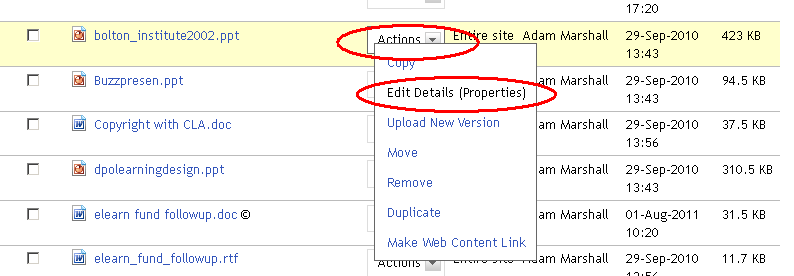
To locate the Short URL for a file or folder within Resources, navigate to the ‘Edit Details’ page.

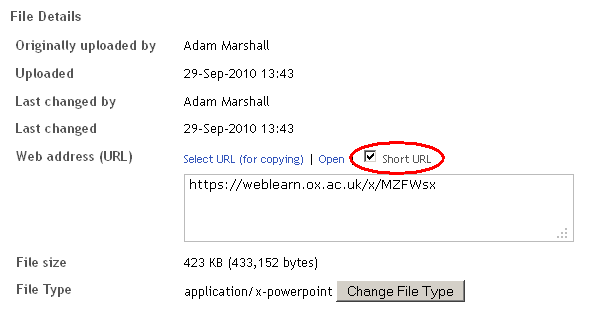
Then select the ‘Short URL’ facility and copy the address.

Short URLs for sites and tools within a site

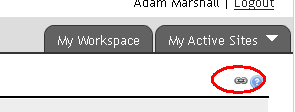
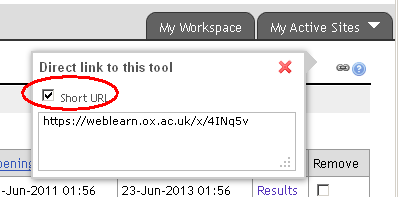
Every page within a site also has a short URL. This is found just underneath the ‘My Active Sites’ drop down list.

As before, place a tick in the Short URL box and copy the address.

Future plans

We hope to add short URLs to the SES (Module Enrolment) tool and the Wiki. Other suggestions are gratefully received.

Posted in e-learning, Sakai, Web, WebLearn | Tagged , | Leave a comment

WebLearn upgraded to 2.8-ox1.1: Known Issues

WebLearn was now been upgraded to version 2.8-ox1.1 on Tuesday 19 June 2012 – this release fixed most of the issues detailed on the 2.8-ox1 Known Issues page which is now redundant. This page completely replaces the above-mentioned page.

If you find new problems then please let us know via weblearn@oucs.ox.ac.uk.

Known Issues

Non site participants can no longer see any Forums

Only site members are able to see Forums and the topic and Threads contained therein.

A work-around is to make sites where this is a problem joinable. You are advised to remove access to all groups apart from site participants as this will mean that anybody who visits the site automatically becomes a site member. Failure to remove access from ‘All logged in users’ (& the like) will mean that people can visit the site but must go into Site Info and click a button to be come site members which is quite awkward.

Before the upgrade to 2.8-ox1 ‘Logged in users’ users used to be able to see forums that were supposed to be hidden from them. I suspect the new situation is a rather ham-fisted attempt to fix that bug.

Attachments cannot be opened from within Email Archive tool if the message has been sent via Email Sender tool

The Email Archive tool saves all messages sent via a particular site’s email distribution list. These messages may contain attachments, however, these attachments cannot be opened from within the Email Archive tool if (and only if) the  Email Sender tool has been used to send the message and the option to “Add to Email Archive, visible to all site participants” has been selected. (Note the Email Sender tool replaces the Mailtool which disappeared with our move to version 2.8 of WebLearn.)

There best work-around is to manually upload the attachment into Resources and include the URL within the body of the email message. You can even use the new ‘Short URL’ facility which is found on the Edit Details page of a particular resource!

Drop Box Notifications

Users no longer get the option to send a notification when uploading a file to a Drop Box. This can be fixed by visiting the Drop Box tool in the site, clicking on the Options link and selecting “ This is not a bug but merely a ‘new feature’.

Posted in Sakai, WebLearn | Tagged , , , , , | 1 Comment

Using Templates to Create New Sites

Post by Fawei Geng & Adam Marshall

The recent upgrade to WebLearn version 2.8 has seen the introduction of a number of site templates. These templates can be used when creating a site from scratch and will impose structure and good practice before any content is added. In other words, much of the planning and layout has been done so that one does not need to start from a blank site.

From the point of view of learners it is important that there is commonality in structure across WebLearn sites and basing sites upon common templates is one way to achieve this.

Three templates currently exist: Template for tutors, Template for lecturers, and Template for content. These templates will appear as options when one creates a new site from scratch.

To invoke a template, one needs to click on the ‘New Site’ link as normal, enter the site URL and Site Title and then select ‘Create site from template’  on the ‘Site Type’ page.
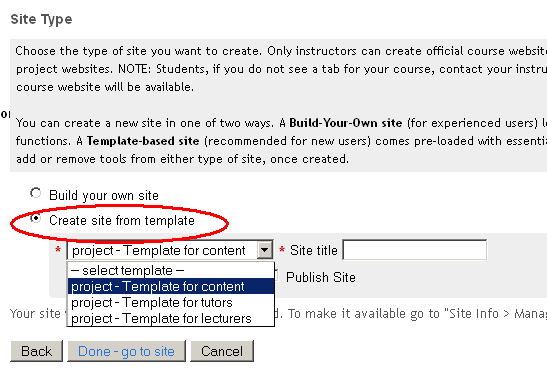
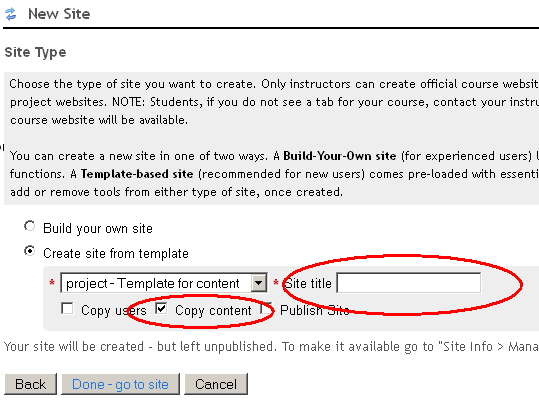
Once a template has been selected, be sure to select ‘Copy content’. Unfortunately it is also necessary to re-enter the ‘ Site title’ again.
Each template contains a page of ‘instructions on how to build this site’. Tools appropriate for the purpose of the site have been added to each template and populated with sample material which can be modified.

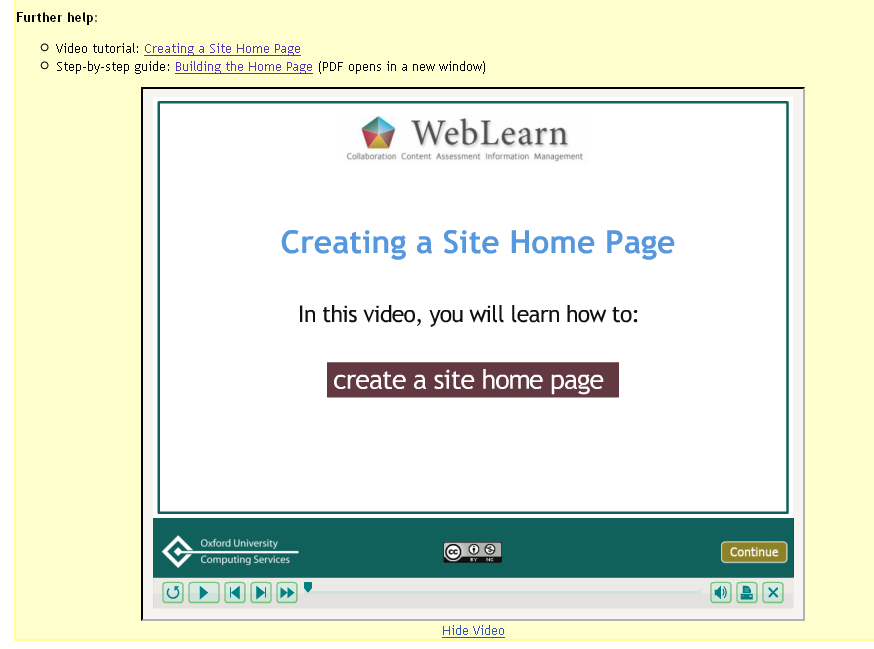
Pop-up help pages provide links to further information in the form of relevant step-by-step guides and video demonstrations of how to edit or customise the suggested course elements.
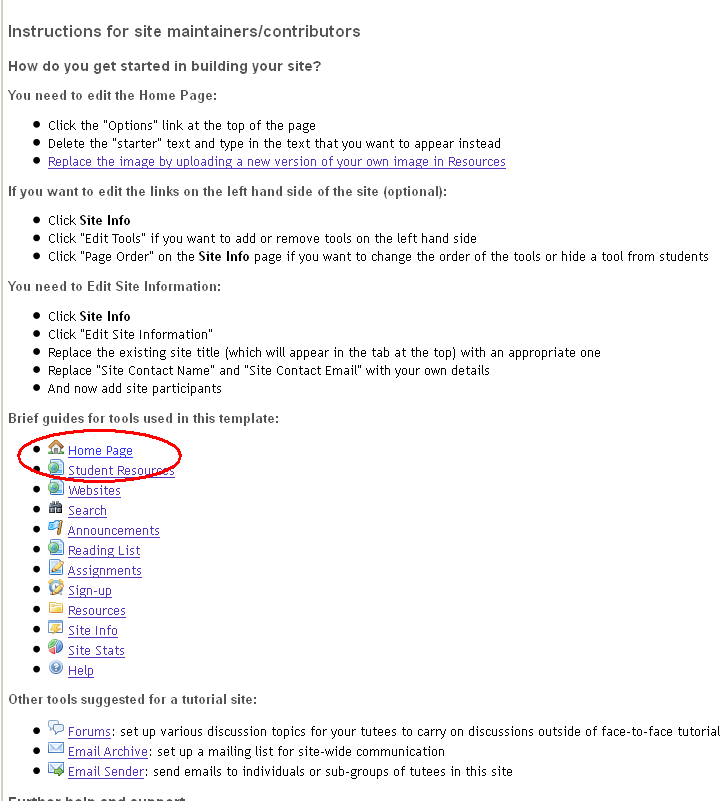
Clicking on a particular tool will bring up some guidance.
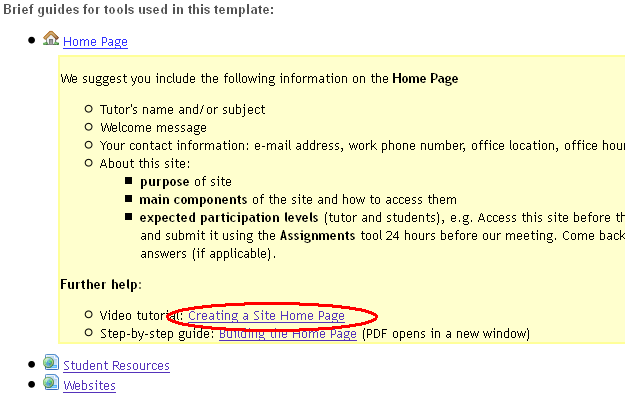
A video tutorial may be available

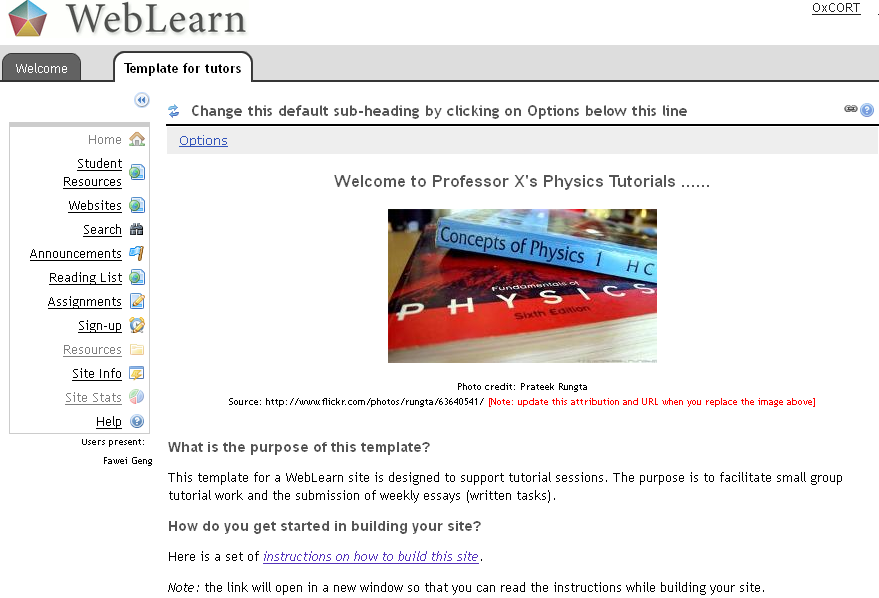
Template for tutors

This template should be used to support tutorial sessions.

This includes facilitating small group tutorial work and the submission of essays (written tasks) possibly using the Turnitin plagiarism checking service.   Tools added via the template are Announcements (for communication),  Assignments (for written work submission), Sign-up tool (for tutorial bookings) as well as a number of other tools.

In addition, a set of suggested folders and content (e.g. reading lists and web pages) are also added in Resources which a maintainer can use or modify accordingly.
 

Template for lecturers

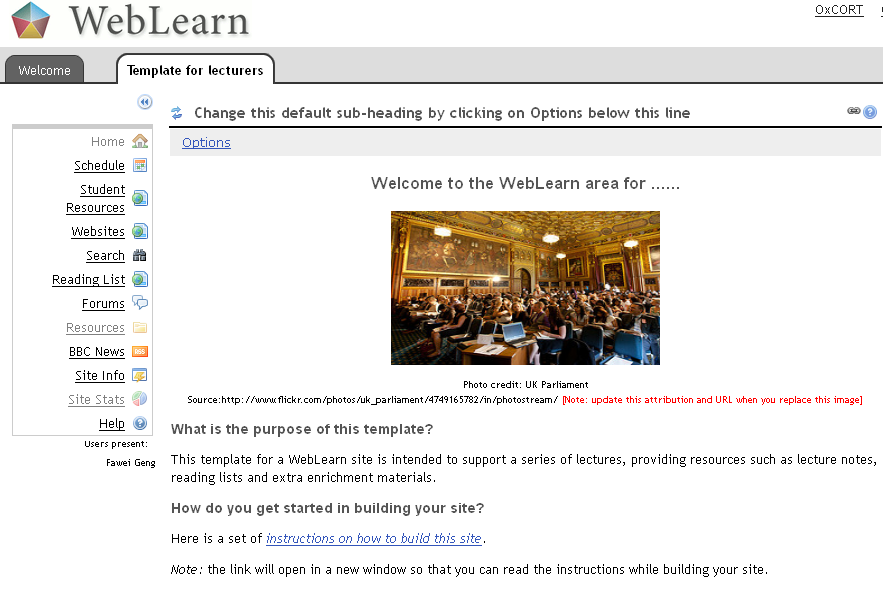
This template should be used to support a series of lectures, providing resources such as lecture notes, reading lists and extra enrichment materials.

A number of lecture related tools are pre-loaded in the template. 

Schedule displays Oxford’s term dates.  It also can be used to announce lecture time and venues.

Student Resources allows students to see a snapshot of the files and folders in Resources as well as being able to browse through the resources.

Reading List is available via Resources tool where a site maintainer can build reading lists by searching Oxford University Library catalogue (SOLO), importing existing lists created in EndNote or RefWorks or by manually creating new lists.

A lecturer may use Forums to engage students by posting pre-lecture questions or answering student’s queries.
 

Template for content

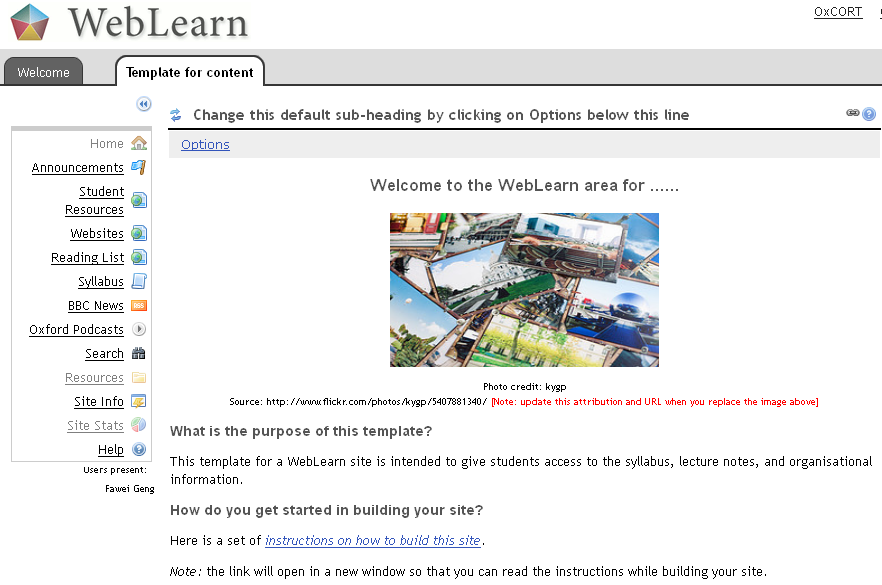
This template should be used to give students access to the syllabus, lecture notes, and other organisational information.  Depending on the circumstance, the  site created using this template can be for a single module or a whole programme.

As it is content-based, the tools in the template are:  Student Resources, Websites, Reading List, News and Oxford Podcasts.

The use of Student Resources and Reading List will not be discussed here as they were mentioned above.

Syllabus enables you to create an outline of your module or programme: e.g. aim, background, learning outcomes assessment methods and duration.  If you have already have a syllabus somewhere else on-line, you can also link to it by using the ‘Redirect’ function. 

News tool allows you to embed dynamic content in your WebLearn site by using the RSS feeds provided by relevant internet sources such as on-line research journal sites.  When  new content is added to a feed, the updated content will be automatically shown in the site.

Oxford Podcasts uses RSS to bring any podcast feeds available from the Oxford podcasts portal (http://podcasts.ox.ac.uk/) into your WebLearn site.
More information

The WebLearn guidance site has useful information about templates.

Tell us what you think

We intend to evaluate the use and usefulness of these templates and would like you to share your experience of using them. Please send your comments and suggestions to weblearn@oucs.ox.ac.uk.

Posted in e-learning, Sakai, Web, WebLearn | Tagged , , , , , , , , , | 1 Comment

TechDis: Assistive Technology

JISC TechDis have long argued that the key to enhancing access to the curriculum is the effective use of technology. By their very nature, resources in digital format can be accessed more independently and personalised more easily.

Terry McAndrew and Simon Ball (TechDis) presented a seminar at Kellogg College on 15 June 2012 and spoke what has happened in the field of ‘assistive technology’ in HE and FE in the past five years, and where it might be expected to go in the next five.

The TechDis site has a link to a useful guide on JIST TechDis resources: (http://www.jisctechdis.ac.uk/techdis/resources/detail/resources/resources_handy_summary), which include:

  • Accessibility Essentials – everyday hints for everybody, e.g. how to make accessible PDFs.
  • Online Accessibility Self-Evaluation Service (OASES) – a video and a short survey (20 questions) on how your unit rates nationally in terms of accessibility and inclusivity.
  • 12 Steps to inclusive use of technology – for senior managers, IT staff, learning technologists and accessibility specialists
  • Accessible Publishing – including e-book standards and platforms, and a Publisher Lookup database of publishers who provide materials in alternative formats.
  • TechDis Jack and TechDis Jess – synthetic English voices that read materials aloud (for anyone – on the bus, on the train) – way better than default synthetic voices. These voices can easily be installed on one’s desktop or laptop.
  • Tool Box – digital literacy resource tips and tricks for students to share with each other (e.g. how to find images on Google images).
  • InFolio – a simple portfolio tool to collect and present evidence of learning on the web.
  • SimDis – a simulator to see how materials appear to people suffering from a disability (such as dyslexia, hearing and visual impairment).

Author: Jill Fresen

Posted in e-learning, Web | Tagged , | Leave a comment

Bugfix release on Tuesday 19th June

There will be a short period of downtime on Tuesday 19th June between 7am and 9am so that we can perform a bugfix upgrade to WebLearn.

This will tackle all the issues listed here: https://blogs.it.ox.ac.uk/adamweblearn/2012/05/weblearn-upgraded-to-2-8-ox1-known-issues/ (except the drop box notifications issue which is more of a feature).


Posted in Sakai, WebLearn | Tagged | Leave a comment