WebLearn SLD updated

The following has been added to the WebLearn SLD.

4.3 If a unit would like to use their own custom ‘skin’ then there will be a set-up charge and yearly charge to cover maintenance. (The reason for this is that the skin will need to be validated, deployed and will require updating every time a new major version of WebLearn is released; it may also need updating when moving between minor versions.)

(The design and implementation of a custom skin is a complex process and it recommended that it be outsourced – the WebLearn team do not have the necessary skills; other sections within OUCS may be able to help here.)

Posted in WebLearn | Tagged | Leave a comment

How do non-Oxford users obtain and change their WebLearn password?

Account Activation

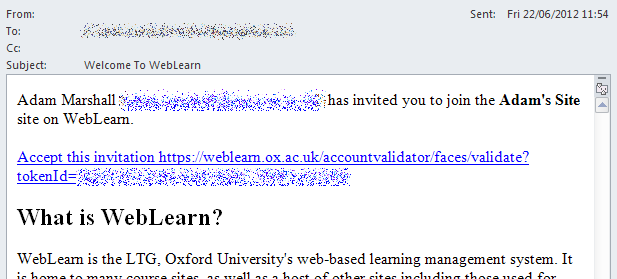
When you are added to a WebLearn site with a non-Oxford email address, you will receive an email containing an ‘Invitation’ link which looks very much like this.

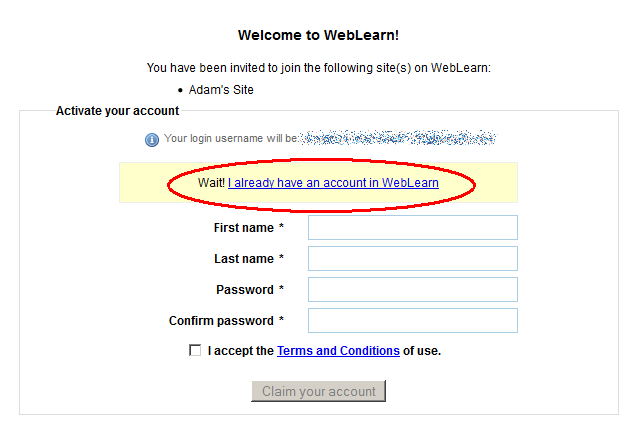
Clicking on the ‘Accept this invitation’ link will open the ‘Welcome to WebLearn’ page.

regsiter1

If you do not have a WebLearn account then you should fill in all the form fields – it is important to set your first and last names, some tools do not work correctly if these are unset. You should also fill in both password boxes and then read the University’s Terms and Conditions.

If you are agree to these conditions and you are informed that the passwords match then you should click the ‘Claim your account’ button.


If you have an Oxford single-sign on account then you should complete neither of the forms and instead you should contact the person who added you to the site and tell them to add you using your Oxford account instead. You will find their email address at the top of the original ‘invitation email’.

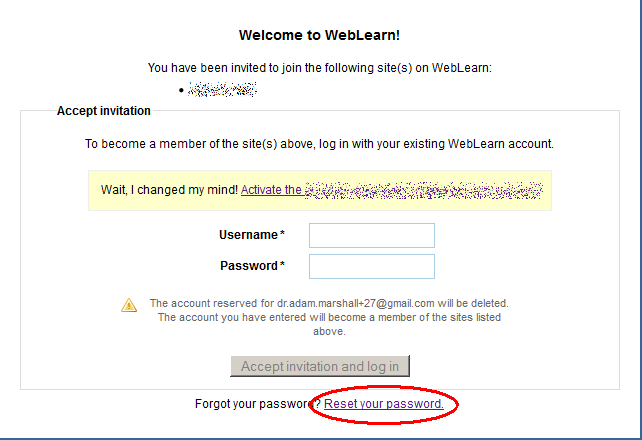
If you already have a WebLearn account and are not a member of Oxford University then  you should follow the highlighted link  and login. If you have forgotten your password then use the link at the bottom of the resulting page.

register2

Activation Email lost or not sent?

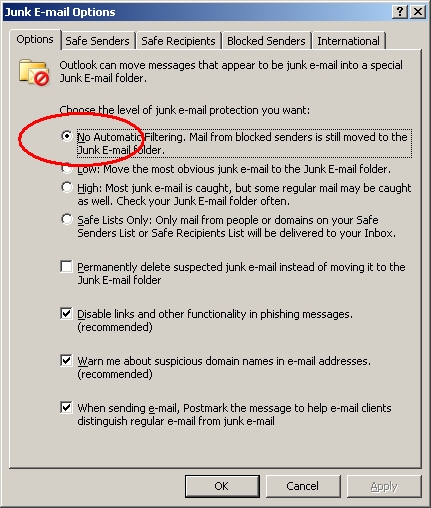
If the activation message is not to be found in your in-box then try looking in the Junk Email folder. If you use Microsoft Outlook with its over-zealous Automatic Filtering enabled (the default setting) then the message may be ear-marked as a phishing email!

It is possible to disable Automatic Filtering by clicking Actions > Junk Email > Junk Email Settings and selecting No Automatic Filtering.

If you still cannot find the email the use the ‘Forgotten Password’ instructions given below.

Forgotten or lost password?

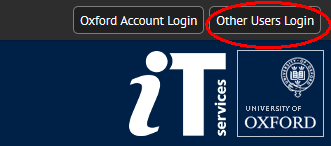
If you have forgotten or lost your password then click on the ‘Other Users’ link at the top of the page.

forgotten1

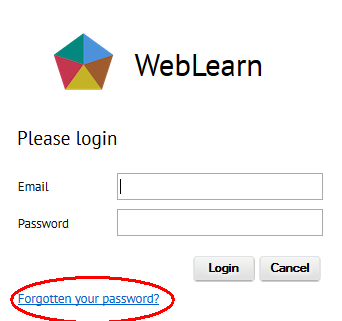
Then click on the “Forgotten your password” link

forgotten2

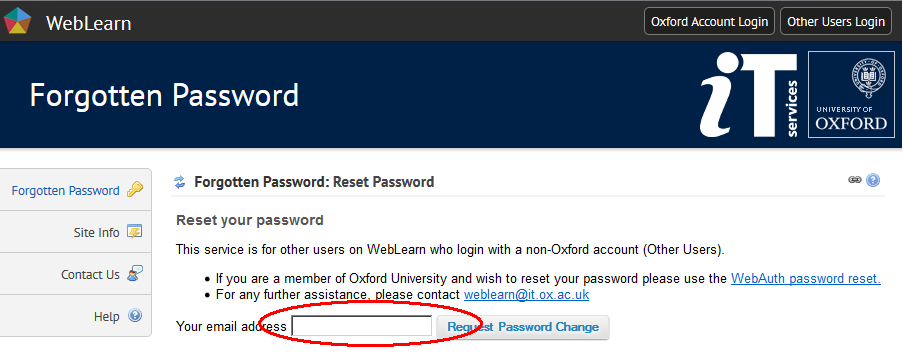
You should be presented with a page entitled ‘Forgotten Password’.

forgotten3

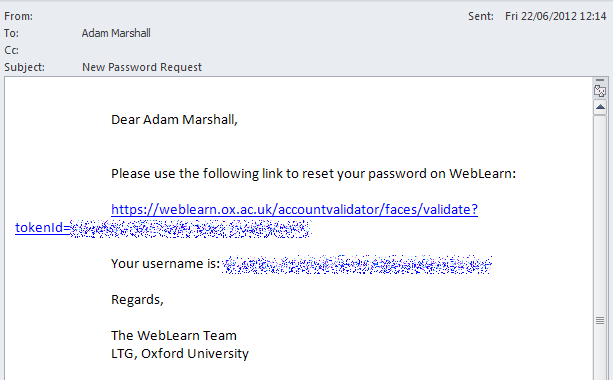
Fill in your email address and click the ‘Request Password Change’ button, an email with the subject ‘New Password Request’ will be delivered to your in-box.

Click on the link as before and enter your new password on the resulting form.

Change Password?

External users (or ‘Other users’) should first login.

forgotten1

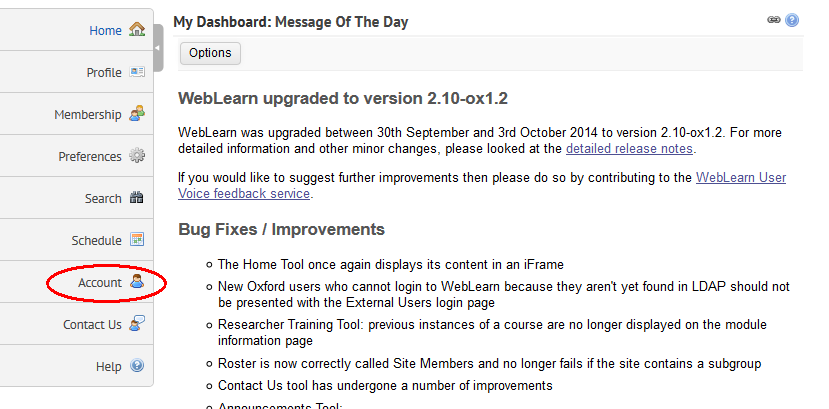
Then navigate to My Workspace. An Account tool will be visible.

change1

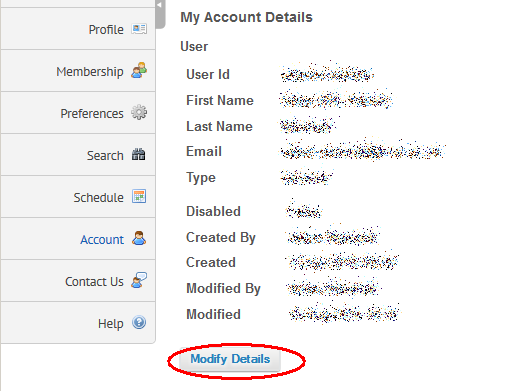
Clicking on ‘Account’ will give.

change2

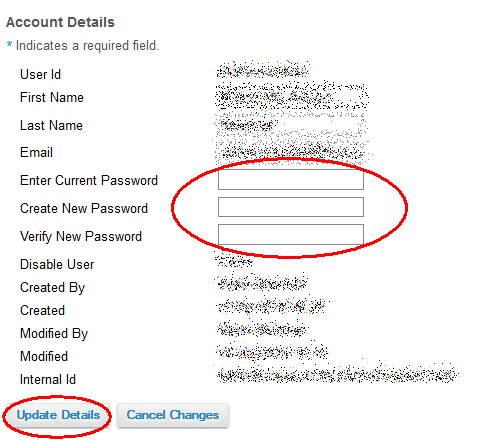
Clicking on ‘Modify Details’ will then allow the password to be changed.

change3

Don’t forget to click ‘Update Details’.

Posted in Sakai, WebLearn | Tagged , , | 1 Comment

750 Surveys have been held

As of today (1 June 2011) there have been 750 surveys delivered through WebLearn.

The Survey tool went into its pilot phase during Michaelmas term 2009 but usage really took off when it went into production albeit as a ‘Beta’ release at the start of the 2010 Long Vacation (just under a year ago).

The Survey tool will keep its Beta status for a while as there are still a number of bugs (although virtually all of the high-impact problems have now been fixed).

The best way to get started is to read the Survey Tool Step-by-step Guide .

Photo credit: http://www.flickr.com/photos/infofarmer/5692792371/

Posted in Sakai, WebLearn | Tagged | Leave a comment

Launch of new OxFile service

A note from OUCS Systems Development and Support

We are pleased to announce that OxFile, the large file exchange service, is now available for general use:

OxFile is a web service that supports the exchange of large files with people inside and outside of Oxford University, and is fast and simple to use.

We are grateful to everyone who helped test this service, and hope that it will prove useful for people needing to exchange files that are too large to send by email, WebLearn, or SharePoint.

ITSS who wish to read more about the service should visit <https://www.oucs.ox.ac.uk/services/oxfile.xml>.

At this stage it is hard to predict with much confidence how heavily this service will be used. Accordingly we have given it a substantial initial transfer capacity, but will monitor this closely over the coming days and weeks in case high usage exhausts the storage pool. In this event we will advise ITSS via this list, and make adjustments necessary for continued service.

Posted in Web | Tagged | Leave a comment

Oxford’s configuration of the Evaluations System

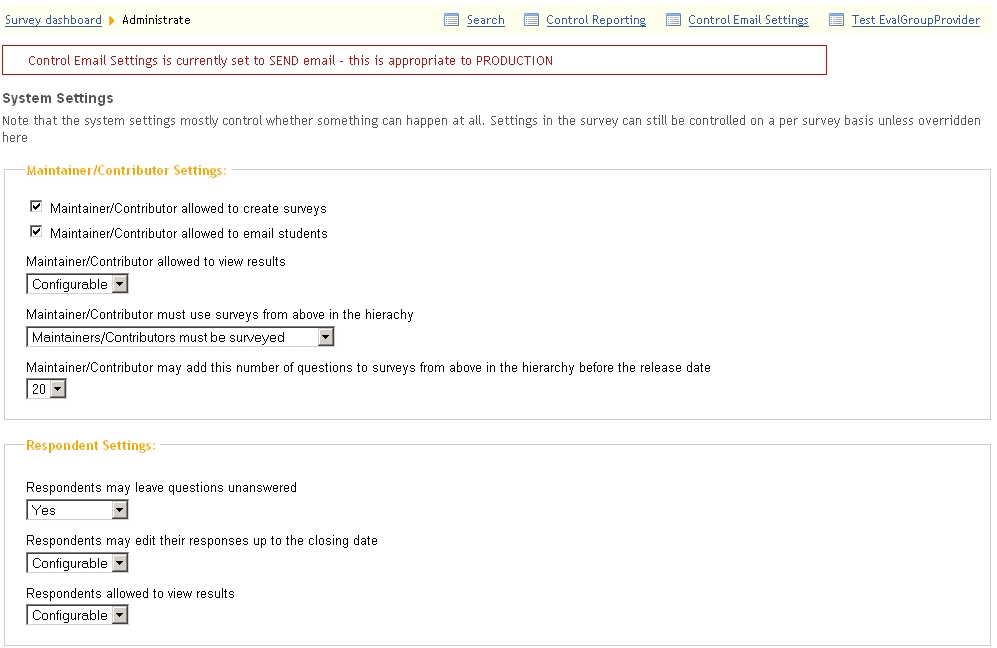
There are a large number of configuration options available via the Evaluations System (Survey tool) Administrate screen. These are only available to members of the Administration Workspace but I thought it may be interesting to detail which options we have set here in Oxford. One small change in configuration can make a big difference to the behaviour of the tool which of course affects any test plan that may have been written.

Our version does have some local enhancements that have not yet been proposed to the community and it does have some bugfixes not yet in 1.3 (but they will be soon).

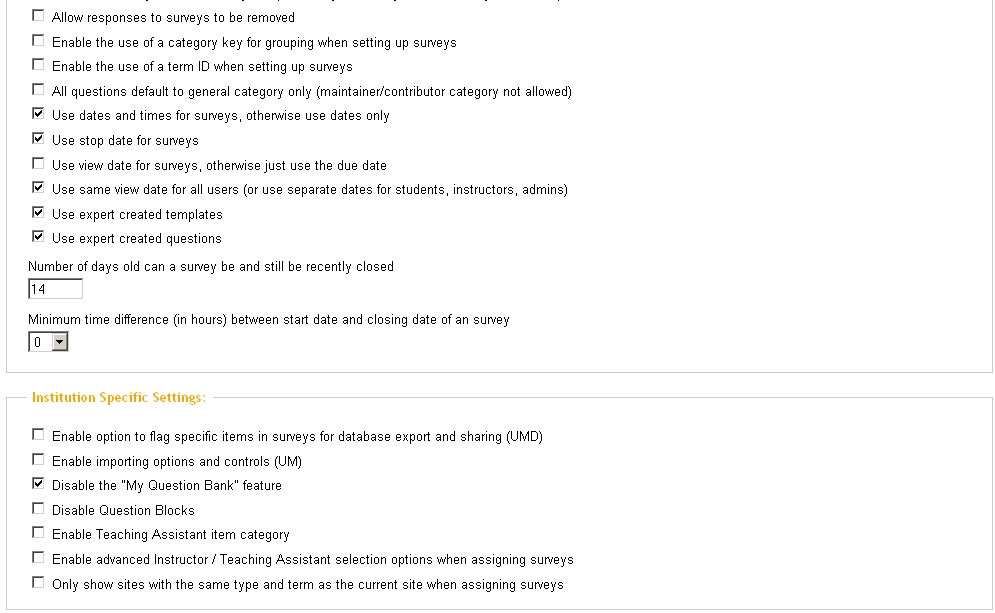
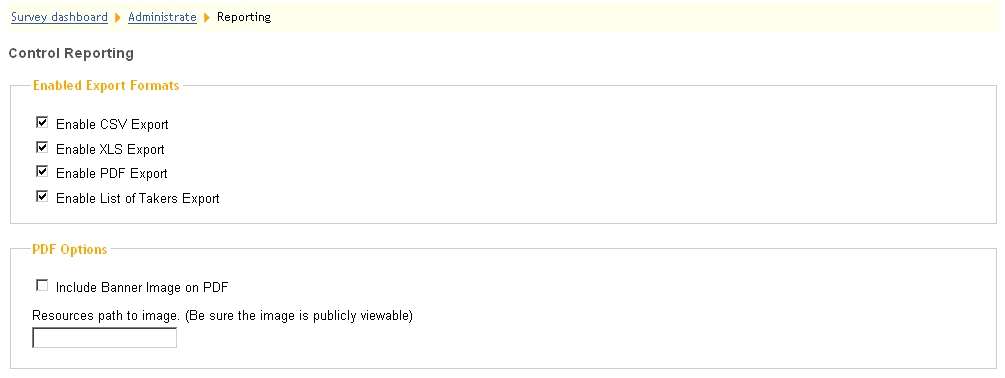
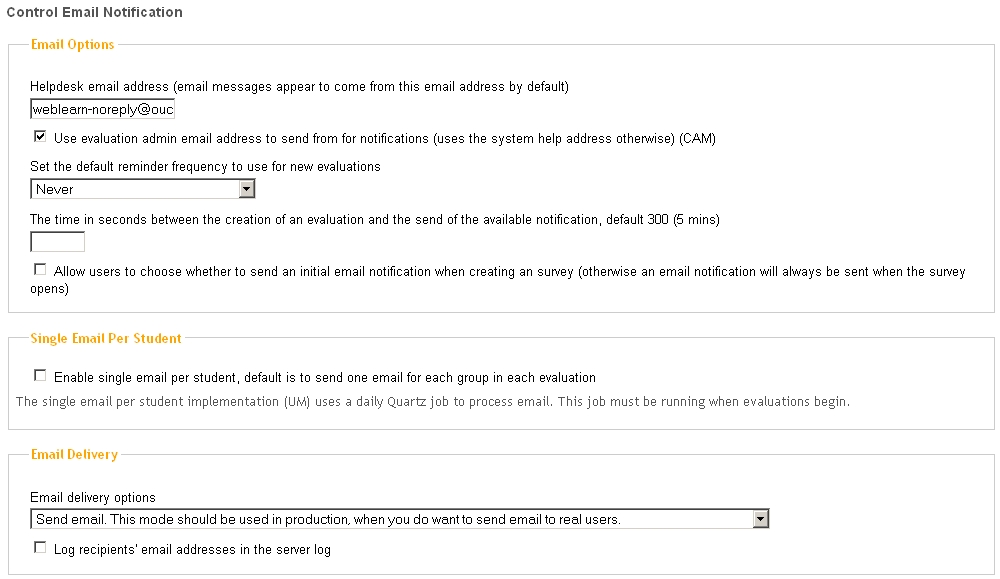
We have turned off some confusing / buggy features. Here is a screen shot of our config.

This page will be updated as our configuration changes

Administrate Screen

Notes:

  • Disabling My Question Banks also disables My Scales links, we think this is a bug
  • “Allow survey responses to be removed” does not do anything


Administrate Reporting Options

Control Email Notifications Screen

Notes:

  • Selecting “Allow users to choose whether to send an initial notification ….” causes the system to crash

Posted in Sakai, WebLearn | Tagged | Leave a comment

An odd calendar problem

A student from Medical Sciences contacted us with a weird problem – I thought it may be useful to write about this in case others are interested. I paraphrase slightly.

The problem

“If I view the calendar on the Clinical Neurology site I see lecture events for Ophthalmology and Neurology (plus others) but looking at My Workspace ‘schedule’ page I only see the Neurology lectures.”

My response to the student

Your problem seems complicated, I’m not sure that there is a bug, if there is one we’re not sure where it lies!

Should you be seeing the Ophthalmology events in the Neurology site and in your My Workspace OR should you not be seeing the Ophthalmology events in either? Or is what is happening actually correct?

Regarding the Ophthalmology site, you are not a member of this site but you can navigate to it (technically speaking it has the .auth permission), in other words you are not a site participant but you are allowed to visit it and so are able to see the events in its calendar.

In the Neurology  site, the owner has decided that its calendar should display both the Neurology events and the Ophthalmology events (plus others as it happens). (It is possible to say “I want events from the following calendars to be overlaid on this site’s calendar”, this is done using the Merge facility – this is how Neurology has been configured.)

So when you look at Neurology you see events for both Neurology and Ophthalmology.

My Workspace calendar is supposed to collate all events from all sites where you are a participant so it should be showing Neurology events but not Ophthalmology events. This is what seems to be happening.

But, the owner of the Neurology site has decided that you are probably interested in Ophthalmology events so should this be enough for the My Workspace calendar to decide to display the events?

To be sure this is confusing to you, the user!

The solution?

To cut to the chase, I think the solution is to add all Medical Science students as participants to all the sites whose calendars are merged into Clinical Neurology.

Posted in Sakai, WebLearn | Tagged | Leave a comment

WebLearn for Teaching course: 19 May, 2-5pm

Course Title

WebLearn: for Teaching (booking is required)

Teachers

Jill Fresen and Robin Hill

Aim of the course

To explore WebLearn tools that are designed specifically to support teaching and learning in the electronic environment, as a supplement to face-to-face teaching and tutoring.

Course Description

This course focuses on WebLearn tools for tutors and lecturers to use in communicating with students, booking tutorial sessions, creating reading lists, organising and creating learning materials, designing tests, conducting course evaluation surveys, and tracking site usage. The WebLearn Fundamentals course (or experience in using new WebLearn) is a prerequisite.

Key topics

By the end of this course you will be able to use the following tools, at least to a basic level, and be able to explore more about their advanced features:

  • Mail tools (Email Archive, Mailtool)
  • ‘Lessons’ tools (e.g. Syllabus, HTML pages, eXe)
  • Reading lists tool
  • Oxford podcasts tool
  • Timed release of materials
  • Tutorial signup tool
  • Site Stats (tracking and reporting)
  • Tests tool (brief overview)
  • Surveys tool (brief overview)

Booking

Posted in e-learning, Sakai, WebLearn | Tagged | Leave a comment

OUCS lunchtime courses – this year’s make: schedule is now available

Make: is a forum for sharing ideas about the creative use of technology in learning, teaching and research. We invite along speakers from different disciplines to inspire you with ideas for developments in your own areas of expertise.

You will see from the list below, that this year’s topics are even more wide ranging than before. And don’t feel that only those sessions in your field will be of interest to you – every session will have something that could inspire you!

The sessions run at lunchtimes, and the usual format is a 30-40 minute talk followed by questions and discussion. You can book for the talks by following the links below.

  • Make: Copyright

Thursday 16 June 12:30-13:30

http://www.oucs.ox.ac.uk/itlp/courses/detail/TMAKZ

Posted in e-learning, Web | Tagged | Leave a comment

Reading List Improvements

Overview

This post outlines the improvements made to Reading Lists within WebLearn. This was made possible by virtue of the successful completion of the JISC funded Sir Louie Project. (Thanks to Angela Carritt for help with this post.)

It is now possible to invoke SOLO,  the Bodleian Library’s search interface, from within WebLearn and, at the click of a button, import any citations  into a WebLearn Reading List.

When viewed by a student, the Reading List will contain up-to-date availability information and links to full text versions of Journal Articles.

How to create a Reading List

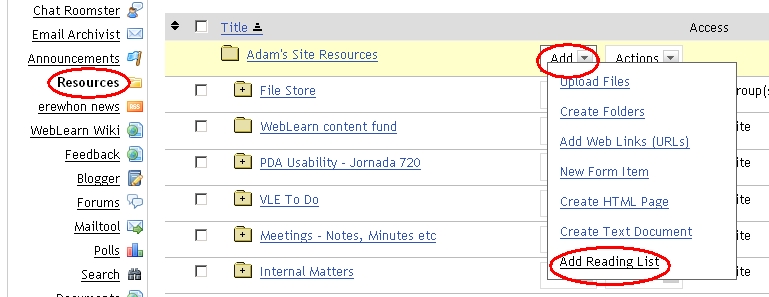
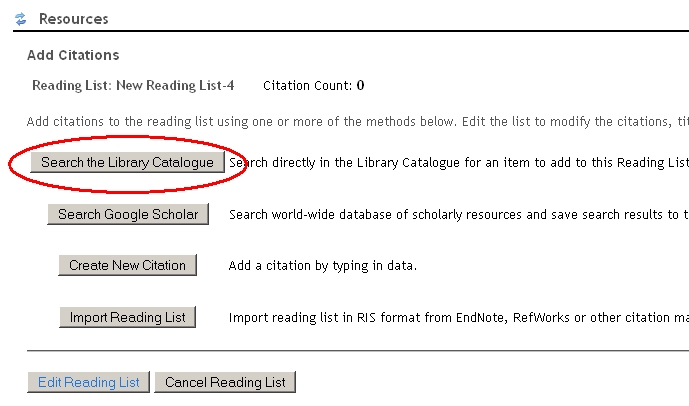
First of all you need to create a new Reading List from within the Resources tool. Navigate to a suitable folder and then select “Add > Add Reading List”.

You may search the library catalogue or Google Scholar or import an existing Reading List in RIS format (End Note and Refworks). In this example we are going to use SOLO to find books and Journal articles.

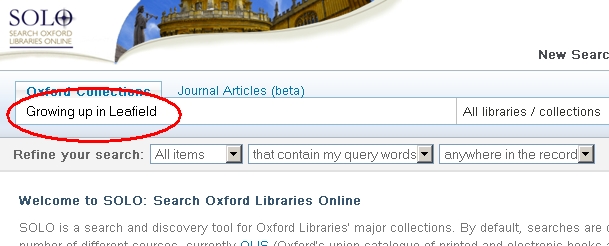
One the SOLO search page you can search for a book by typing a search term in the “Oxford Collections” text box. Remember to click the Search button.

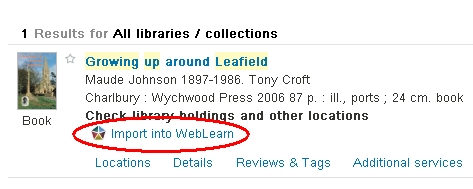
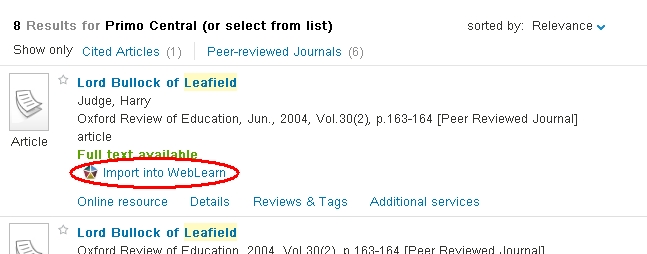
Matching items will be returned and each will contain an “Import into WebLearn” link. Click on this to push the item into you Reading List.

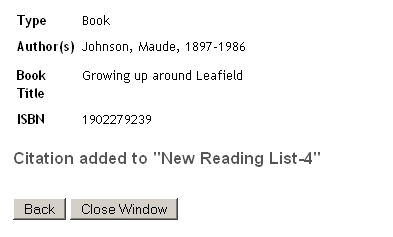
You will see a confirmation screen.

You may also search the Journal Catalogue.

“Oxford Collections” finds (full) journals by title (e.g. The Spectator, Nature, English Historical Review) but does not find individual articles within journal (e.g. Prof blogs article on x  in the Specator).

“Journal articles beta” finds journal articles by author / title and therefore is good for finding Prof blogs article but is less good for finding whole journals. In terms of readings lists:

“Oxford collections” should be selected for books and full journals (if for an example a lecturer recommends browsing the most recent issues of a particular journal which occasionally happens)

“Journal articles beta” should be selected for journal articles.

To find an individual article, select the Journal Articles tab.

To add the article to your reading list, click the “Import into WebLearn” link.

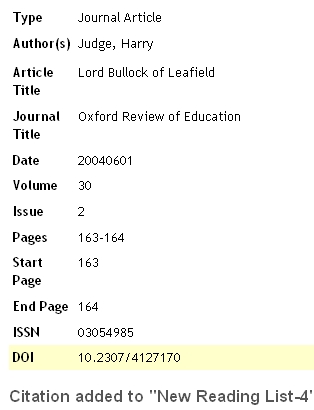
Again there will be a confirmation screen.

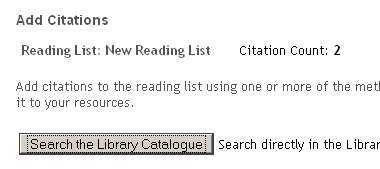
Back in your WebLearn browser window, you will see that the Citation Count now shows two entries.

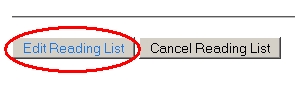
You need to click on the “Edit Reading List” button to view the Reading List (and then save).

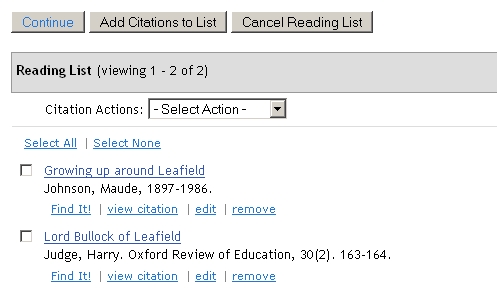
The “Tutor View” of the Reading List will now look like this.

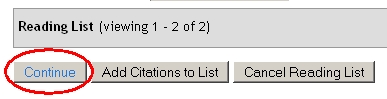
Click “Continue” to move to the “Save” page.

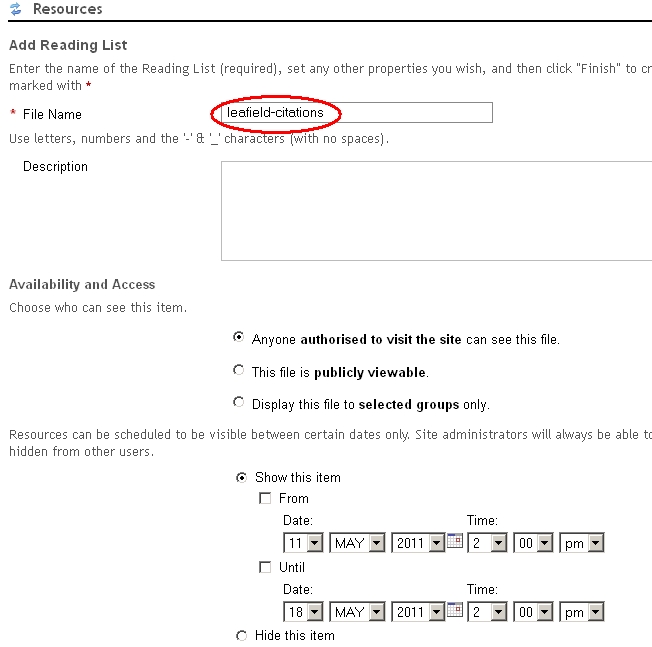
Give the file a sensible name. This page also allow access to be configured.

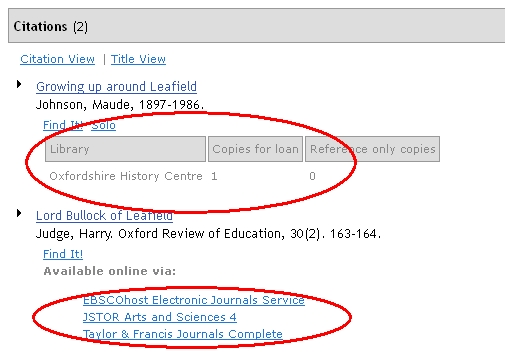
The Reading List has a URL and which can be circulated or maybe a Web Content link could be made.This is what the list will look like to the student.

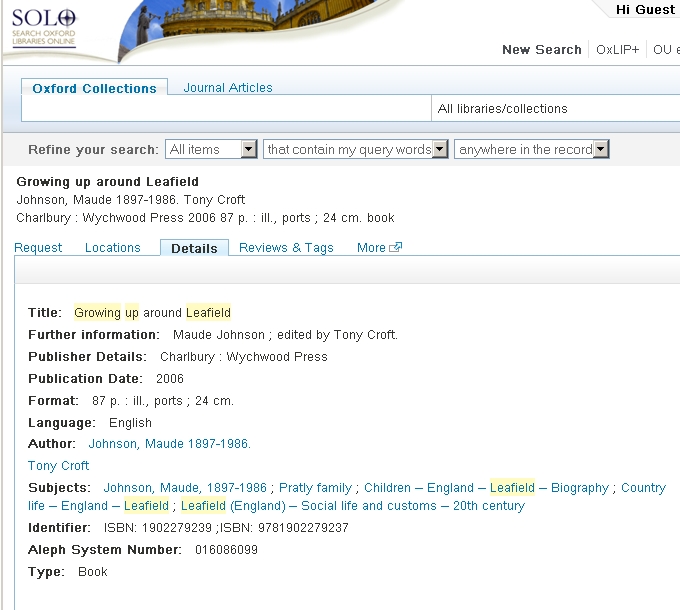
Availability information for books are shown on a per-library basis, there is a link to the SOLO record and a link to Oxford’s “Find It” service. Here is the SOLO record which is the detailed view of the record we found before:

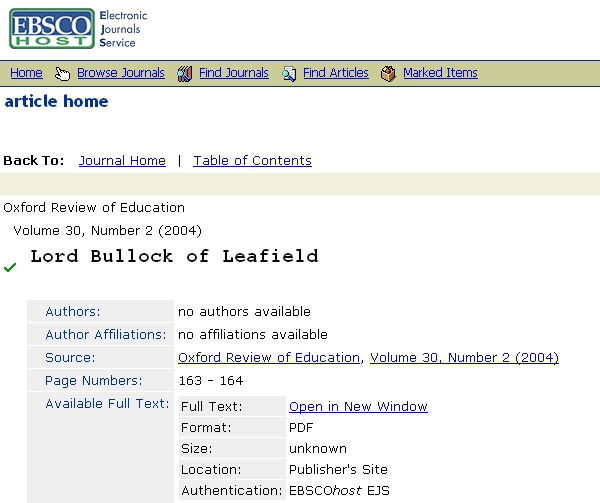
For journals they will be links to the full text. These links are dynamic so if the full text URL ever changes, the Reading List will NOT need updating.

Links

Please contact your subject librarian for help using SOLO. You may also find the following useful:

Posted in e-learning, Sakai, WebLearn | Tagged , | 1 Comment

WLUG MT2010 Presentations now available

We are pleased to announce that the recorded presentations from the WLUG meeting of Michaelmas Term 2010 are now available as an RSS feed in the WebLearn User Group site in WebLearn. You can either click on the link entitled WLUG Presentations on the lower left hand menu (this presents you with an in-browser media player), or use the link on the home page to subscribe to the RSS feed using a podcast reader, e.g. iTunes, Google.

The presentations from MT 2010 include the following:

  1. Andy Cotgreave: “Site Stats – customising reports to monitor your site activity” (10 mins)
  2. Wulf Forrester-Barker: “Instant Extranet – just add WebLearn” (20 mins)
  3. Adam Marshall – latest upgrades (16 mins)

We are working on post-production of the Hilary Term presentations (many thanks to Steve Eyre for his time and effort), which will be added to the same RSS feed as soon as possible. We hope that our streamlined process will enable us in future to upload the presentations much sooner after each event.

RSS feed URL: https://weblearn.ox.ac.uk/podcasts/site/early-adopters

Jill Fresen

Posted in e-learning, WebLearn | Tagged , | Leave a comment